> ## Documentation Index
> Fetch the complete documentation index at: https://domoinc-bradley-turek-pfilter-operators-reference.mintlify.site/llms.txt
> Use this file to discover all available pages before exploring further.
# AI Library
export const BetaNote = ({generic = false}) =>
Note:{" "}
{generic ? "" : "This feature is in beta. "}
Beta Program participants can enable features{" "}
here. To join the
Beta Program, fill out{" "}
this form. For beta
questions or feedback, email{" "}
beta.admin@domo.com.
;
## Intro
This article explains how to use the AI Library to create Toolkits, build custom Agents with AI Agent Builder, and configure Agents for use across the Domo platform.
***
## Required Grants
To access the AI Library, the following grants must be enabled for your role:
* **Use AI Services —** Access to features and Apps built using the AI Services Layer.
* **Use AI Chat —** Access to the Domo AI Assistant.
* **Manage Conversational Agents —** View, edit, and delete any Conversational Agent feature in this instance.
* **Manage Toolkits —** View, edit, and delete any Toolkit feature in this instance.
Learn more about [grants](/s/article/360043438973).
## Access the AI Library
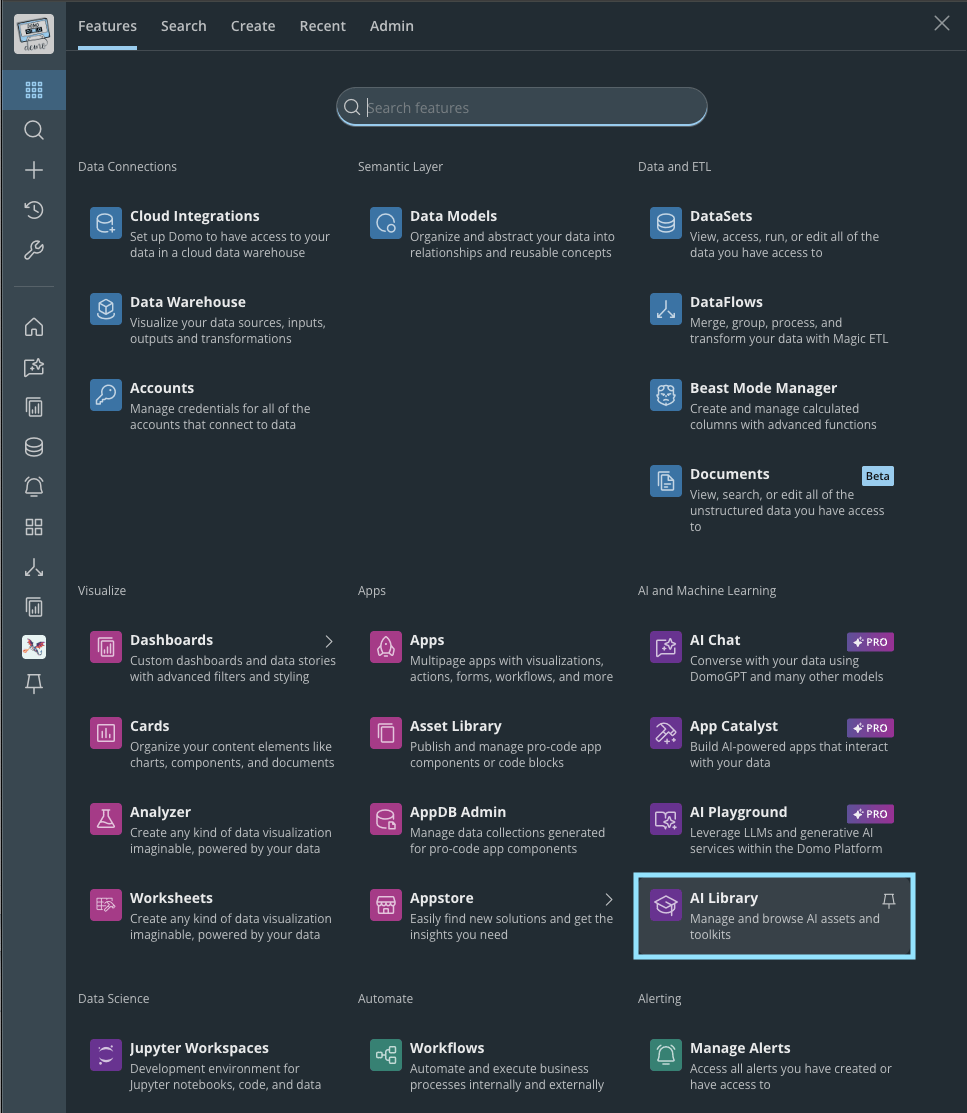
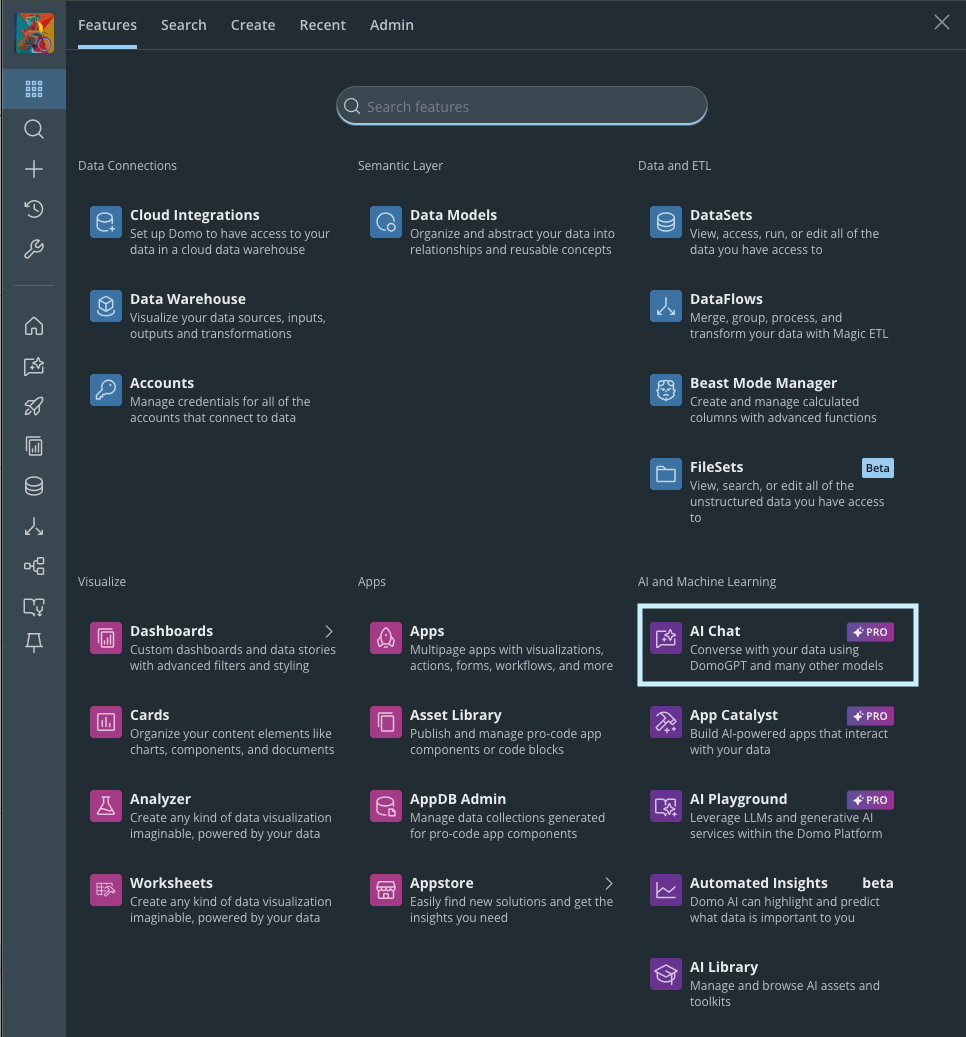
The AI Library can be found under the **AI and Machine Learning** navigation section.
 To power agents, teams can create AI Toolkits—packaged sets of capabilities that define what an agent can do. Toolkits allow users to combine tools, data, and workflows with the instructions and business context that guide how an agent operates. These reusable packages can include operational logic and domain-specific knowledge, enabling agents to take on roles such as a financial analyst or operations manager.
Toolkits may be created by customers, provided by Domo for common use cases, or connected to external services. Assigning Toolkits to agents allows organizations to control the actions and systems those agents can access. Toolkits can also be exposed externally through MCP, allowing AI assistants such as Gemini or Claude to access those capabilities through the Domo MCP Server.
To power agents, teams can create AI Toolkits—packaged sets of capabilities that define what an agent can do. Toolkits allow users to combine tools, data, and workflows with the instructions and business context that guide how an agent operates. These reusable packages can include operational logic and domain-specific knowledge, enabling agents to take on roles such as a financial analyst or operations manager.
Toolkits may be created by customers, provided by Domo for common use cases, or connected to external services. Assigning Toolkits to agents allows organizations to control the actions and systems those agents can access. Toolkits can also be exposed externally through MCP, allowing AI assistants such as Gemini or Claude to access those capabilities through the Domo MCP Server.
 ## Create a Toolkit
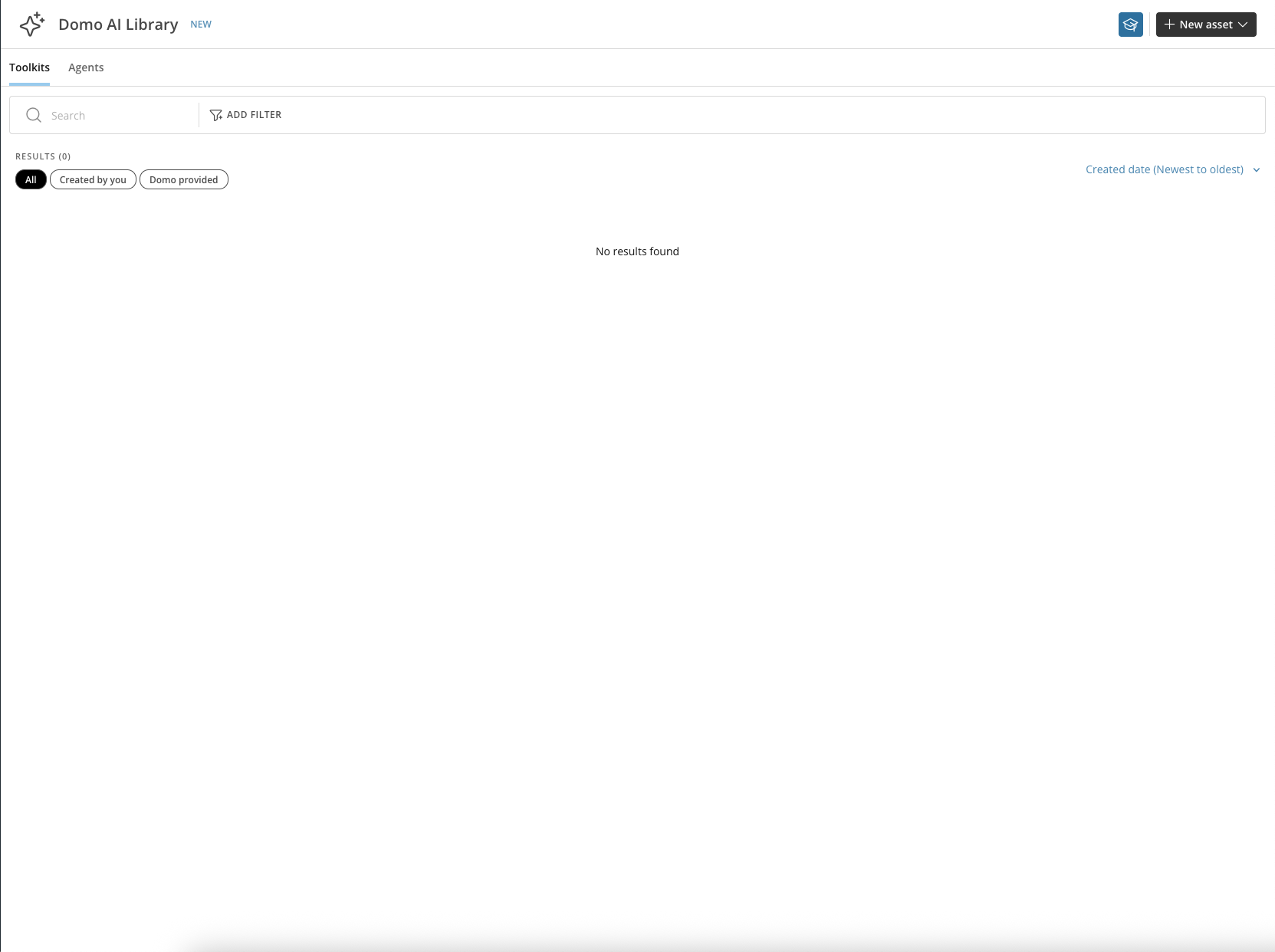
The following steps walk through creating a Toolkit to support a **User Management** Agent.
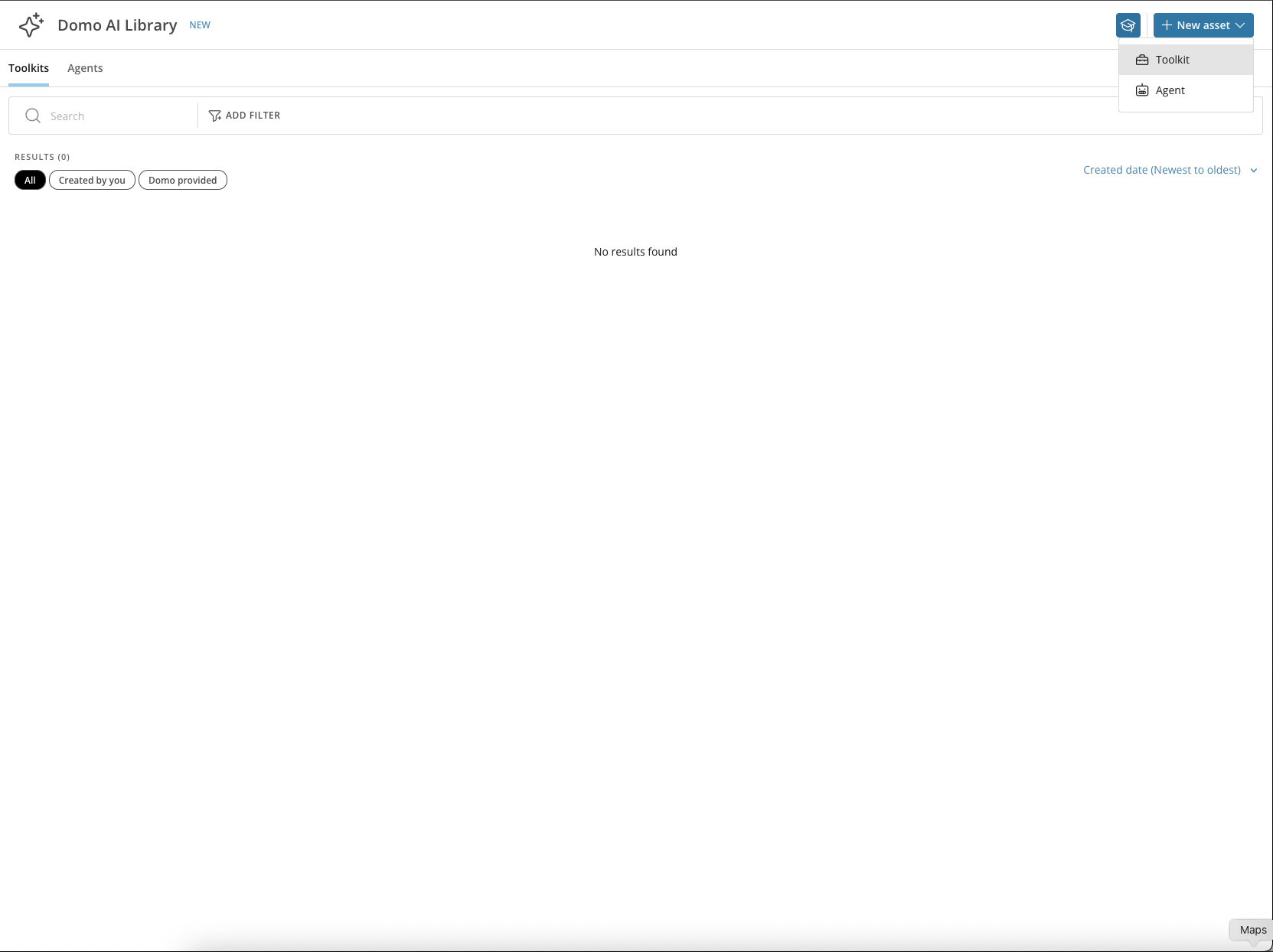
1. From the **New Asset** menu, choose **Toolkit**.
## Create a Toolkit
The following steps walk through creating a Toolkit to support a **User Management** Agent.
1. From the **New Asset** menu, choose **Toolkit**.
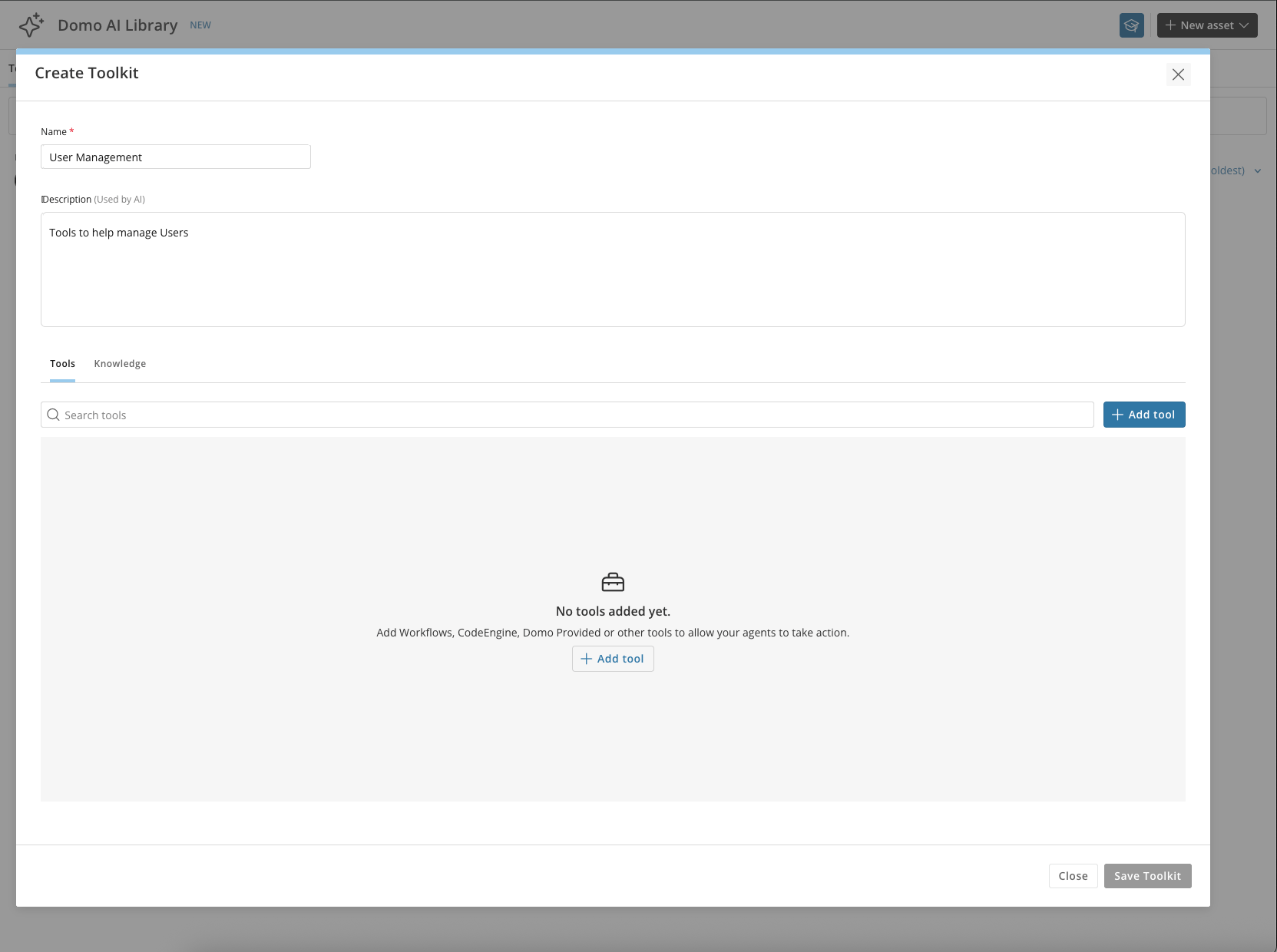
 2. Give the Toolkit a name and description. For this example, enter **User Management** as the name and **Tools to help manage Users** as the description.
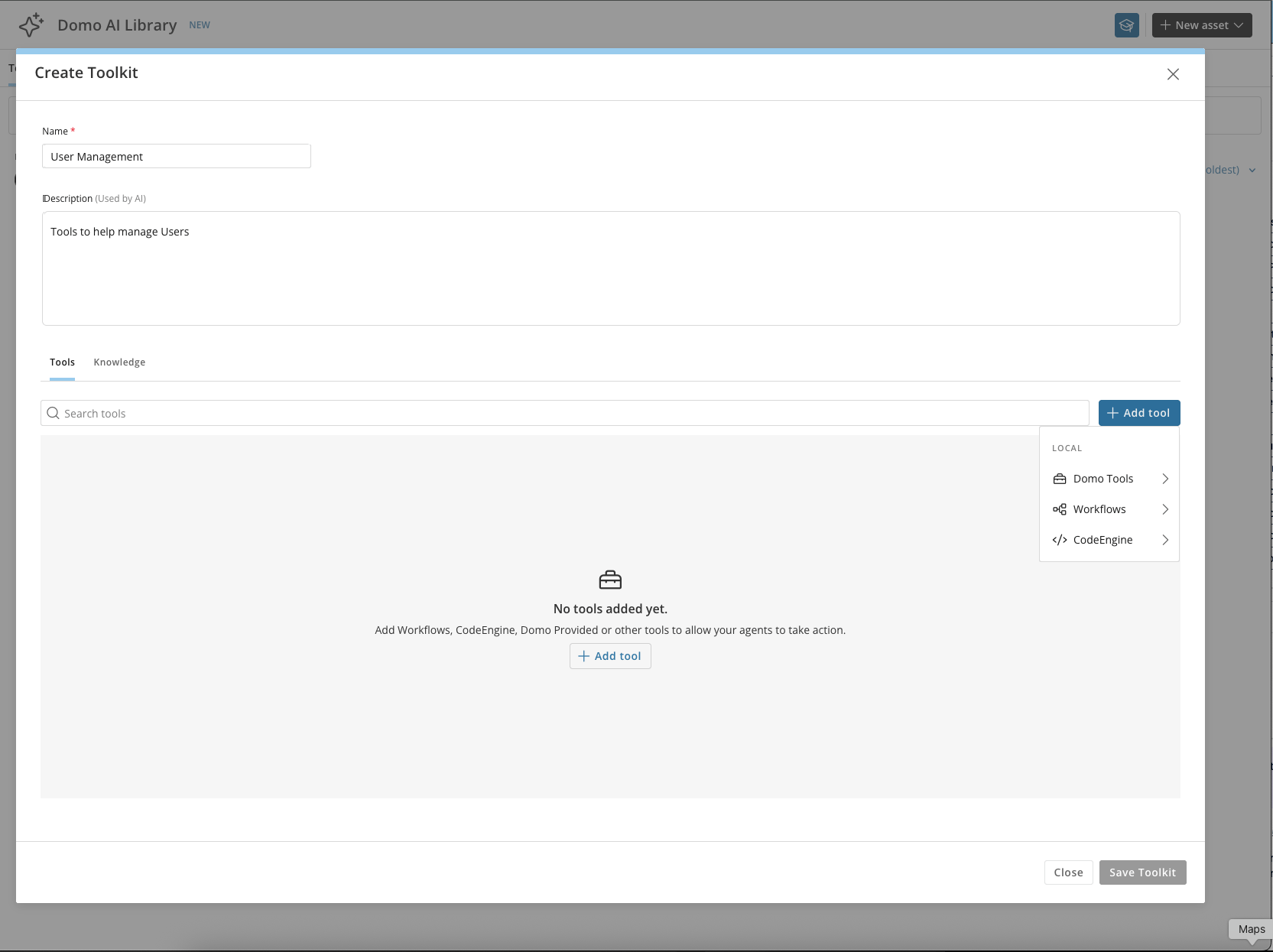
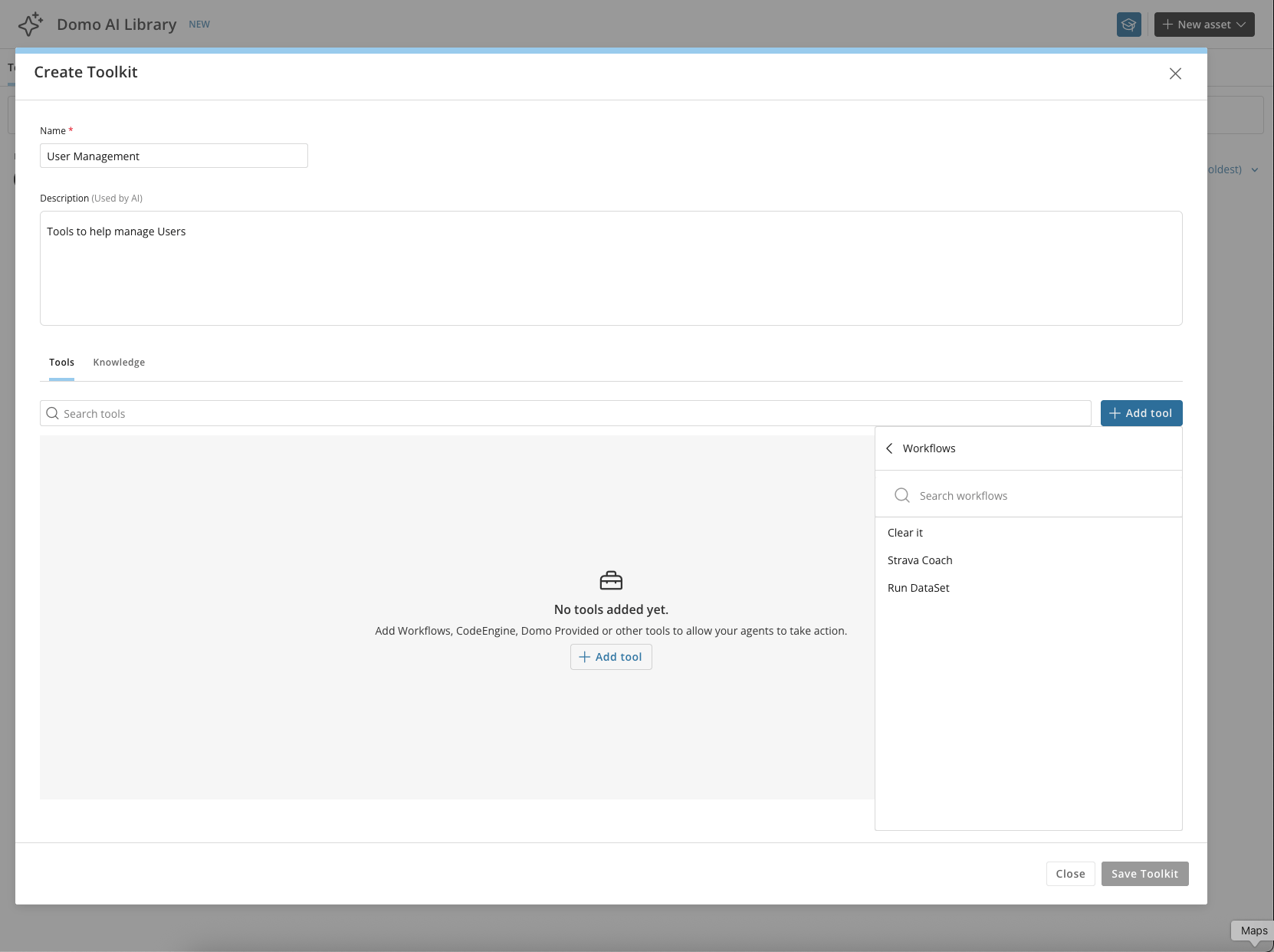
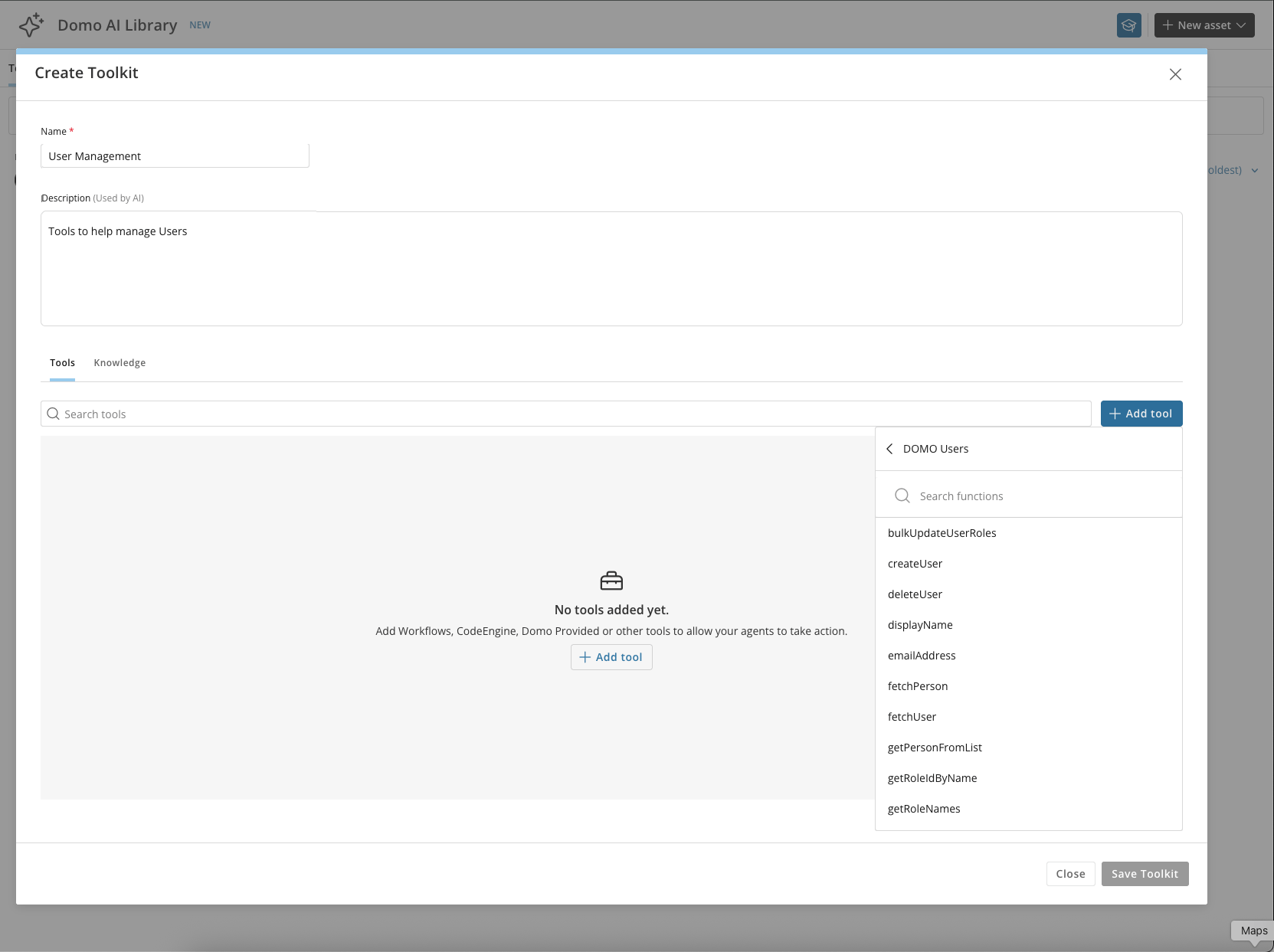
 3. Under the **Add Tools** menu, choose between Domo-provided tools, Workflows, or Code Engine functions. Choosing **Domo Tools** or **Workflows** lists all Workflows you have access to.
 4. Choose **Code Engine** and search for the **DOMO User's** package.
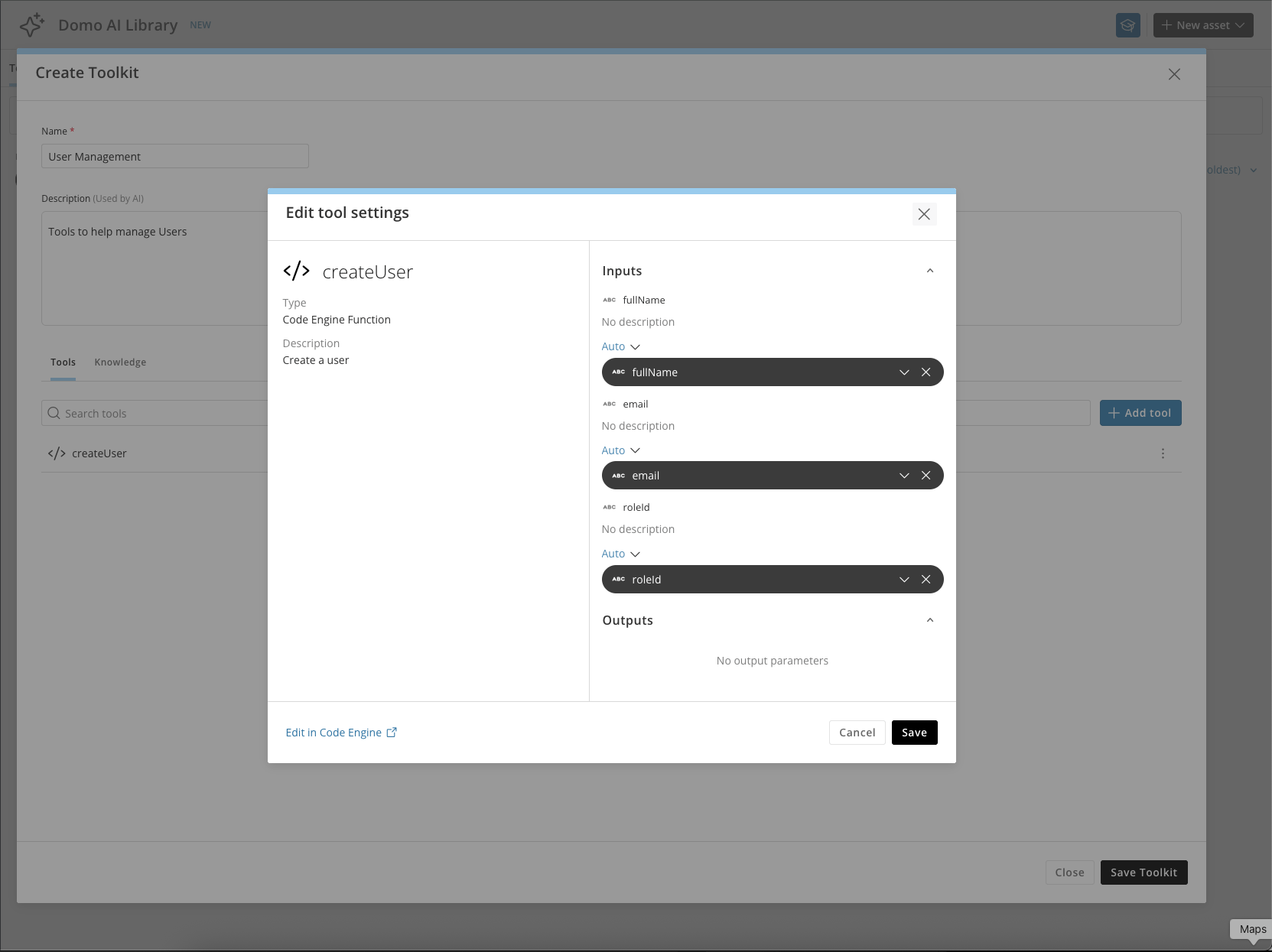
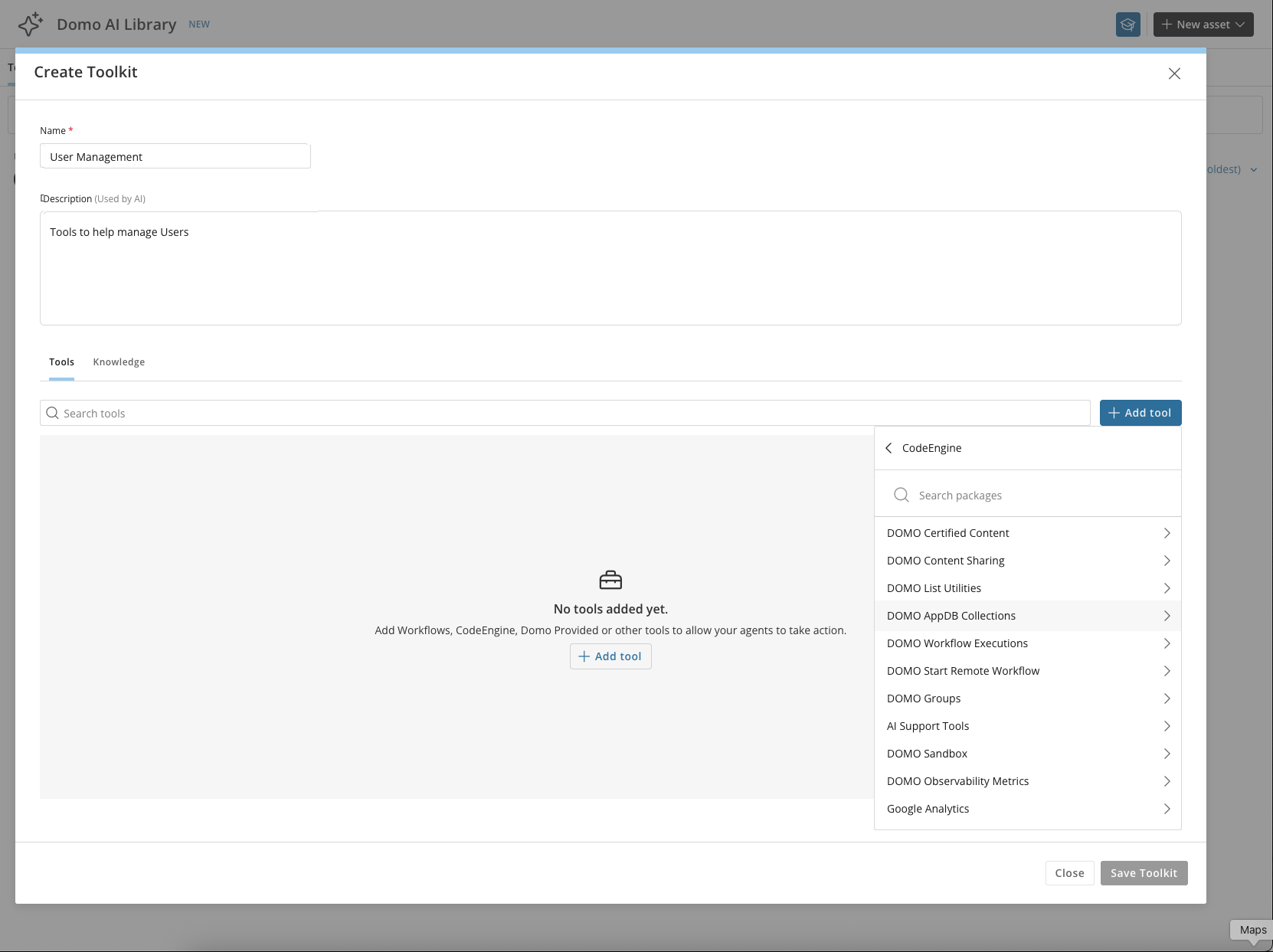 5. From the DOMO User's package, select the **createUser**, **updateUserRole**, and **fetchUser** functions.
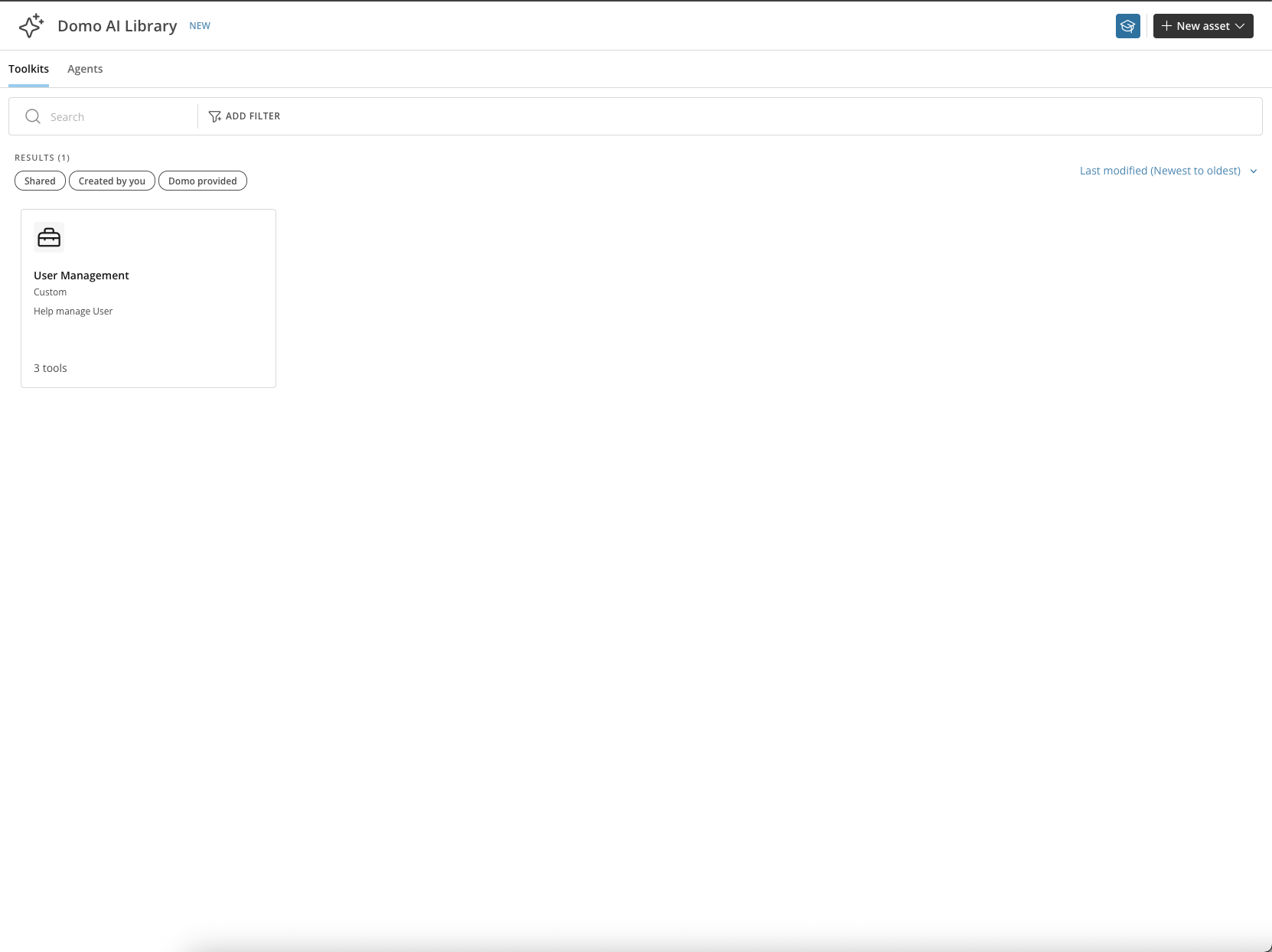
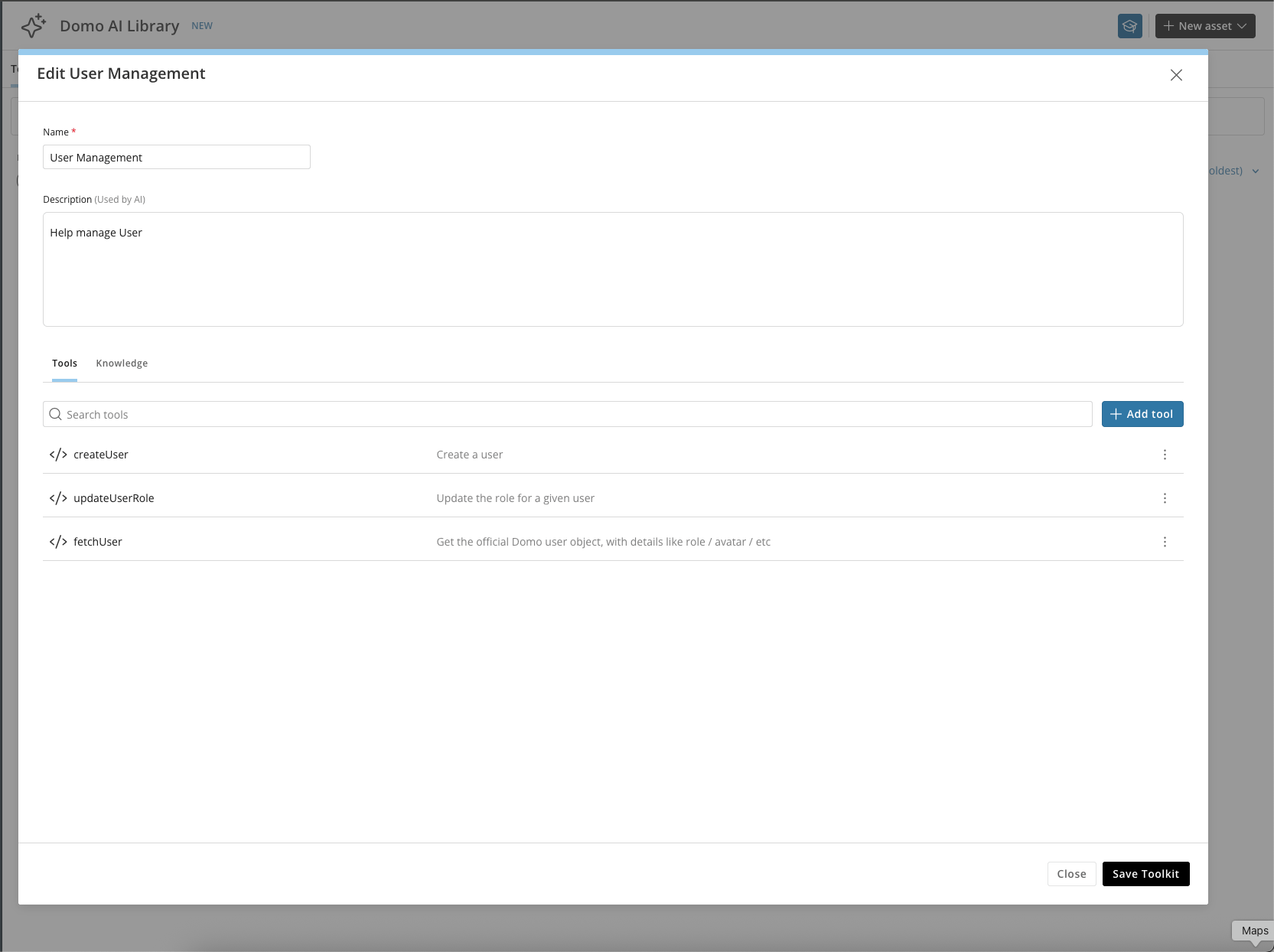 6. Save the Toolkit.
 ## Manage Toolkits
From the Toolkit menu, you can perform the following actions:
## Manage Toolkits
From the Toolkit menu, you can perform the following actions:
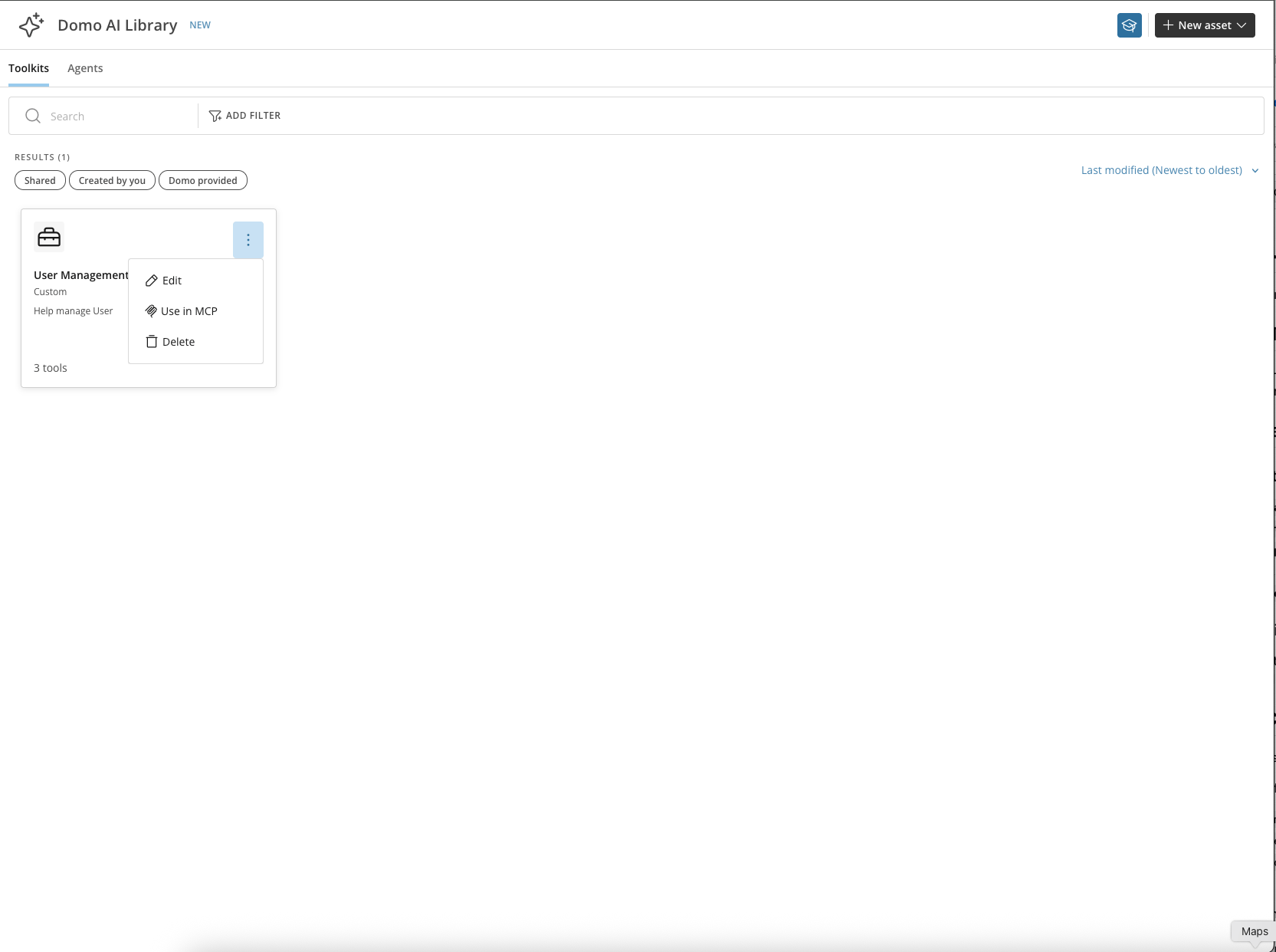 * **Edit —** Edit an existing Toolkit.
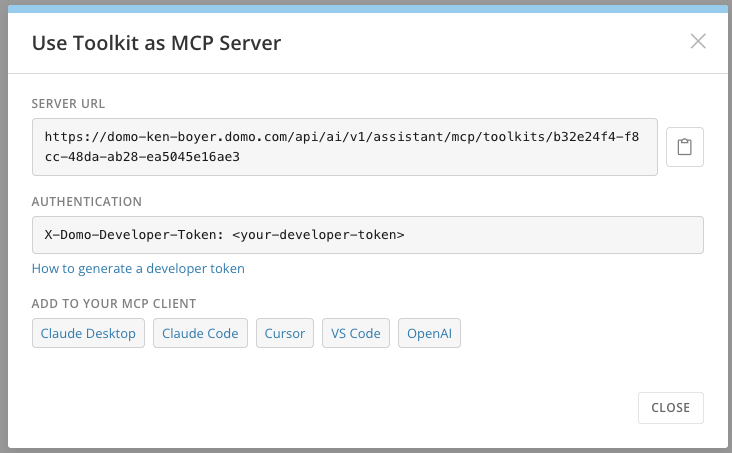 * **Use in MCP —** View the connection details for this Toolkit.
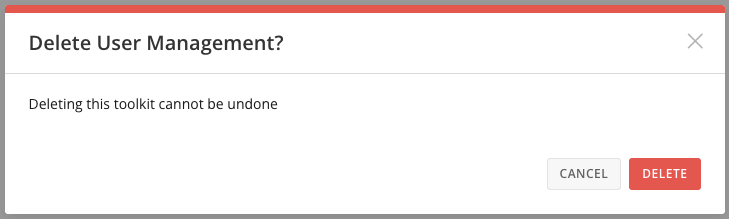
* **Delete —** Remove this Toolkit from the library.
* **Use in MCP —** View the connection details for this Toolkit.
* **Delete —** Remove this Toolkit from the library.
 ## Create an Agent
Agents built with these tools can be deployed across multiple experiences, including customizable AI chat interfaces embedded into dashboards, applications, and workflows across the Domo platform.
The following steps walk through creating the **User Management** Agent that uses the Toolkit created above.
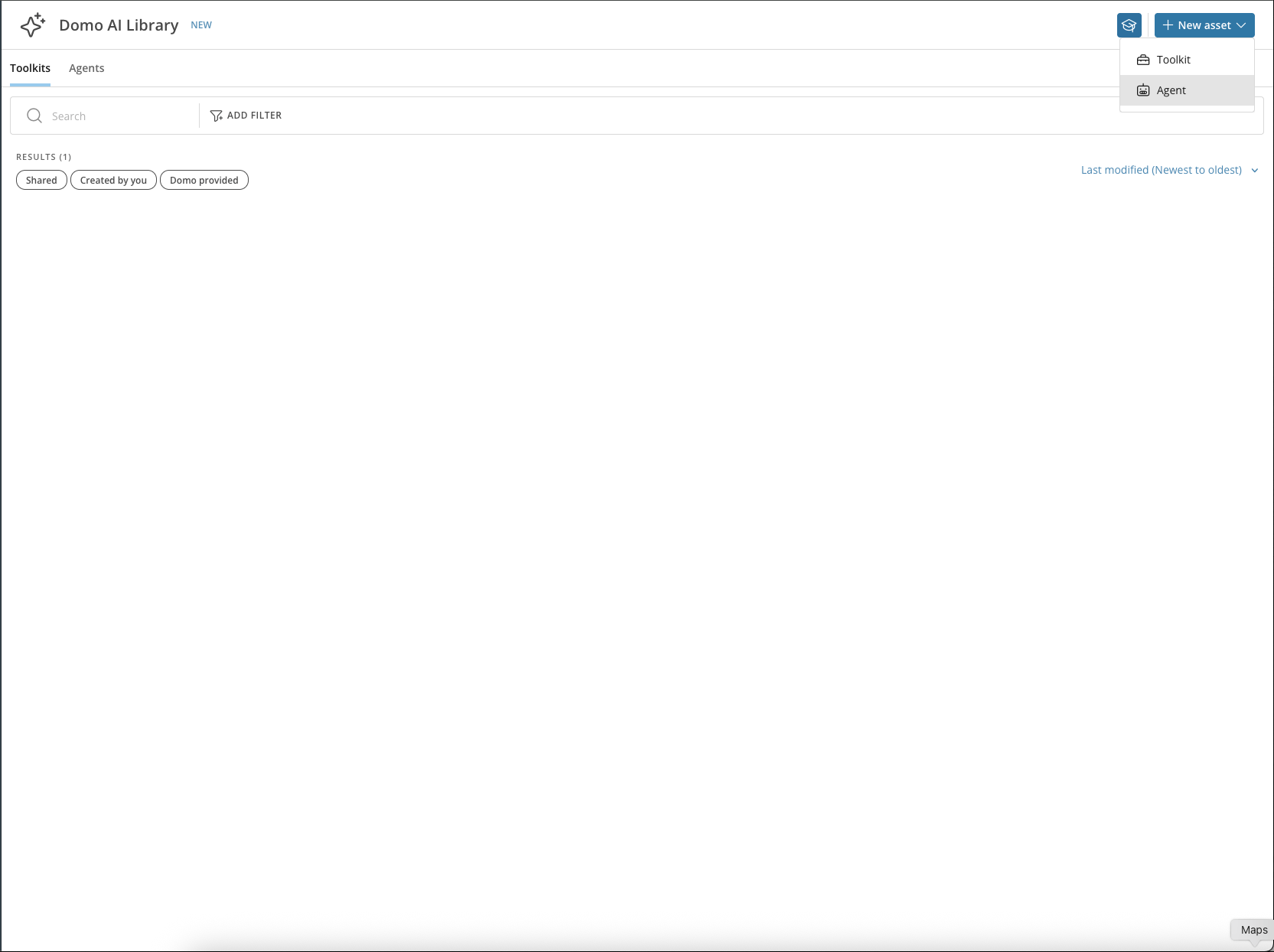
1. From the **New Asset** menu, choose **Agent**.
## Create an Agent
Agents built with these tools can be deployed across multiple experiences, including customizable AI chat interfaces embedded into dashboards, applications, and workflows across the Domo platform.
The following steps walk through creating the **User Management** Agent that uses the Toolkit created above.
1. From the **New Asset** menu, choose **Agent**.
 2. Give the Agent a name—for this example, **User Management**. On the first screen, choose a model, configure the output structure, provide instructions, and define the prompt the Agent will use.
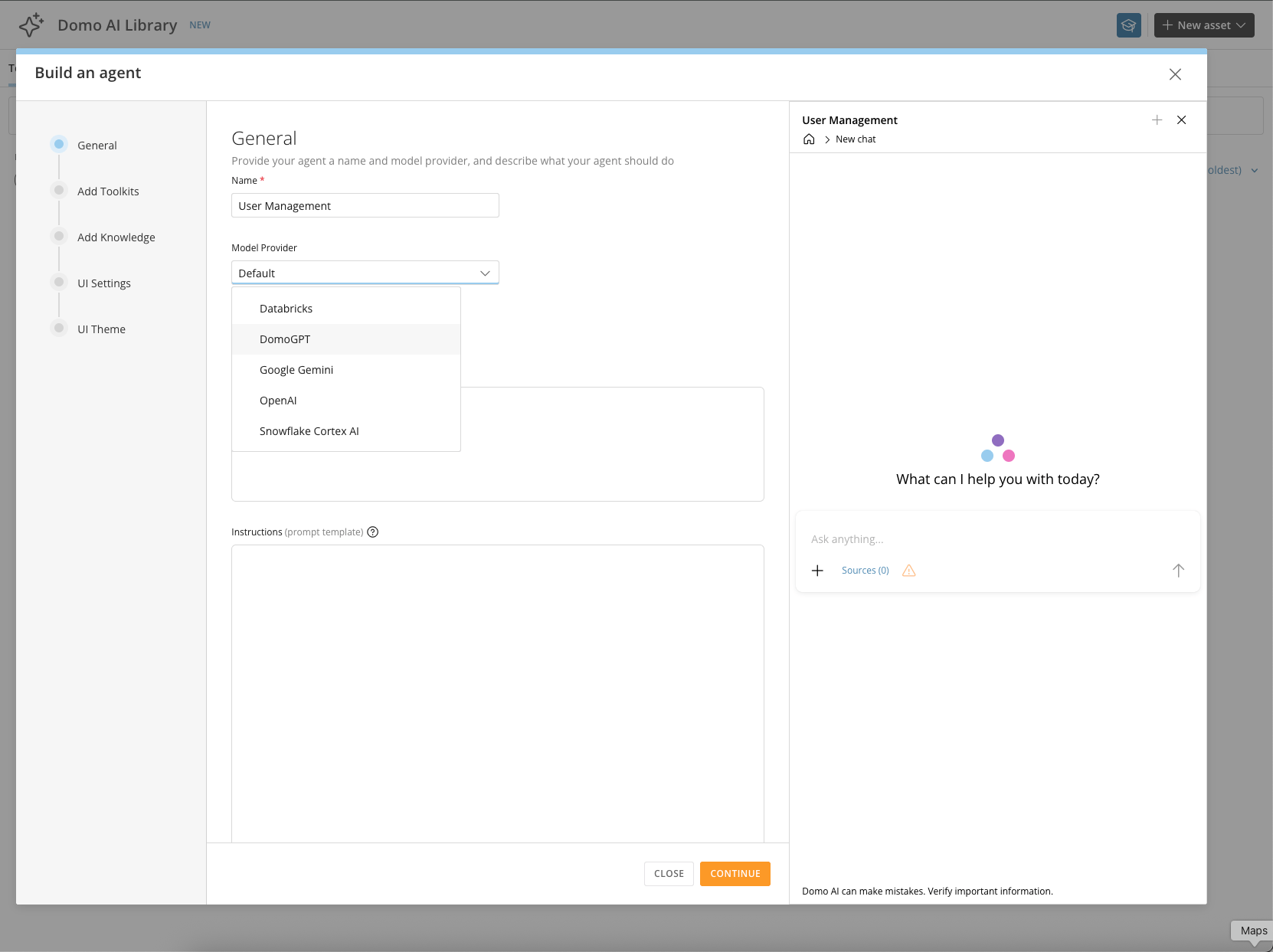
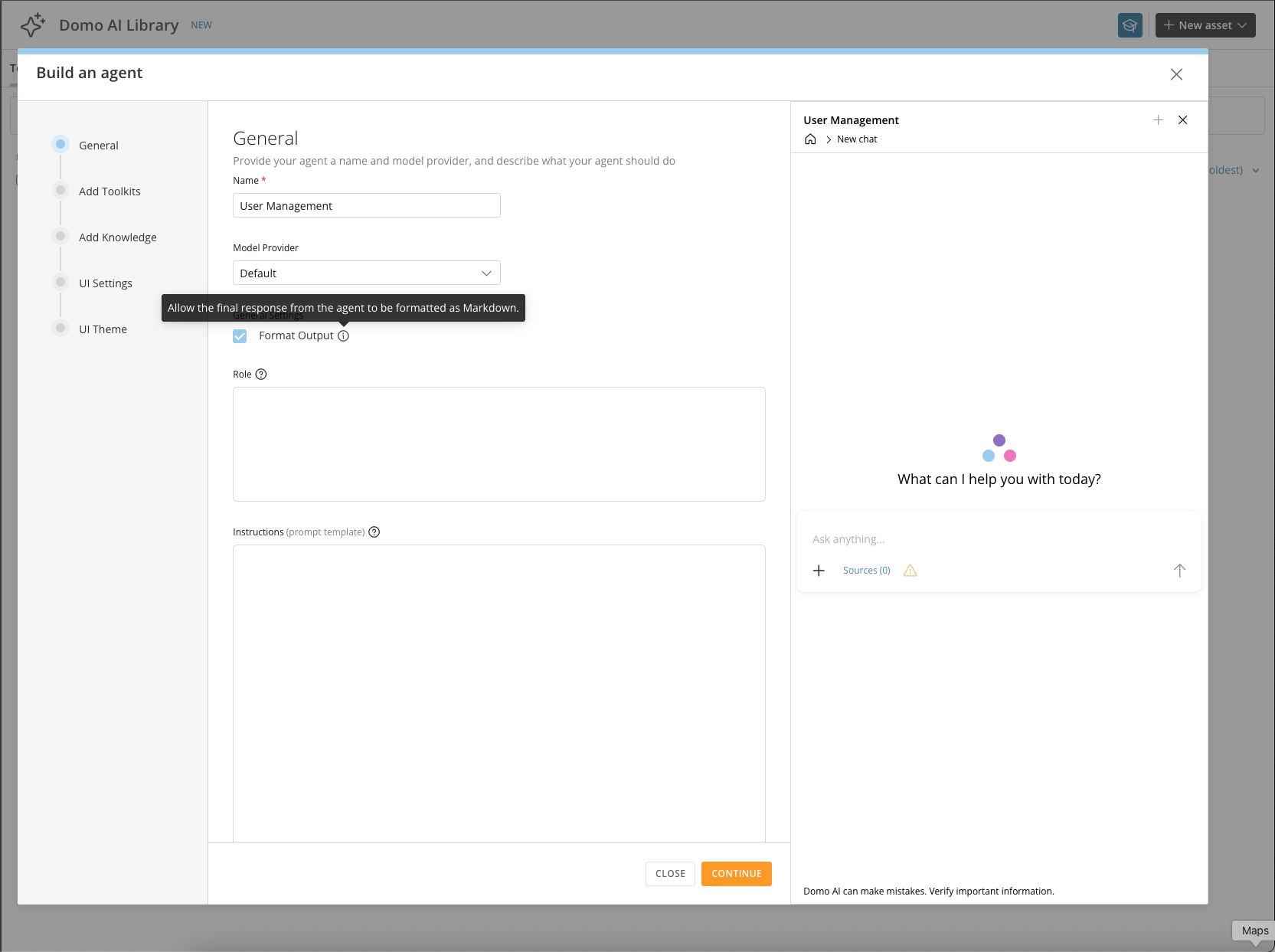
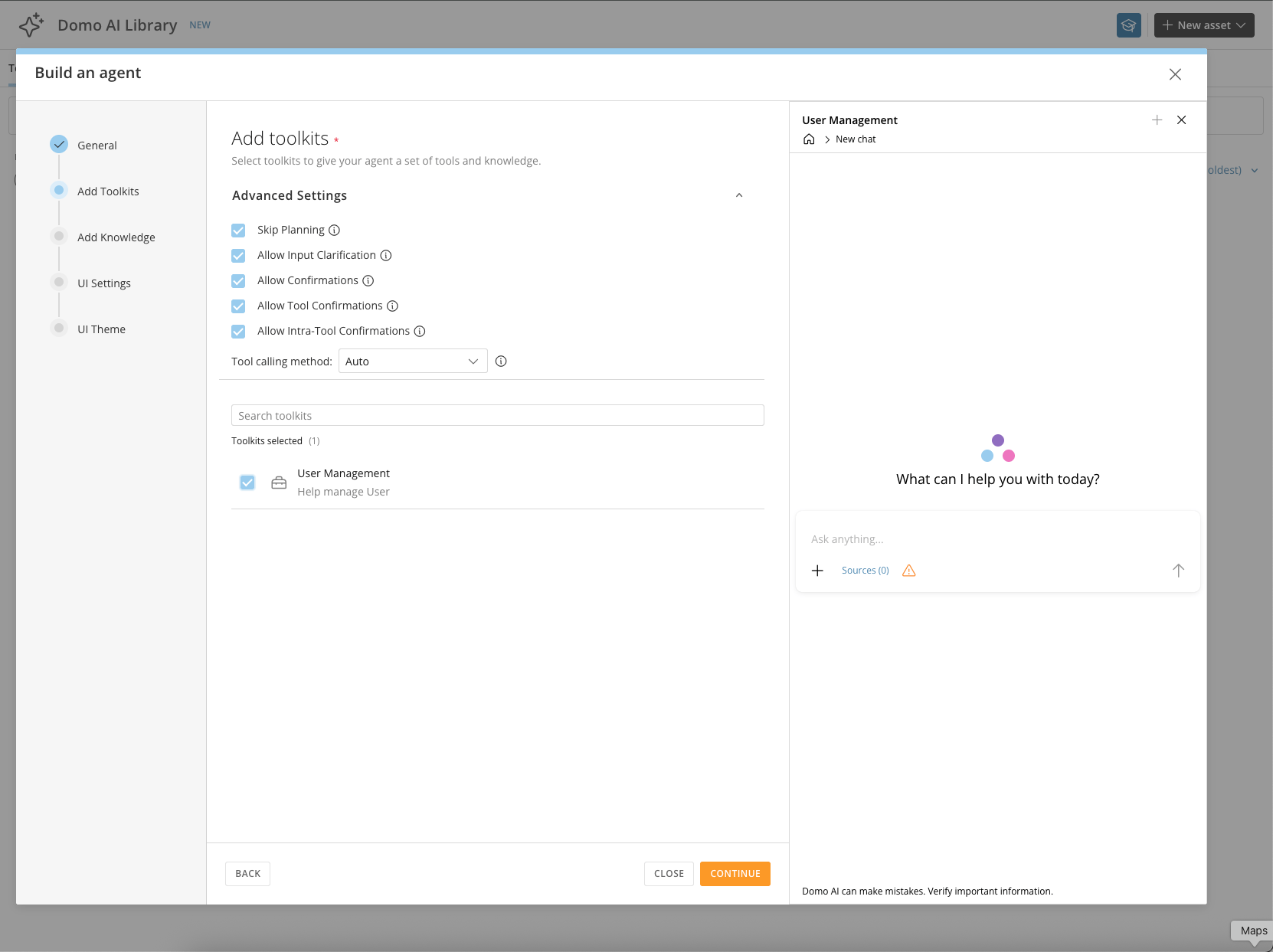
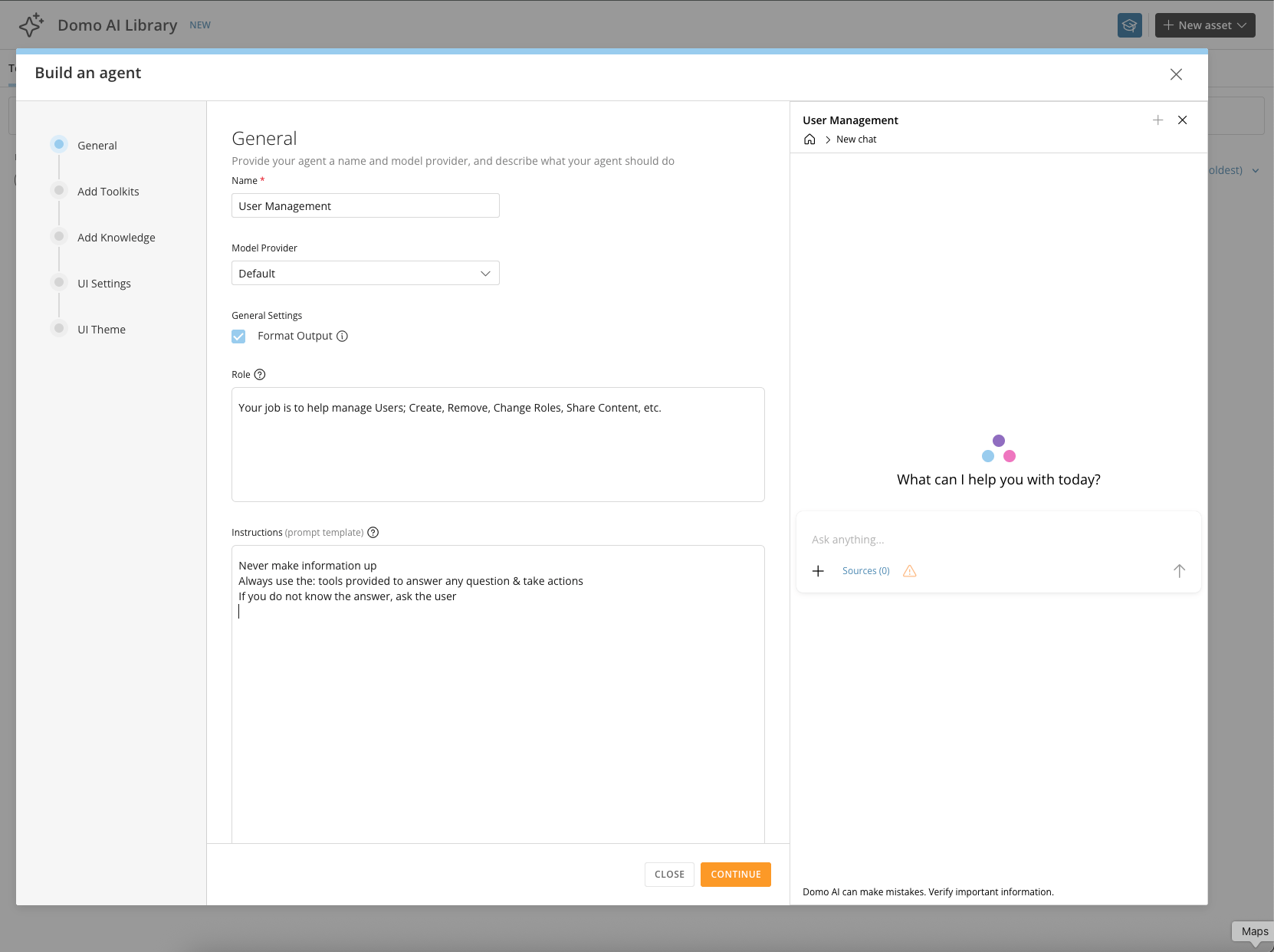 3. On the second screen, add Toolkits and control the interactions between the user and the tools.
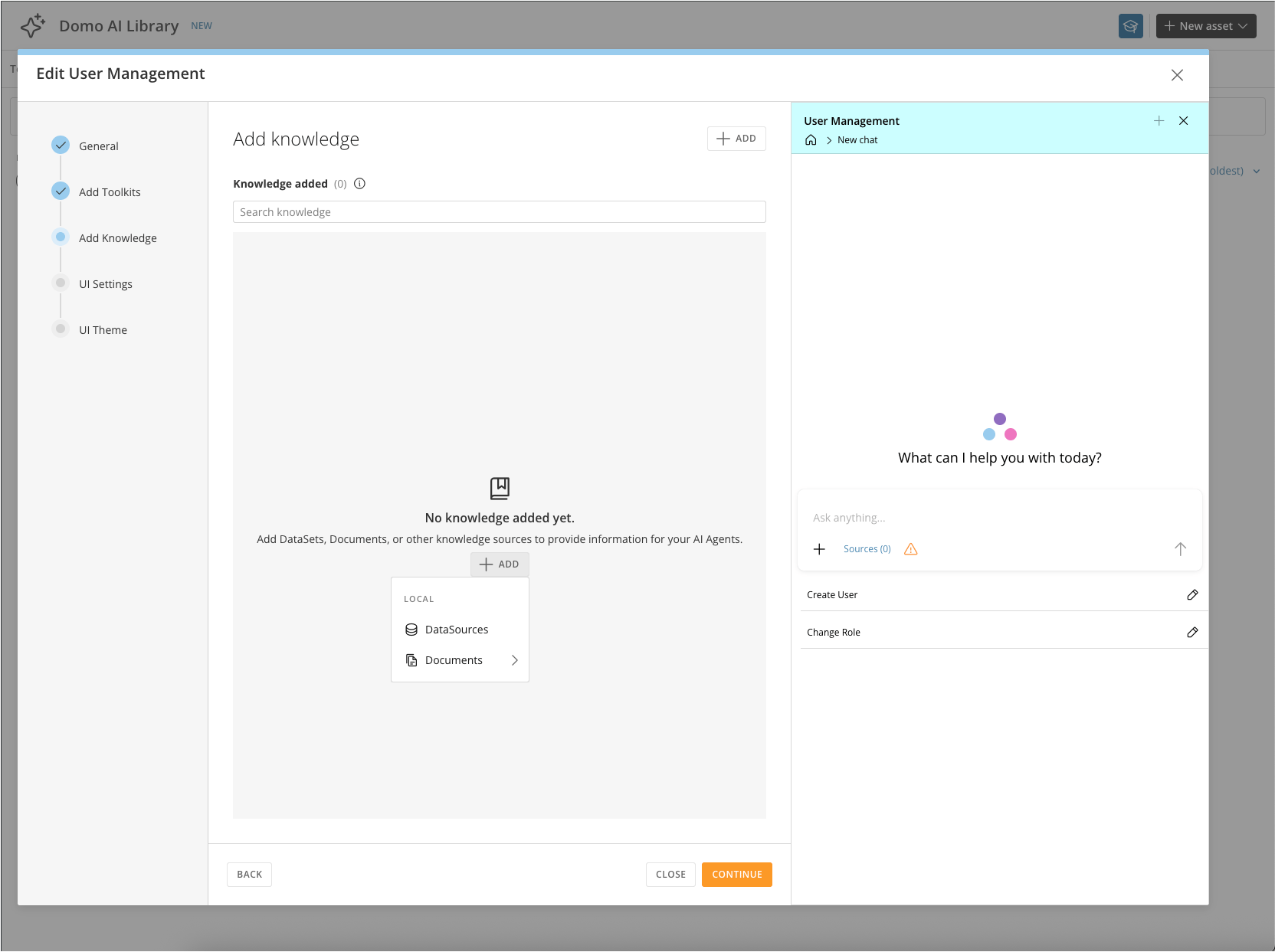
 4. On the third screen, add Knowledge or Context to the Agent. Choose **Datasources** (structured data) or **Documents** (unstructured data).
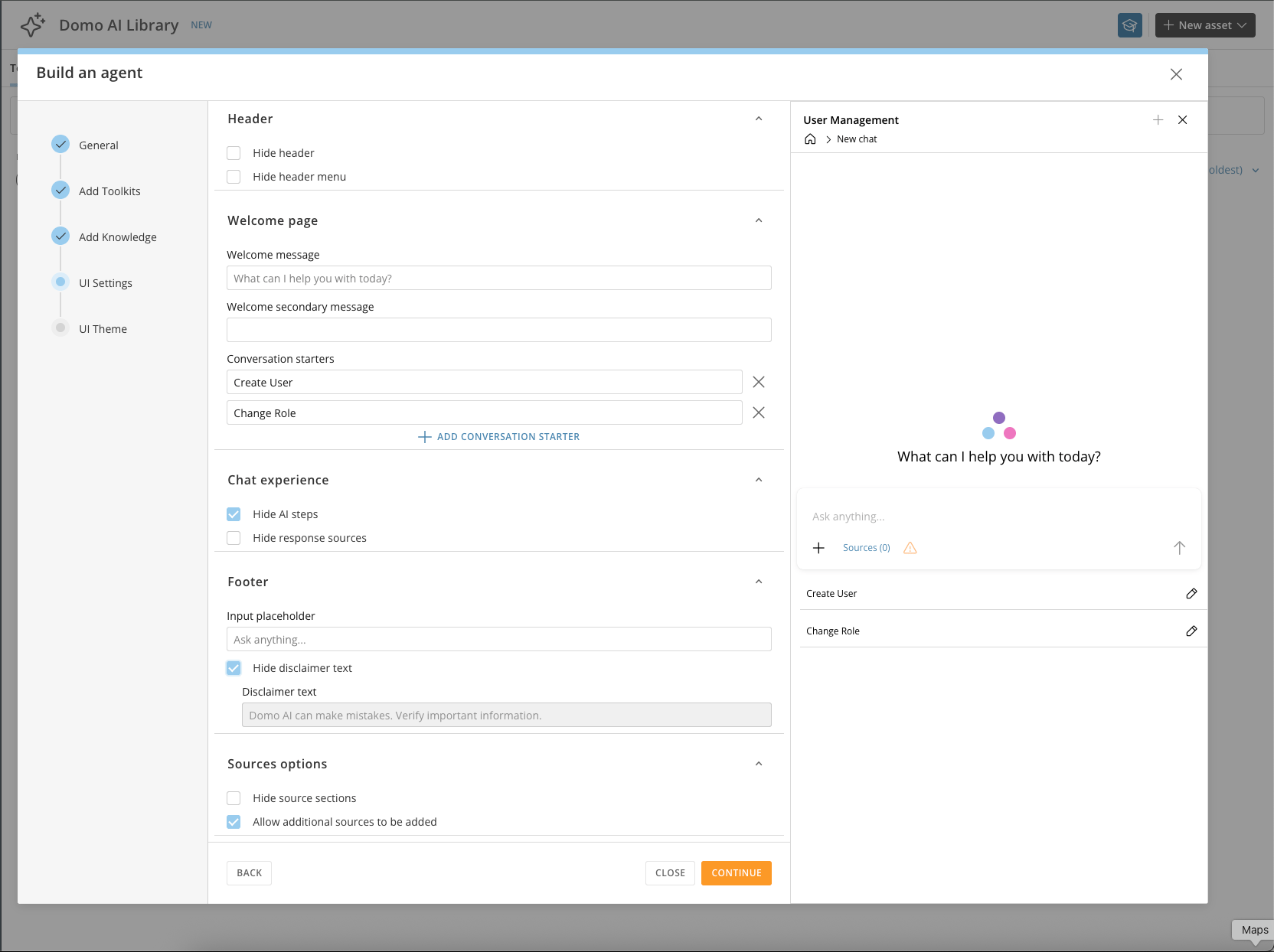
 5. On the fourth screen, define the user experience, including welcome messages and other display options.
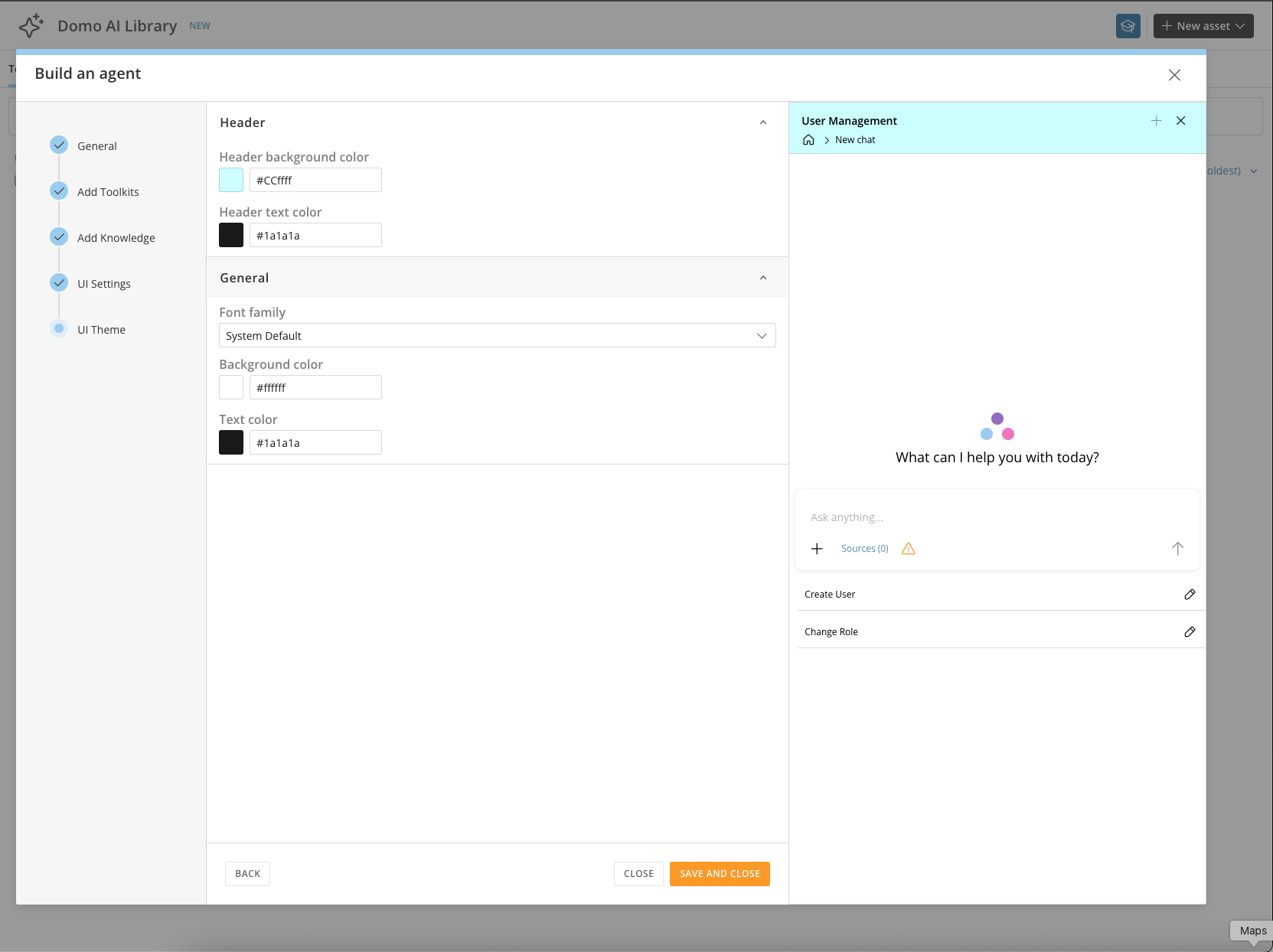
 6. On the final screen, define the theme.
 ## Manage Agents
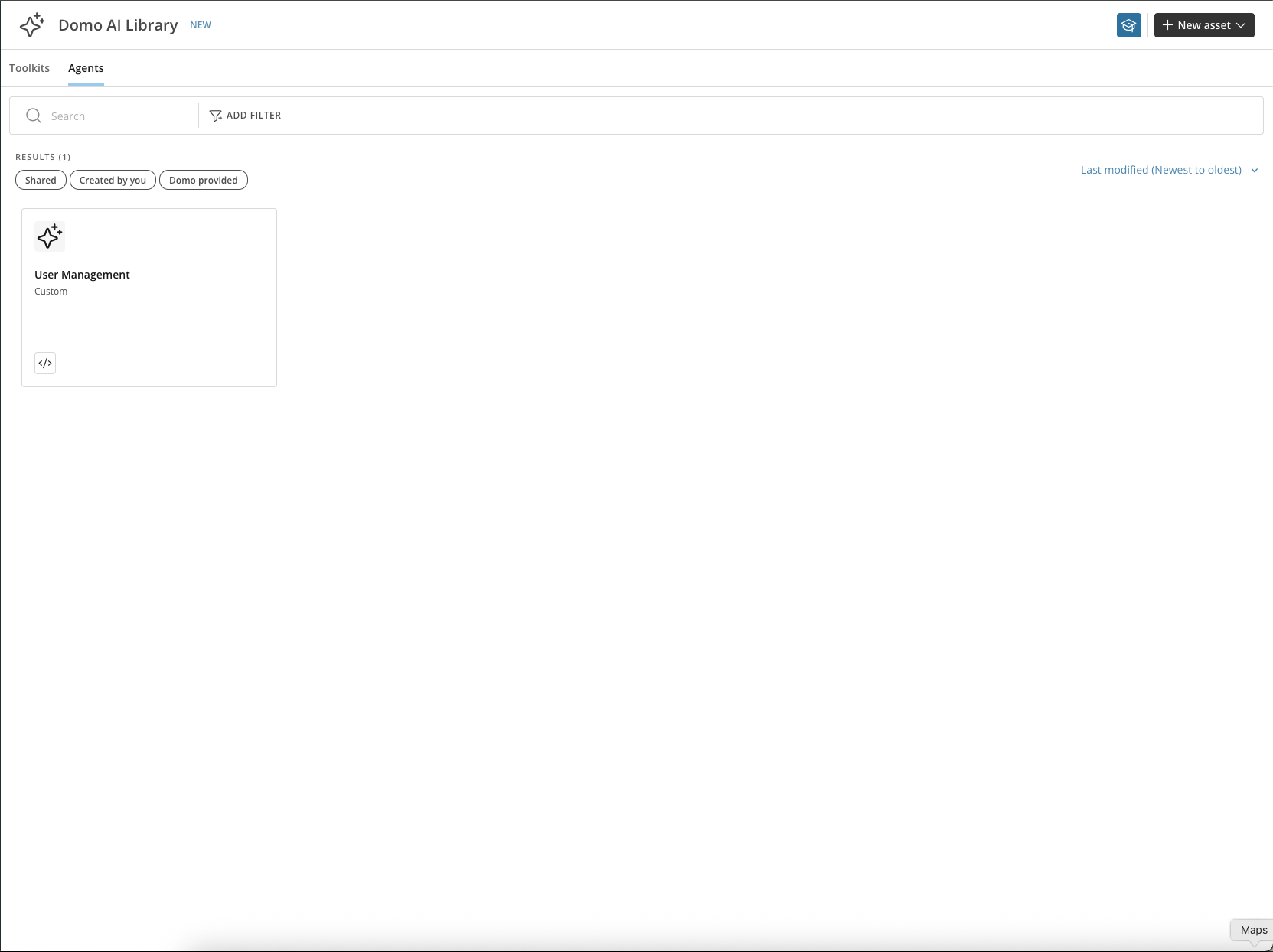
From the Agent menu, you can perform the following actions:
## Manage Agents
From the Agent menu, you can perform the following actions:
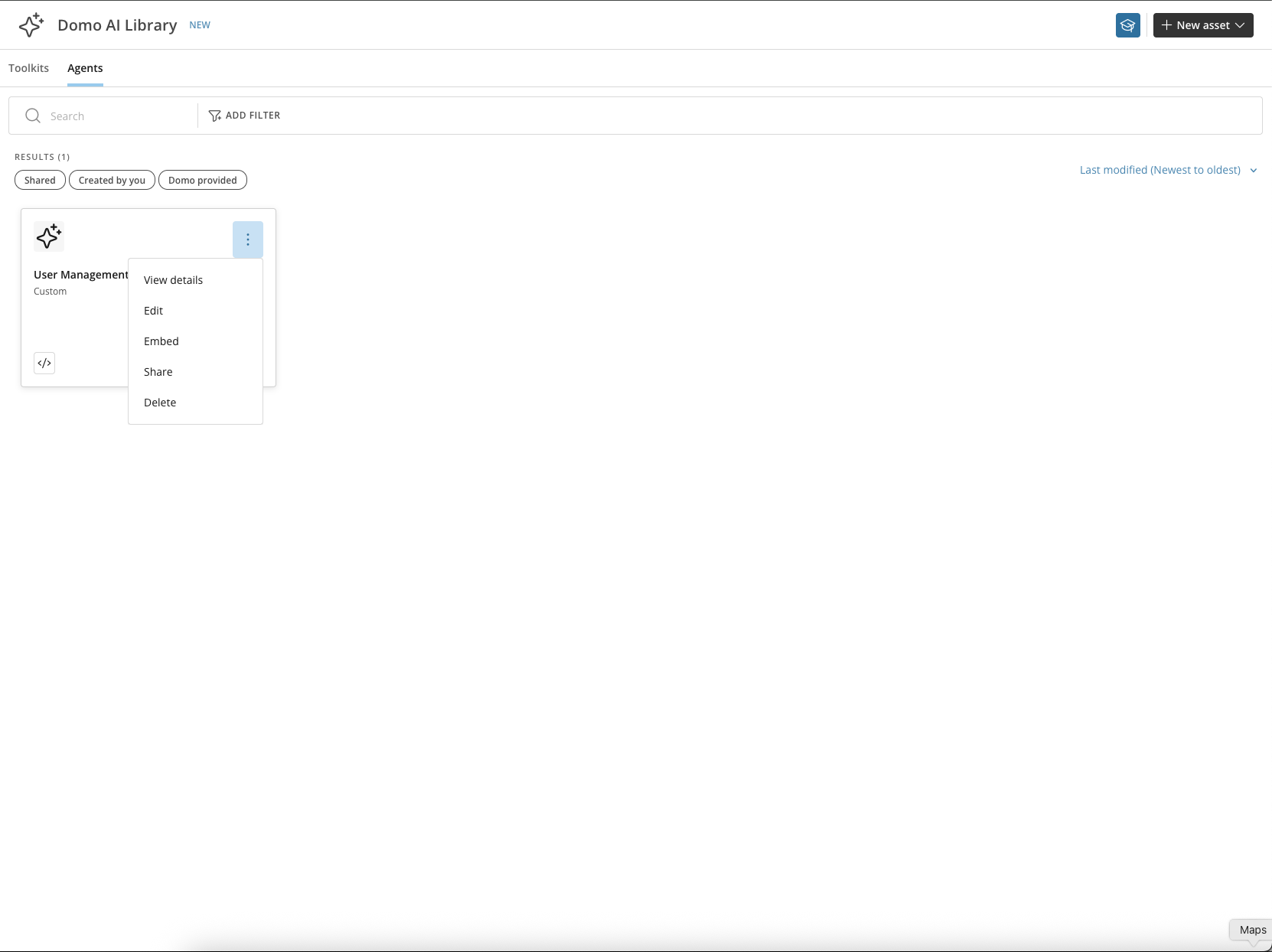 * **View Details —** See an overview of the Agent and the tools it uses.
* **Edit —** Edit an existing Agent.
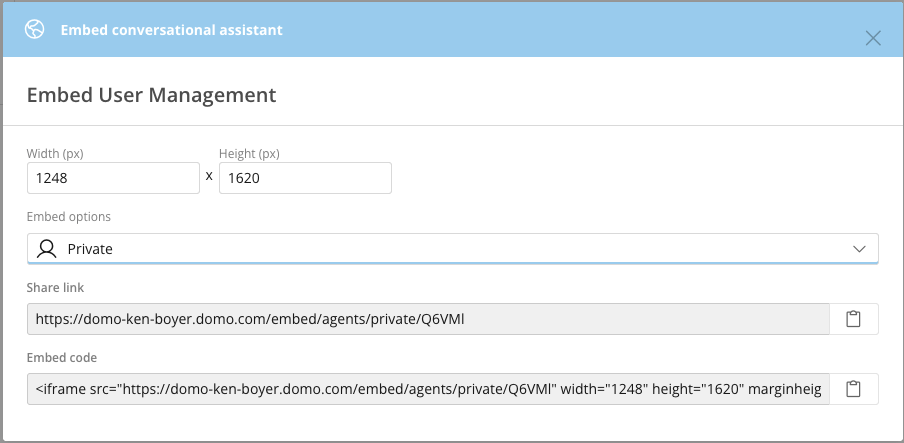
* **Embed —** Enable embedding for this Agent.
* **View Details —** See an overview of the Agent and the tools it uses.
* **Edit —** Edit an existing Agent.
* **Embed —** Enable embedding for this Agent.
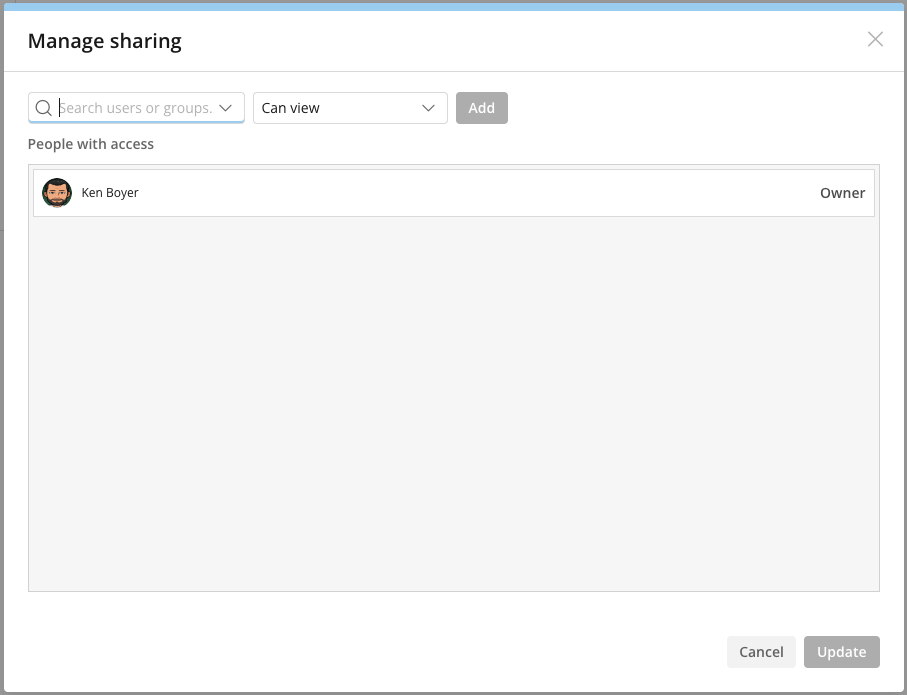
 * **Share —** Share this Agent with others in your company.
 * **Delete —** Remove this Agent from the library.
## Configure an Agent
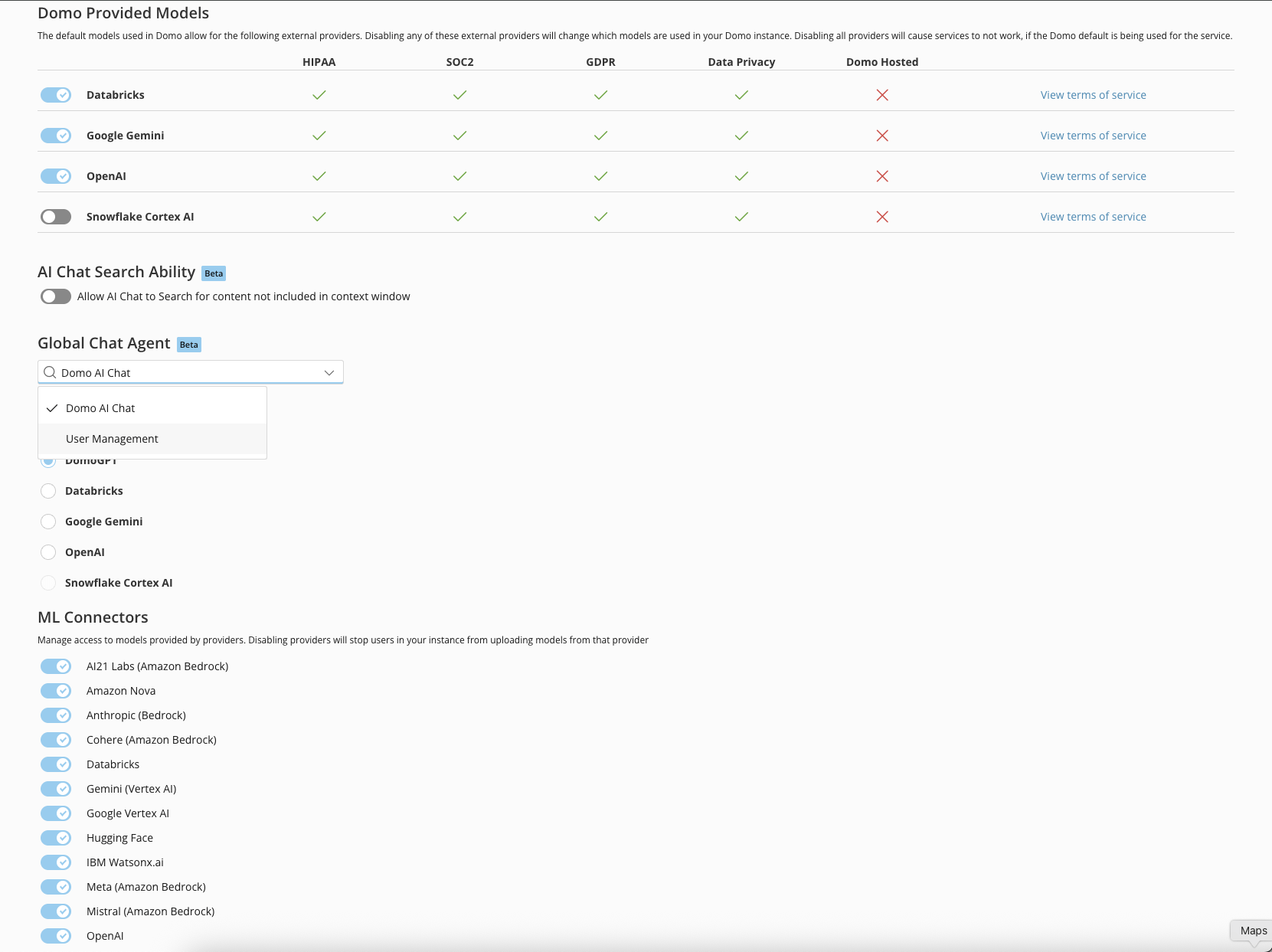
Navigate to the **AI Service Layer Settings** under the **AI Service Layer** section in the Admin Settings. Choose your Agent from the **Global Chat Agents** menu.
* **Delete —** Remove this Agent from the library.
## Configure an Agent
Navigate to the **AI Service Layer Settings** under the **AI Service Layer** section in the Admin Settings. Choose your Agent from the **Global Chat Agents** menu.
 ## Use an Agent
1. Choose **AI Chat** from the main navigation.
## Use an Agent
1. Choose **AI Chat** from the main navigation.
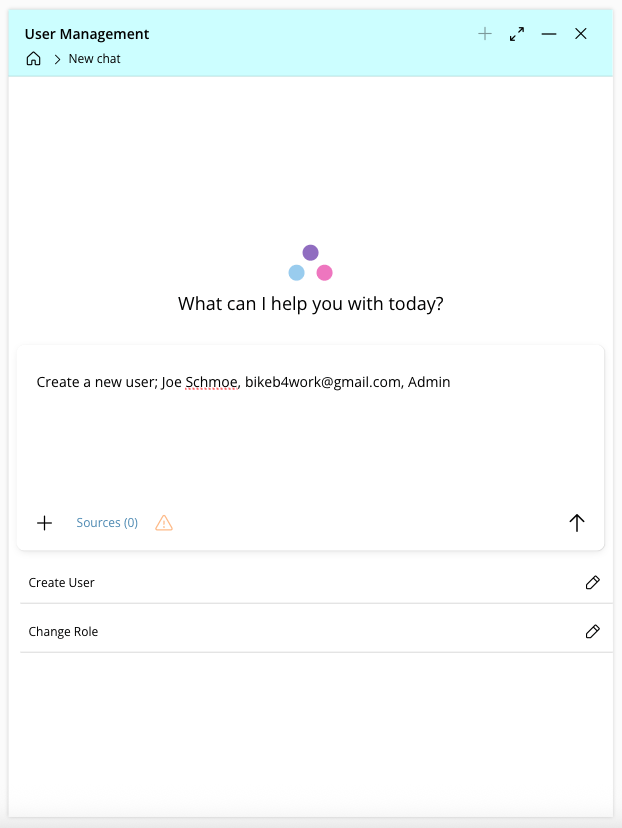
 2. Your Agent is now active. In the input field, enter a request. To create a new user, provide a display name, email address, and role. For example:
*"Create a new user; Joe Schmoe, [bikeb4work@gmail.com](mailto:bikeb4work@gmail.com), Admin"*
2. Your Agent is now active. In the input field, enter a request. To create a new user, provide a display name, email address, and role. For example:
*"Create a new user; Joe Schmoe, [bikeb4work@gmail.com](mailto:bikeb4work@gmail.com), Admin"*
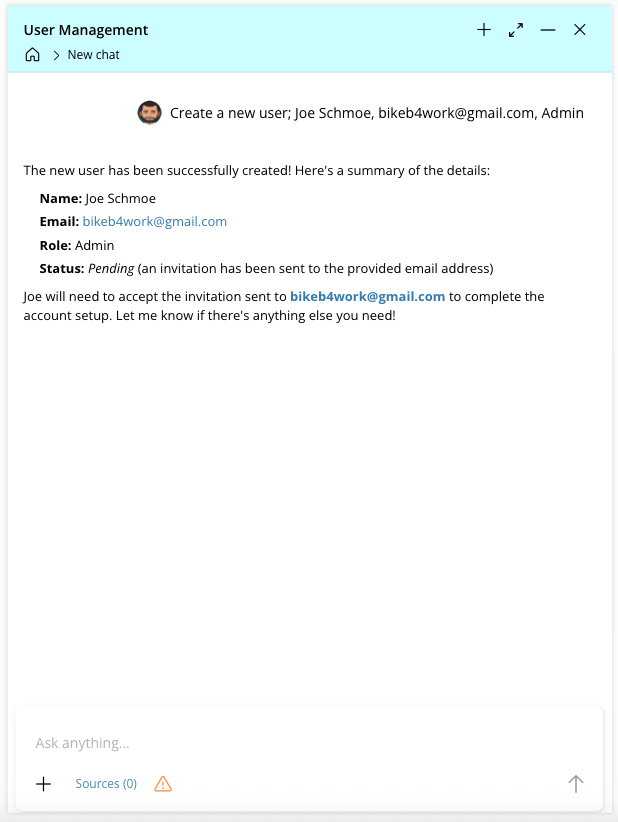 3. Navigate to **Admin** > **People** to confirm the new user was provisioned.
 4. To use a second tool in the Toolkit, try updating the user's role. For example:
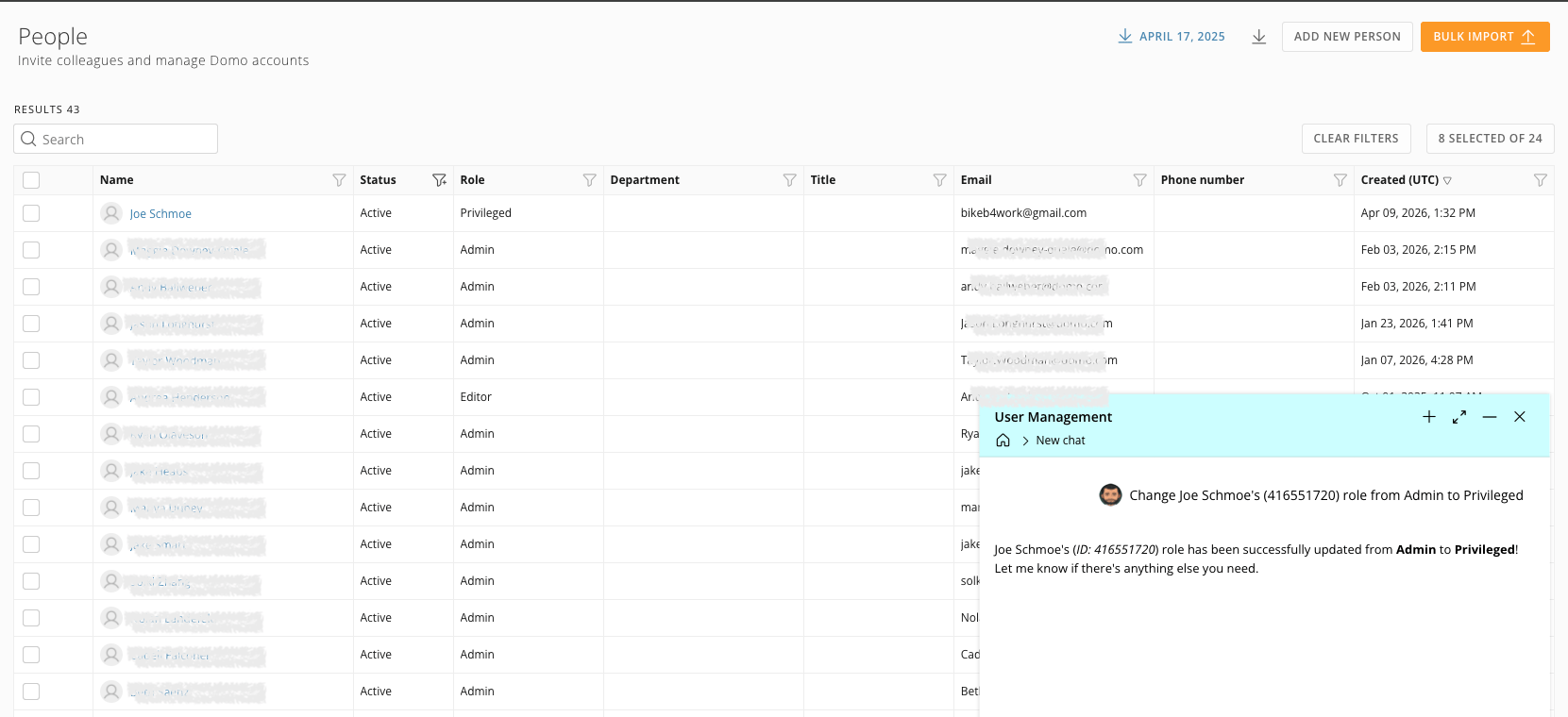
*"Change Joe Schmoe's (416551720) role from Admin to Privileged"*
4. To use a second tool in the Toolkit, try updating the user's role. For example:
*"Change Joe Schmoe's (416551720) role from Admin to Privileged"*