> ## Documentation Index
> Fetch the complete documentation index at: https://domoinc-bradley-turek-pfilter-operators-reference.mintlify.site/llms.txt
> Use this file to discover all available pages before exploring further.

# Documents

## Intro

This article explains how to access Documents in Domo, create Document Collections by uploading files or connecting to a data source, enable Agent Knowledge for AI Search, search across your Documents, and use Documents from an Agent in Workflows, the AI Library, and Magic ETL.

***

## Required Grants

To access Documents, the following grants must be enabled for your role:

* **Manage Documents —** View, edit, and delete any Document Collections in this instance.
* **Edit Documents —** Create and edit Document Collections to which you have access.
* **View Documents —** View only for any Document Collections to which you have access.

Learn more about [grants](/s/article/360043438973).

## Access Documents in the New Navigation

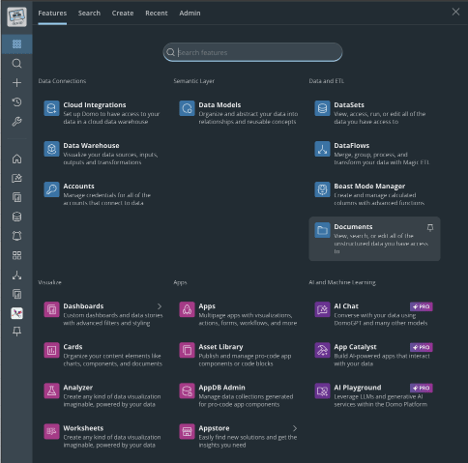
You can find Documents under **Data and ETL** in the mega-menu.
<Frame>
  <img alt="documents_nav_1" src="https://mintcdn.com/domoinc-bradley-turek-pfilter-operators-reference/WZkEY_ggFkbPgupk/images/kb/documents_nav_1.png?fit=max&auto=format&n=WZkEY_ggFkbPgupk&q=85&s=bdba39128d3c74a97d0241bb2e665d84" style={{width: 624, height: 617}} width="468" height="463" data-path="images/kb/documents_nav_1.png" />
</Frame>

## Access Documents in the Traditional Navigation

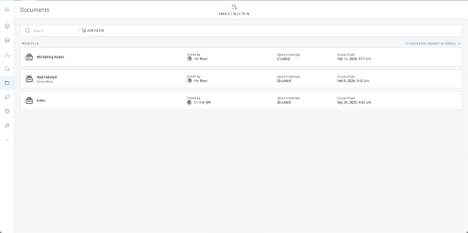
You can find Documents in the Data Center under the new **Documents** icon in the left navigation.
<Frame>
  <img alt="documents_nav_2" src="https://mintcdn.com/domoinc-bradley-turek-pfilter-operators-reference/WZkEY_ggFkbPgupk/images/kb/documents_nav_2.png?fit=max&auto=format&n=WZkEY_ggFkbPgupk&q=85&s=ca00884a0b6bb29455a29f2a20857f71" style={{width: 624, height: 311}} width="468" height="233" data-path="images/kb/documents_nav_2.png" />
</Frame>

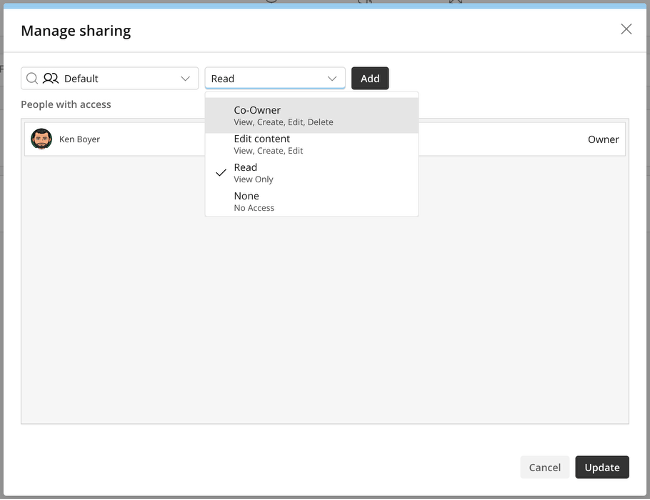
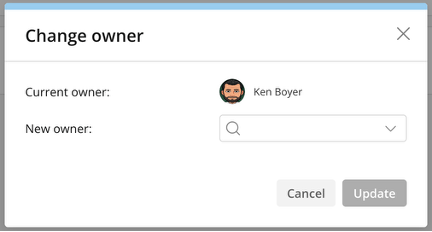
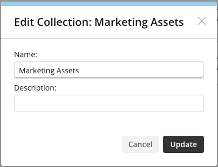
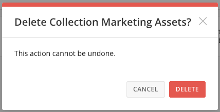
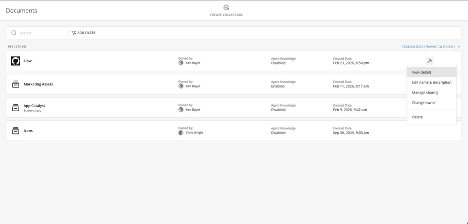
When you navigate to the Documents listing page, you see all Documents that you have access to. From this page, you can manage sharing and ownership, modify the name and description, and delete collections. If the Document is powered by a connector, you can invoke manual runs.
<Frame>
  <img alt="documents_1" src="https://mintcdn.com/domoinc-bradley-turek-pfilter-operators-reference/5AamsMd0R7CoXmtm/images/kb/documents_1.png?fit=max&auto=format&n=5AamsMd0R7CoXmtm&q=85&s=aee58ff288236a2ba503e88adc536f44" style={{width: 624, height: 298}} width="468" height="224" data-path="images/kb/documents_1.png" />
</Frame>

You can either upload a document from your computer or bring in your documents via a connector.

<Frame>
  <img alt="documents_upload_1" src="https://mintcdn.com/domoinc-bradley-turek-pfilter-operators-reference/WZkEY_ggFkbPgupk/images/kb/documents_upload_1.png?fit=max&auto=format&n=WZkEY_ggFkbPgupk&q=85&s=920ff13e5eafce59162d92f7b3d2244d" style={{width: 132, height: 127}} width="99" height="95" data-path="images/kb/documents_upload_1.png" />
</Frame>

<Frame>
  <img alt="documents_share" src="https://mintcdn.com/domoinc-bradley-turek-pfilter-operators-reference/WZkEY_ggFkbPgupk/images/kb/documents_share.png?fit=max&auto=format&n=WZkEY_ggFkbPgupk&q=85&s=d718a1e89b343cc9bab88cc2682eac3b" style={{width: 442, height: 339}} width="650" height="500" data-path="images/kb/documents_share.png" />
</Frame>

<Frame>
  <img alt="documents_changeOwner" src="https://mintcdn.com/domoinc-bradley-turek-pfilter-operators-reference/5AamsMd0R7CoXmtm/images/kb/documents_changeOwner.png?fit=max&auto=format&n=5AamsMd0R7CoXmtm&q=85&s=b4cb57ec850e6ac02fa845d5ec54ab48" style={{width: 293, height: 157}} width="432" height="232" data-path="images/kb/documents_changeOwner.png" />
</Frame>

<Frame>
  <img alt="documents_editName" src="https://mintcdn.com/domoinc-bradley-turek-pfilter-operators-reference/5AamsMd0R7CoXmtm/images/kb/documents_editName.png?fit=max&auto=format&n=5AamsMd0R7CoXmtm&q=85&s=116e9e5f5200fbbed6eefde72e1e46eb" style={{width: 294, height: 225}} width="218" height="167" data-path="images/kb/documents_editName.png" />
</Frame>

<Frame>
  <img alt="documents_delete" src="https://mintcdn.com/domoinc-bradley-turek-pfilter-operators-reference/5AamsMd0R7CoXmtm/images/kb/documents_delete.png?fit=max&auto=format&n=5AamsMd0R7CoXmtm&q=85&s=50e415affc300ae024f2867c45b5013a" style={{width: 296, height: 151}} width="220" height="112" data-path="images/kb/documents_delete.png" />
</Frame>

## Create a Document Collection

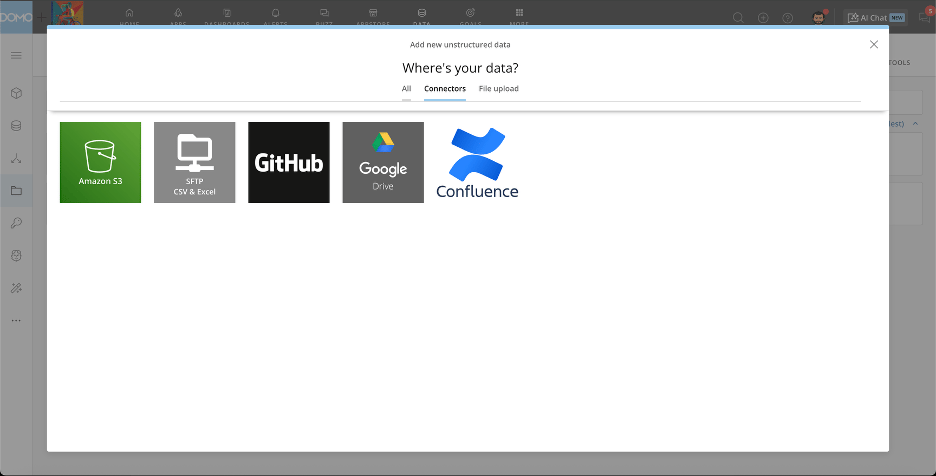
There are two options to bring your unstructured data into Domo: upload files from your computer, or connect via one of our file connectors—Amazon S3, SFTP, GitHub, Google Drive, or Confluence, with more to come.

### Upload Files

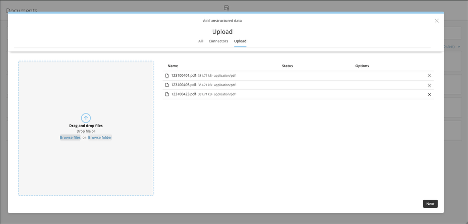
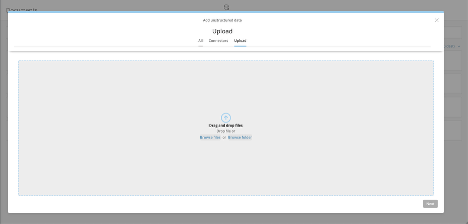
Under the **Create Collection** menu, choose **Upload**. You can browse your computer and upload documents or folders into the system.
<Frame>
  <img alt="documents_upload_2" src="https://mintcdn.com/domoinc-bradley-turek-pfilter-operators-reference/WZkEY_ggFkbPgupk/images/kb/documents_upload_2.png?fit=max&auto=format&n=WZkEY_ggFkbPgupk&q=85&s=f9145fb0a12734febf3b705d751b7279" style={{width: 624, height: 298}} width="468" height="224" data-path="images/kb/documents_upload_2.png" />
</Frame>

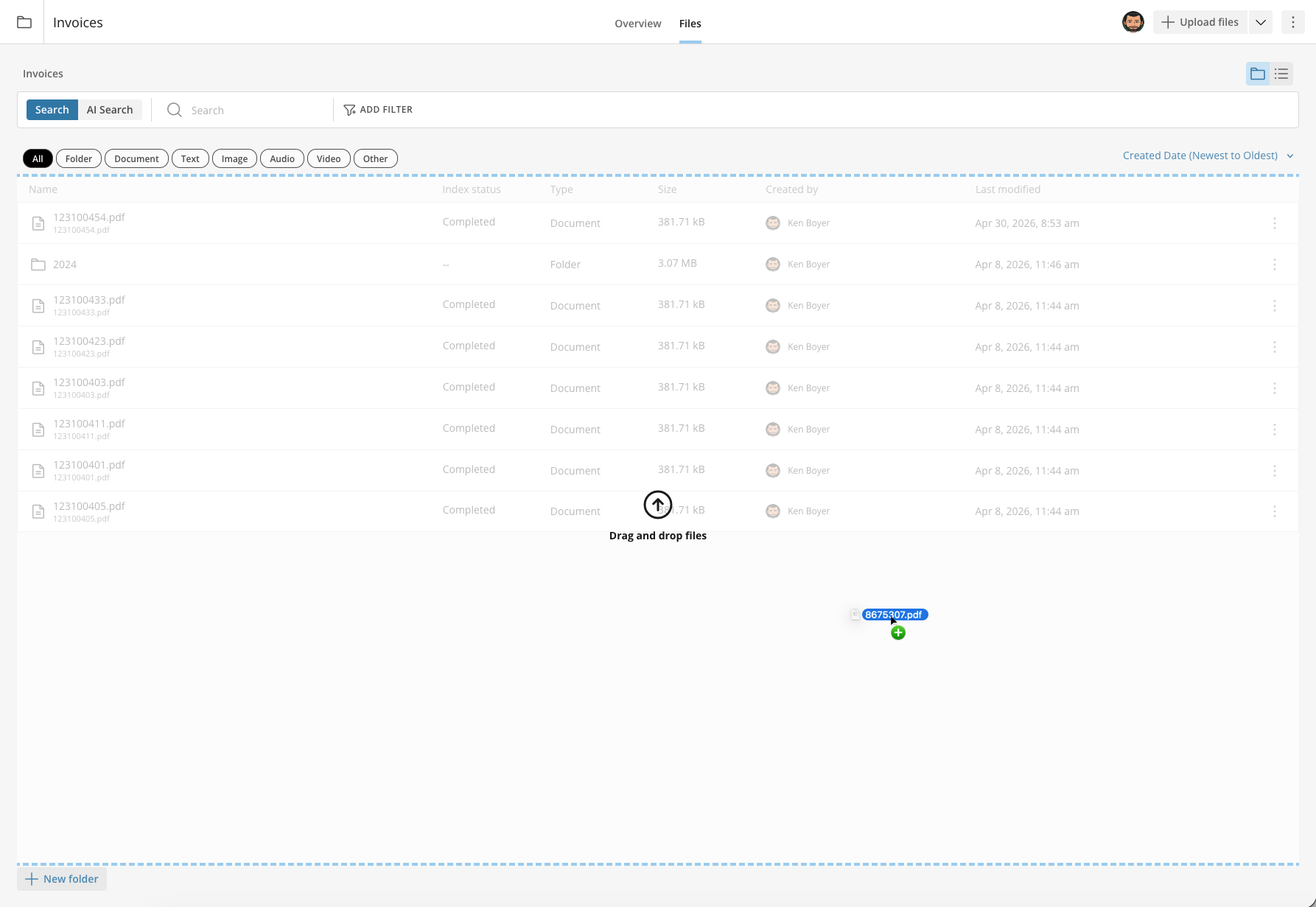
You can also drag and drop files and folders from your desktop to the Upload dialog.
<Frame>
  <img alt="documents_upload_6" src="https://mintcdn.com/domoinc-bradley-turek-pfilter-operators-reference/WZkEY_ggFkbPgupk/images/kb/documents_upload_6.png?fit=max&auto=format&n=WZkEY_ggFkbPgupk&q=85&s=4125d24a6d2c1230a960125ded64029f" style={{width: 624, height: 299}} width="1786" height="1231" data-path="images/kb/documents_upload_6.png" />
</Frame>

<Frame>
  <img alt="documents_upload_3" src="https://mintcdn.com/domoinc-bradley-turek-pfilter-operators-reference/WZkEY_ggFkbPgupk/images/kb/documents_upload_3.png?fit=max&auto=format&n=WZkEY_ggFkbPgupk&q=85&s=58b2438124ea24992dff3f7c3594e518" style={{width: 624, height: 299}} width="468" height="224" data-path="images/kb/documents_upload_3.png" />
</Frame>

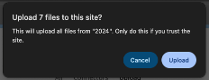
When uploading a folder, you are prompted before continuing.
<Frame>
  <img alt="documents_upload_4" src="https://mintcdn.com/domoinc-bradley-turek-pfilter-operators-reference/WZkEY_ggFkbPgupk/images/kb/documents_upload_4.png?fit=max&auto=format&n=WZkEY_ggFkbPgupk&q=85&s=b3375f7fcf90c99a7491088a32e7957a" style={{width: 291, height: 111}} width="209" height="80" data-path="images/kb/documents_upload_4.png" />
</Frame>

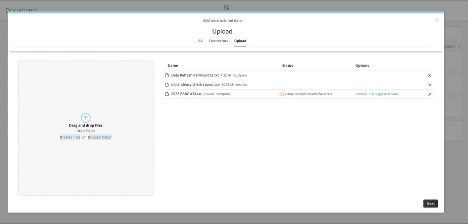
If a filename contains invalid characters, you can choose to remove them or choose the suggested name.
<Frame>
  <img alt="documents_upload_5" src="https://mintcdn.com/domoinc-bradley-turek-pfilter-operators-reference/WZkEY_ggFkbPgupk/images/kb/documents_upload_5.png?fit=max&auto=format&n=WZkEY_ggFkbPgupk&q=85&s=0beab7e2b5bcb1eff3b41c2fa539c764" style={{width: 624, height: 299}} width="468" height="224" data-path="images/kb/documents_upload_5.png" />
</Frame>

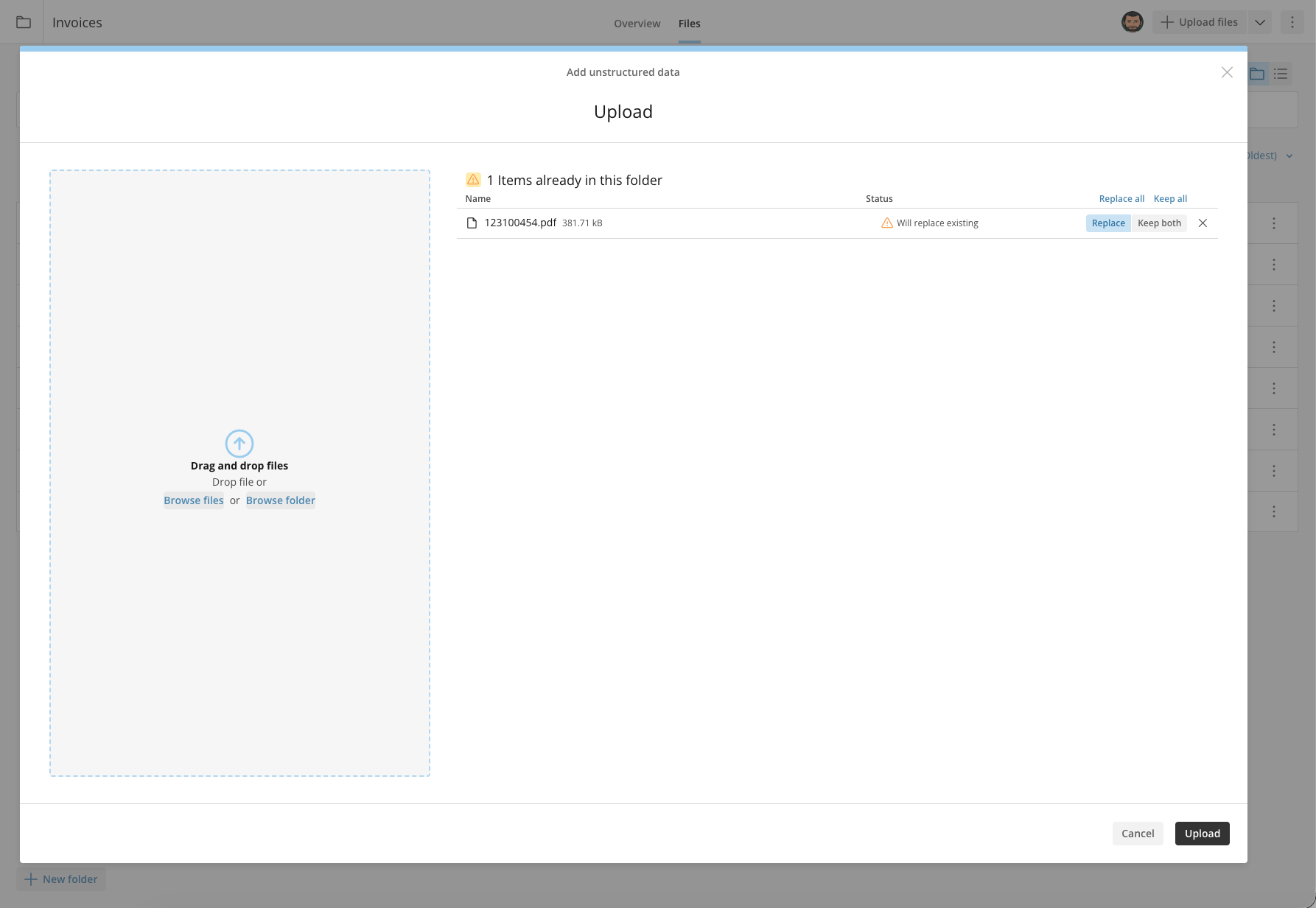
When updating an existing file, you can choose **Replace** or **Keep Both**.
<Frame>
  <img alt="documents_upload_7" src="https://mintcdn.com/domoinc-bradley-turek-pfilter-operators-reference/WZkEY_ggFkbPgupk/images/kb/documents_upload_7.png?fit=max&auto=format&n=WZkEY_ggFkbPgupk&q=85&s=8d48c7277a45ac3ca52b9ee2393f7784" style={{width: 624, height: 299}} width="1786" height="1232" data-path="images/kb/documents_upload_7.png" />
</Frame>

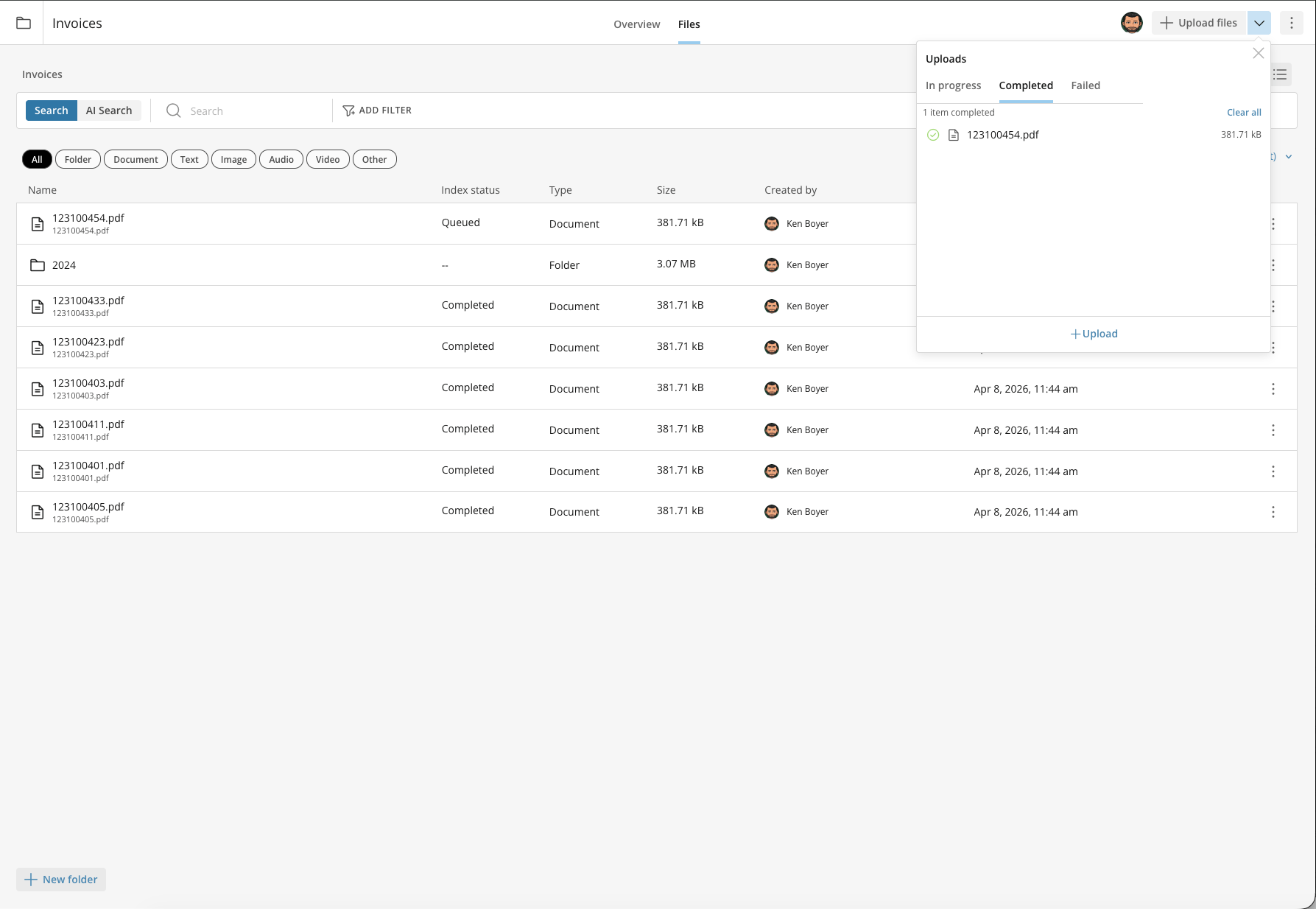
You can check the upload status of your files from the Upload details menu. From this menu, you can see the files In Progress, Completed, and Failed to upload.
<Frame>
  <img alt="documents_upload_8" src="https://mintcdn.com/domoinc-bradley-turek-pfilter-operators-reference/WZkEY_ggFkbPgupk/images/kb/documents_upload_8.png?fit=max&auto=format&n=WZkEY_ggFkbPgupk&q=85&s=b0e91363032b0914d0b92811f199c568" style={{width: 624, height: 299}} width="1787" height="1234" data-path="images/kb/documents_upload_8.png" />
</Frame>

### Connect to a Data Source

1. Choose the connector where your data is stored.
   <Frame>
     <img alt="documents_connector_1" src="https://mintcdn.com/domoinc-bradley-turek-pfilter-operators-reference/5AamsMd0R7CoXmtm/images/kb/documents_connector_1.png?fit=max&auto=format&n=5AamsMd0R7CoXmtm&q=85&s=372d71a80eb492ea081403d122756137" style={{width: 624, height: 317}} width="936" height="476" data-path="images/kb/documents_connector_1.png" />
   </Frame>

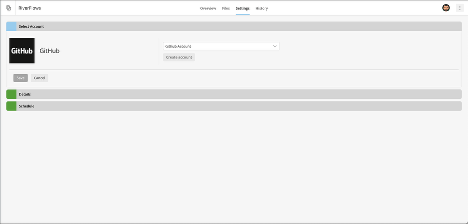
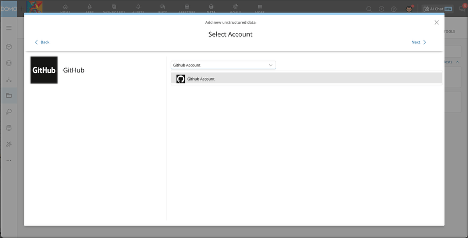
2. Select the appropriate authorized account, or use the simple connect wizard to create the account.
   <Frame>
     <img alt="documents_connector_2" src="https://mintcdn.com/domoinc-bradley-turek-pfilter-operators-reference/5AamsMd0R7CoXmtm/images/kb/documents_connector_2.png?fit=max&auto=format&n=5AamsMd0R7CoXmtm&q=85&s=a0944a5071862c1bf0f7a7d3bb08a613" style={{width: 624, height: 317}} width="468" height="238" data-path="images/kb/documents_connector_2.png" />
   </Frame>

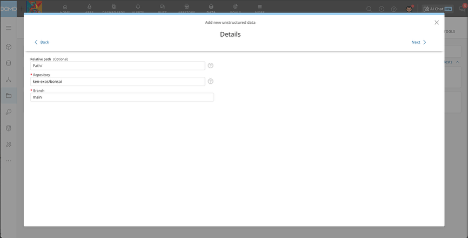
3. Add the appropriate connection details.
   <Frame>
     <img alt="documents_connector_3" src="https://mintcdn.com/domoinc-bradley-turek-pfilter-operators-reference/5AamsMd0R7CoXmtm/images/kb/documents_connector_3.png?fit=max&auto=format&n=5AamsMd0R7CoXmtm&q=85&s=407ba9e29b86d49fca02f63dea4a0dd0" style={{width: 624, height: 317}} width="468" height="238" data-path="images/kb/documents_connector_3.png" />
   </Frame>

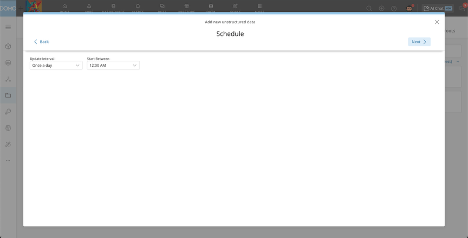
4. Set up the refresh schedule.

   <Frame>
     <img alt="documents_connector_4" src="https://mintcdn.com/domoinc-bradley-turek-pfilter-operators-reference/5AamsMd0R7CoXmtm/images/kb/documents_connector_4.png?fit=max&auto=format&n=5AamsMd0R7CoXmtm&q=85&s=0689e487a3db2d5dd051ddf08aa19df7" style={{width: 624, height: 317}} width="468" height="238" data-path="images/kb/documents_connector_4.png" />
   </Frame>

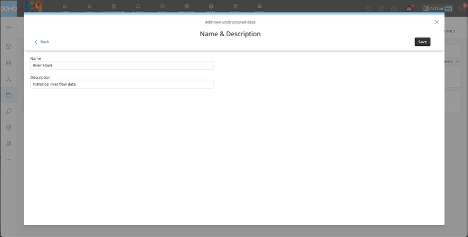
5. After uploading files or successfully connecting, specify the Document name and description, and then select **Save**.
   <Frame>
     <img alt="documents_connector_5" src="https://mintcdn.com/domoinc-bradley-turek-pfilter-operators-reference/5AamsMd0R7CoXmtm/images/kb/documents_connector_5.png?fit=max&auto=format&n=5AamsMd0R7CoXmtm&q=85&s=0074a63885dde74e4d15e28b3e3131ca" style={{width: 624, height: 317}} width="468" height="237" data-path="images/kb/documents_connector_5.png" />
   </Frame>

## Manage a Document Collection

The Document Collection Details menu provides access to settings and actions for managing a collection. The options available depend on whether the collection is powered by a connector or by uploaded files.

### Manage a Connector-Powered Collection

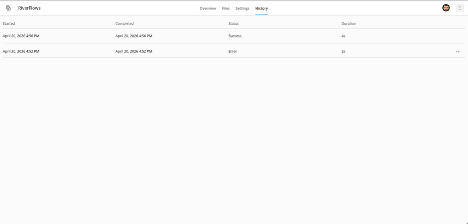
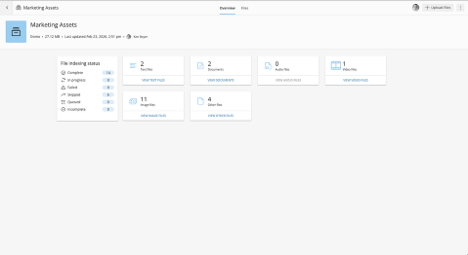
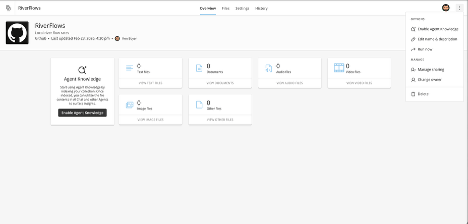
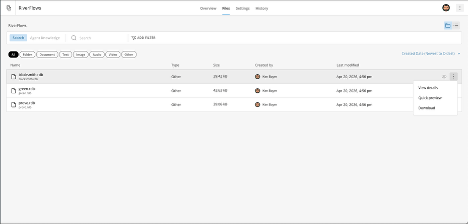
From the Document Collection Details menu, you can enable or disable Agent Knowledge, edit the name and description, manually run the connector, manage sharing, change ownership, and delete a collection. The tabs allow access to see the individual files, connector settings, and run history.
<Frame>
  <img alt="documents_connectorMenu_1" src="https://mintcdn.com/domoinc-bradley-turek-pfilter-operators-reference/5AamsMd0R7CoXmtm/images/kb/documents_connectorMenu_1.png?fit=max&auto=format&n=5AamsMd0R7CoXmtm&q=85&s=b1d8eb36a36422f57793e8c1cc17c2d4" style={{width: 624, height: 298}} width="468" height="224" data-path="images/kb/documents_connectorMenu_1.png" />
</Frame>

<Frame>
  <img alt="documents_connectorMenu_2" src="https://mintcdn.com/domoinc-bradley-turek-pfilter-operators-reference/5AamsMd0R7CoXmtm/images/kb/documents_connectorMenu_2.png?fit=max&auto=format&n=5AamsMd0R7CoXmtm&q=85&s=71a84a4c63eec25b5960e54b61ba5bdc" style={{width: 624, height: 298}} width="468" height="224" data-path="images/kb/documents_connectorMenu_2.png" />
</Frame>

<Frame>
  <img alt="documents_connectorMenu_3" src="https://mintcdn.com/domoinc-bradley-turek-pfilter-operators-reference/5AamsMd0R7CoXmtm/images/kb/documents_connectorMenu_3.png?fit=max&auto=format&n=5AamsMd0R7CoXmtm&q=85&s=cf0f655e24f7251fe747cc92b8632adf" style={{width: 624, height: 299}} width="468" height="224" data-path="images/kb/documents_connectorMenu_3.png" />
</Frame>

<Frame>
  <img alt="documents_connectorMenu_4" src="https://mintcdn.com/domoinc-bradley-turek-pfilter-operators-reference/5AamsMd0R7CoXmtm/images/kb/documents_connectorMenu_4.png?fit=max&auto=format&n=5AamsMd0R7CoXmtm&q=85&s=dc60cbe6071970e41c5946121a250fc6" style={{width: 624, height: 298}} width="468" height="224" data-path="images/kb/documents_connectorMenu_4.png" />
</Frame>

<Frame>
  <img alt="documents_connectorMenu_5" src="https://mintcdn.com/domoinc-bradley-turek-pfilter-operators-reference/5AamsMd0R7CoXmtm/images/kb/documents_connectorMenu_5.png?fit=max&auto=format&n=5AamsMd0R7CoXmtm&q=85&s=a3278218e413feede8411cd93a6bd3c2" style={{width: 624, height: 298}} width="468" height="224" data-path="images/kb/documents_connectorMenu_5.png" />
</Frame>

### Manage an Uploaded Collection

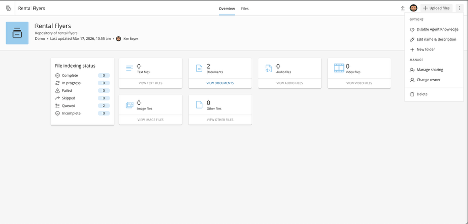
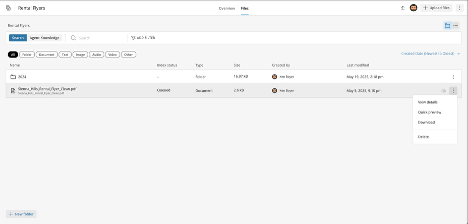
From the Document Collection Details menu, you can enable or disable Agent Knowledge, edit the name and description, create folders, manage sharing, change ownership, and delete a collection.
<Frame>
  <img alt="documents_uploadMenu_1" src="https://mintcdn.com/domoinc-bradley-turek-pfilter-operators-reference/WZkEY_ggFkbPgupk/images/kb/documents_uploadMenu_1.png?fit=max&auto=format&n=WZkEY_ggFkbPgupk&q=85&s=2c71ce49f2aba1958c4edfce51d114b3" style={{width: 624, height: 299}} width="468" height="224" data-path="images/kb/documents_uploadMenu_1.png" />
</Frame>

<Frame>
  <img alt="documents_uploadMenu_2" src="https://mintcdn.com/domoinc-bradley-turek-pfilter-operators-reference/WZkEY_ggFkbPgupk/images/kb/documents_uploadMenu_2.png?fit=max&auto=format&n=WZkEY_ggFkbPgupk&q=85&s=f5283858f2aab10adba1d499cc46e4bf" style={{width: 624, height: 298}} width="468" height="224" data-path="images/kb/documents_uploadMenu_2.png" />
</Frame>

<Frame>
  <img alt="documents_quickview" src="https://mintcdn.com/domoinc-bradley-turek-pfilter-operators-reference/WZkEY_ggFkbPgupk/images/kb/documents_quickview.png?fit=max&auto=format&n=WZkEY_ggFkbPgupk&q=85&s=ea61b7135ea76a78387fb1b10570885a" style={{width: 624, height: 298}} width="468" height="224" data-path="images/kb/documents_quickview.png" />
</Frame>

<Frame>
  <img alt="documents_preview" src="https://mintcdn.com/domoinc-bradley-turek-pfilter-operators-reference/WZkEY_ggFkbPgupk/images/kb/documents_preview.png?fit=max&auto=format&n=WZkEY_ggFkbPgupk&q=85&s=330bd8904e958b9ee0d274587def06e7" style={{width: 624, height: 299}} width="468" height="224" data-path="images/kb/documents_preview.png" />
</Frame>

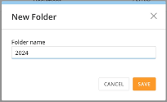
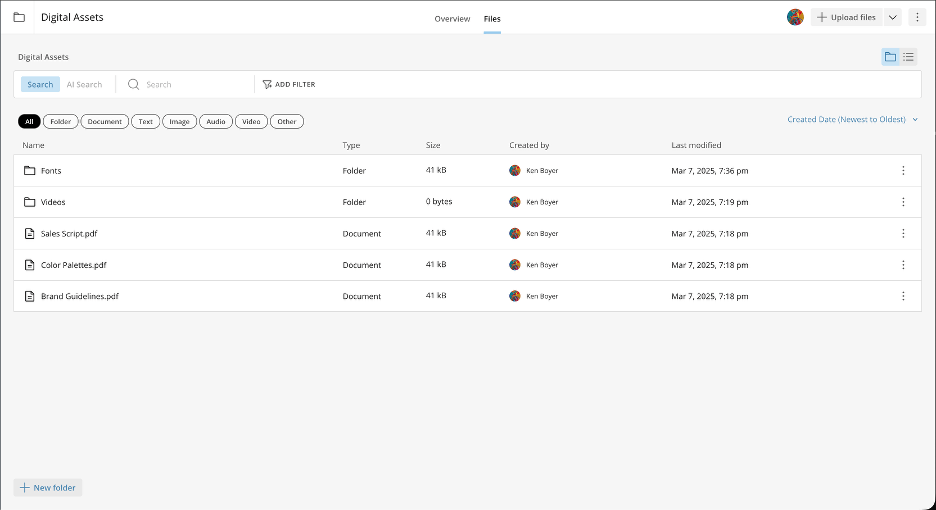
When uploading documents from your computer, you can use folder management to organize your files.
<Frame>
  <img alt="documents_newFolder_1" src="https://mintcdn.com/domoinc-bradley-turek-pfilter-operators-reference/WZkEY_ggFkbPgupk/images/kb/documents_newFolder_1.png?fit=max&auto=format&n=WZkEY_ggFkbPgupk&q=85&s=99e39bb2a5e0993c86a36c641ac252a1" style={{width: 229, height: 139}} width="167" height="102" data-path="images/kb/documents_newFolder_1.png" />
</Frame>

<Frame>
  <img alt="documents_newFolder_2" src="https://mintcdn.com/domoinc-bradley-turek-pfilter-operators-reference/WZkEY_ggFkbPgupk/images/kb/documents_newFolder_2.png?fit=max&auto=format&n=WZkEY_ggFkbPgupk&q=85&s=02cdd1b7e5543fd896464657792b25f7" style={{width: 624, height: 324}} width="936" height="510" data-path="images/kb/documents_newFolder_2.png" />
</Frame>

## Enable Agent Knowledge

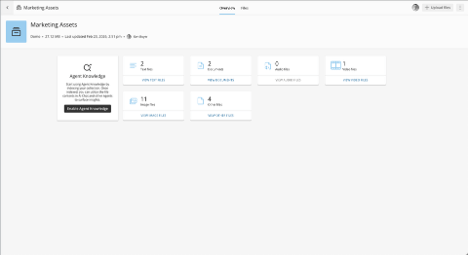
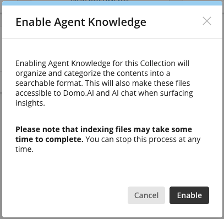
After Agent Knowledge is enabled, you can search the contents of your documents from the listing tab. This also makes your documents accessible to Domo AI and allows AI Chat and other Agents to surface more accurate insights.
<Frame>
  <img alt="documents_agentKnowledge_1" src="https://mintcdn.com/domoinc-bradley-turek-pfilter-operators-reference/5AamsMd0R7CoXmtm/images/kb/documents_agentKnowledge_1.png?fit=max&auto=format&n=5AamsMd0R7CoXmtm&q=85&s=62173b4c599066dd5345db686b0f1457" style={{width: 624, height: 341}} width="468" height="255" data-path="images/kb/documents_agentKnowledge_1.png" />
</Frame>

<Frame>
  <img alt="documents_agentKnowledge_2" src="https://mintcdn.com/domoinc-bradley-turek-pfilter-operators-reference/5AamsMd0R7CoXmtm/images/kb/documents_agentKnowledge_2.png?fit=max&auto=format&n=5AamsMd0R7CoXmtm&q=85&s=5f521c54d8309e9829c53b4de65f9cc3" style={{width: 301, height: 294}} width="224" height="219" data-path="images/kb/documents_agentKnowledge_2.png" />
</Frame>

<Frame>
  <img alt="documents_agentKnowledge_3" src="https://mintcdn.com/domoinc-bradley-turek-pfilter-operators-reference/5AamsMd0R7CoXmtm/images/kb/documents_agentKnowledge_3.png?fit=max&auto=format&n=5AamsMd0R7CoXmtm&q=85&s=3c2da292143227c898b448209acd506e" style={{width: 624, height: 340}} width="468" height="255" data-path="images/kb/documents_agentKnowledge_3.png" />
</Frame>

## Search Documents

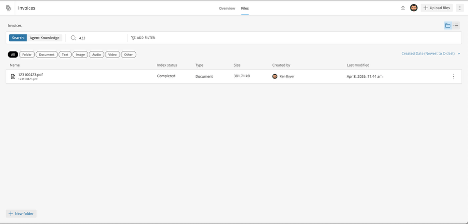
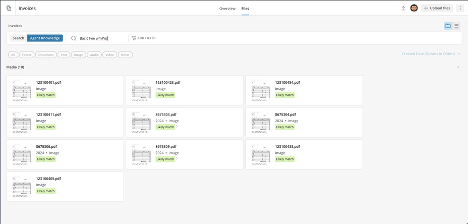
From the listing tab, choose **Search** to find file name and description matches. Choose **Agent Knowledge** to search the contents of your files.
<Frame>
  <img alt="documents_search_1" src="https://mintcdn.com/domoinc-bradley-turek-pfilter-operators-reference/WZkEY_ggFkbPgupk/images/kb/documents_search_1.png?fit=max&auto=format&n=WZkEY_ggFkbPgupk&q=85&s=98c487d8134ee833b0808b499baa0633" style={{width: 624, height: 299}} width="468" height="224" data-path="images/kb/documents_search_1.png" />
</Frame>

<Frame>
  <img alt="documents_search_2" src="https://mintcdn.com/domoinc-bradley-turek-pfilter-operators-reference/WZkEY_ggFkbPgupk/images/kb/documents_search_2.png?fit=max&auto=format&n=WZkEY_ggFkbPgupk&q=85&s=416438403671a6c491f6335181c74e83" style={{width: 624, height: 299}} width="468" height="224" data-path="images/kb/documents_search_2.png" />
</Frame>

## Access Documents from an Agent in Workflows

Agents can fully use Documents as a **Tool** or **Knowledge** within the **AI Agent Task** inside Workflows.

1. From the **Tools** tab, select **+ Add Tools**.
2. Search for "Documents" and select the **DOMO DOCUMENTS** package.
3. Choose the **AI Search File Set** method.

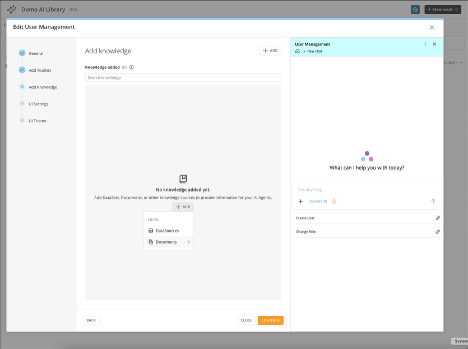
## Access Documents from an Agent in the AI Library
<Frame>
  <img alt="documents_ai_library_1" src="https://mintcdn.com/domoinc-bradley-turek-pfilter-operators-reference/5AamsMd0R7CoXmtm/images/kb/documents_ai_library_1.png?fit=max&auto=format&n=5AamsMd0R7CoXmtm&q=85&s=01e0dc8a576d3dfab4476983d9df429e" style={{width: 624, height: 465}} width="468" height="349" data-path="images/kb/documents_ai_library_1.png" />
</Frame>

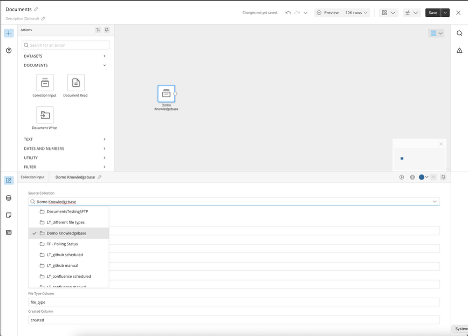
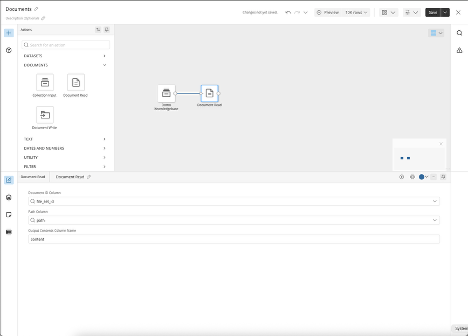
## Access Documents from an Agent in Magic ETL

Within Magic ETL, you can use a Document Collection as an input to other tiles, or read and write files into collections.
<Frame>
  <img alt="documents_etl_1" src="https://mintcdn.com/domoinc-bradley-turek-pfilter-operators-reference/5AamsMd0R7CoXmtm/images/kb/documents_etl_1.png?fit=max&auto=format&n=5AamsMd0R7CoXmtm&q=85&s=652fdc55a55838cc902bc926af378ff2" style={{width: 624, height: 448}} width="468" height="336" data-path="images/kb/documents_etl_1.png" />
</Frame>

<Frame>
  <img alt="documents_etl_2" src="https://mintcdn.com/domoinc-bradley-turek-pfilter-operators-reference/5AamsMd0R7CoXmtm/images/kb/documents_etl_2.png?fit=max&auto=format&n=5AamsMd0R7CoXmtm&q=85&s=e19776603b904f86296c755d01a6a20e" style={{width: 624, height: 447}} width="468" height="336" data-path="images/kb/documents_etl_2.png" />
</Frame>

## FAQ

<AccordionGroup>
  <Accordion title="What type of files are supported for Agent Knowledge?">
    All common image and document file types can be stored. AI Search indexing is limited to the following file types: txt, md, csv, css, json, html, doc, docx, xls, xlsx, pdf, jpg, jpeg, and png.
  </Accordion>

  <Accordion title="Is there an Agent Knowledge file size limit?">
    Yes. Images are limited to 3.75MB, and documents are limited to 50MB.
  </Accordion>

  <Accordion title="How many documents can I have?">
    There is no limit, but consumption rates apply. See the [Consumption Supplemental Terms](https://www.domo.com/consumption-terms) for details.
  </Accordion>

  <Accordion title="If I have documents in a cloud service like Google Drive, can I easily connect them to Documents for automatic uploads like a Domo connector?">
    Yes. You can connect to Amazon S3, SFTP, GitHub, Google Drive, or Confluence, with more to come.
  </Accordion>

  <Accordion title="After I have the documents uploaded, where do I find them? Can I access them with AI Chat?">
    Agents can fully use Documents as **Knowledge**.
  </Accordion>

  <Accordion title="Can I create a visualization from a Document in a dashboard or App Studio app?">
    Not at this time. This is on our roadmap.
  </Accordion>

  <Accordion title="How do I manage access to Documents, both for uploading permissions and for usage?">
    Currently, permissions are based on the entire Document and are controlled through Roles and Grants.
  </Accordion>

  <Accordion title="What does consumption look like for Documents? Is it per upload, per view, or per usage in other parts of the platform? Is there a storage cost?">
    Yes, there are consumption charges for file storage, Agent Knowledge storage, and processing. See our online terms for full details.
  </Accordion>

  <Accordion title="Will I be able to use Documents with the Magic ETL Text Generation tile?">
    This is on our roadmap.
  </Accordion>
</AccordionGroup>