> ## Documentation Index
> Fetch the complete documentation index at: https://domoinc-bradley-turek-pfilter-operators-reference.mintlify.site/llms.txt
> Use this file to discover all available pages before exploring further.

# Google Drive Connector

## Intro

This article explains how to create Google OAuth 2.0 credentials for the Google Drive API and use them to connect Google Drive to Domo Documents. If you have an Enterprise Account, the steps may vary.

If you already have a Google Drive Client ID and Client Secret, skip to [Create a Google Drive Connection](#create-a-google-drive-connection).

<Note>**Note:** If you change the `scopes` of your OAuth client, you must re-authenticate your Google Drive connector.</Note>

***

## Required Grants

To access Documents, the following grants must be enabled for your role:

* **Manage Documents —** View, edit, and delete any Document Collections in this instance.
* **Edit Documents —** Create and edit Document Collections to which you have access.
* **View Documents —** View only for any Document Collections to which you have access.

Learn more about [grants](/s/article/360043438973).

## Create a Project and Enable the Google Drive API

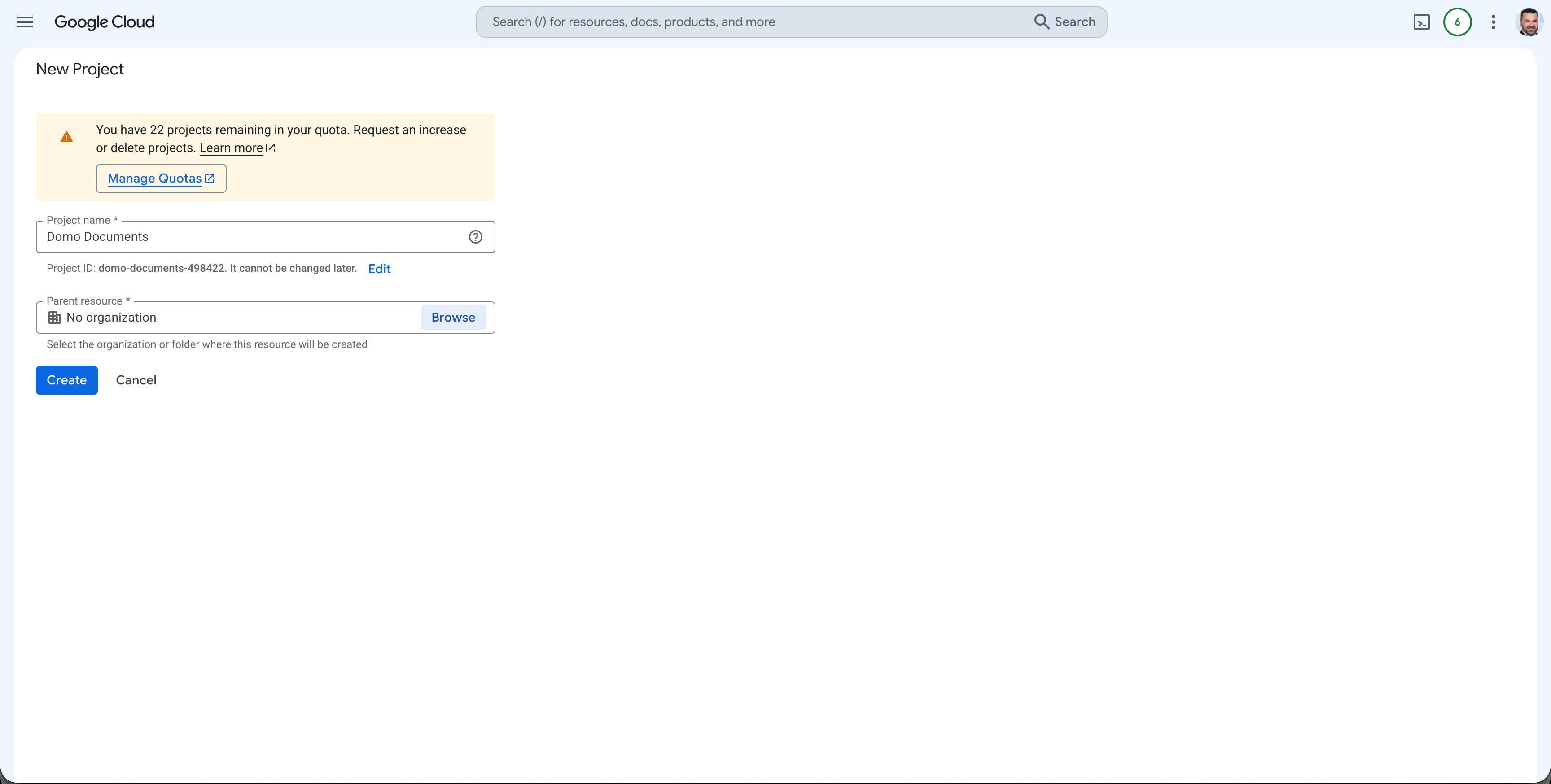
To get a Google Drive Client ID and Client Secret, generate them through the Google Cloud Console by enabling the Drive API and creating OAuth 2.0 credentials.

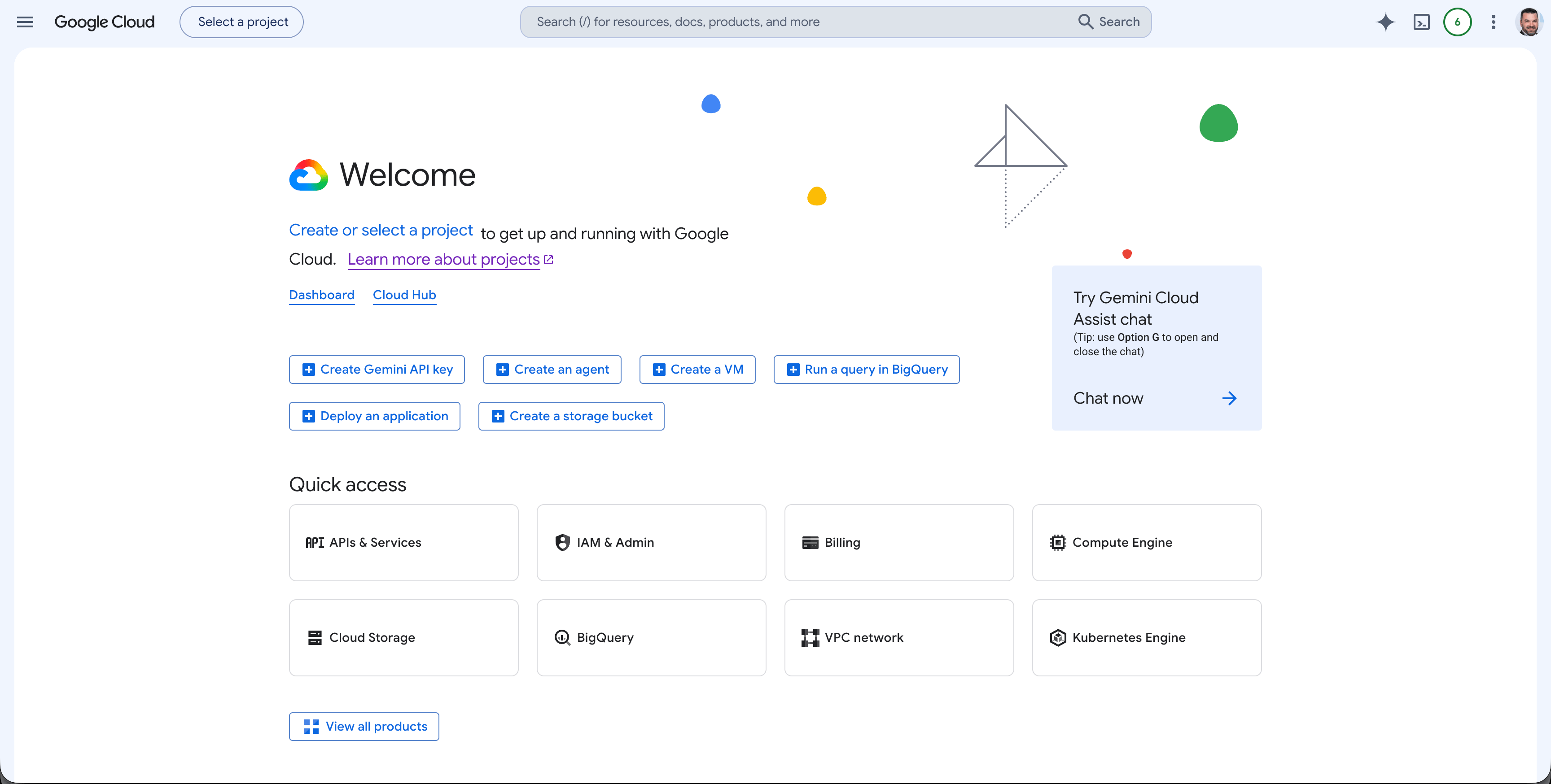
1. Open the [Google Cloud Console](https://console.cloud.google.com/).
<Frame>
  <img alt="Google Cloud Console home" src="https://mintcdn.com/domoinc-bradley-turek-pfilter-operators-reference/yl0etVGRdJGfZa1W/images/kb/GoogleCloud1.png?fit=max&auto=format&n=yl0etVGRdJGfZa1W&q=85&s=25f314eef5180e03a810040d17818ea5" width="3456" height="1748" data-path="images/kb/GoogleCloud1.png" />
</Frame>

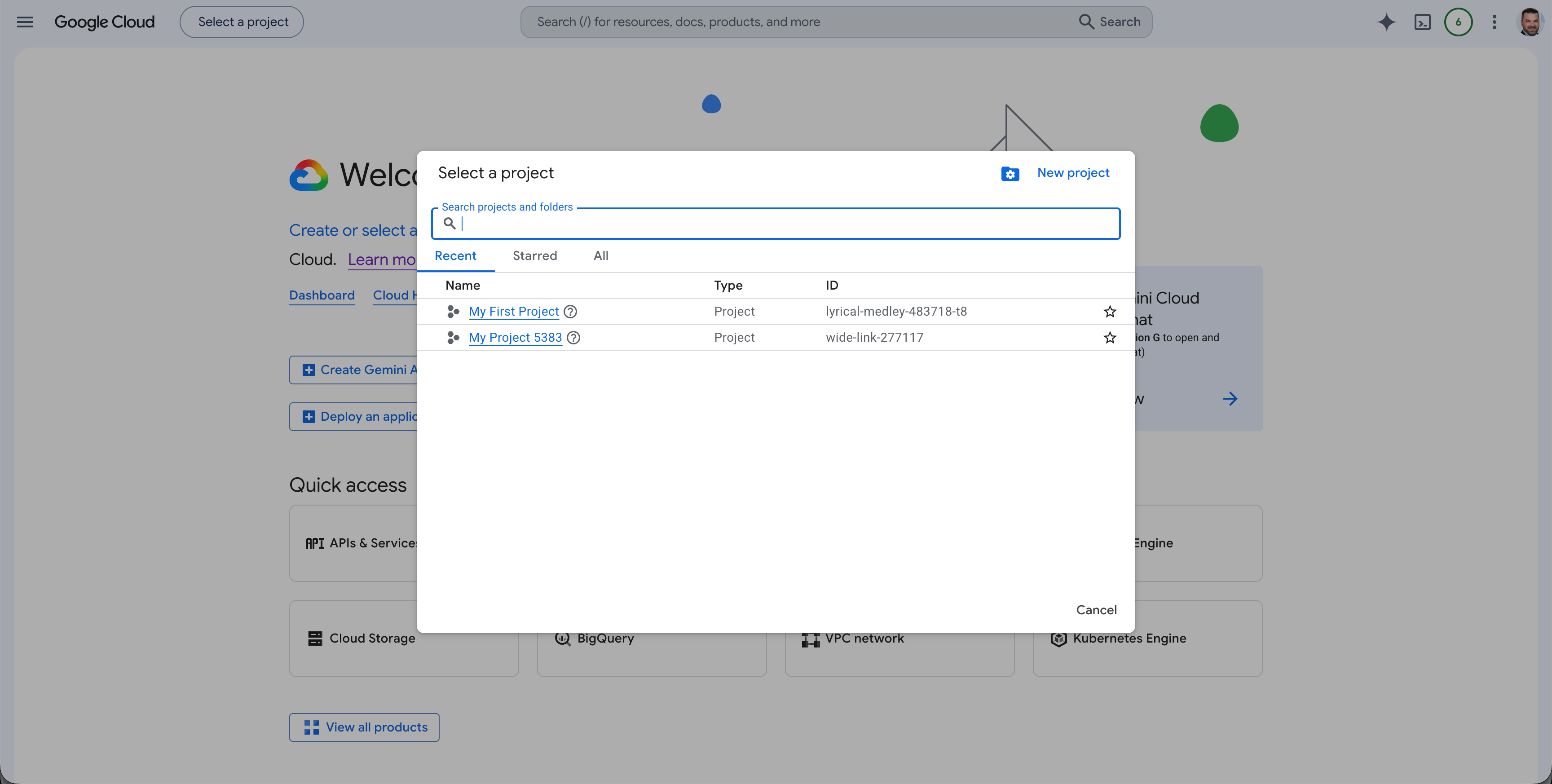
2. Log in with your Google account, then select **Create Project** (or select an existing one).
<Frame>
  <img alt="Google Cloud project creation option" src="https://mintcdn.com/domoinc-bradley-turek-pfilter-operators-reference/yl0etVGRdJGfZa1W/images/kb/GoogleCloud2.png?fit=max&auto=format&n=yl0etVGRdJGfZa1W&q=85&s=88d968c9e0fe634e53f34c08cba6f014" width="3456" height="1746" data-path="images/kb/GoogleCloud2.png" />
</Frame>

<Frame>
  <img alt="Google Cloud new project dialog" src="https://mintcdn.com/domoinc-bradley-turek-pfilter-operators-reference/yl0etVGRdJGfZa1W/images/kb/GoogleCloud3.png?fit=max&auto=format&n=yl0etVGRdJGfZa1W&q=85&s=c467159e7422824a2d41cde13b0e9bb2" width="3456" height="1748" data-path="images/kb/GoogleCloud3.png" />
</Frame>

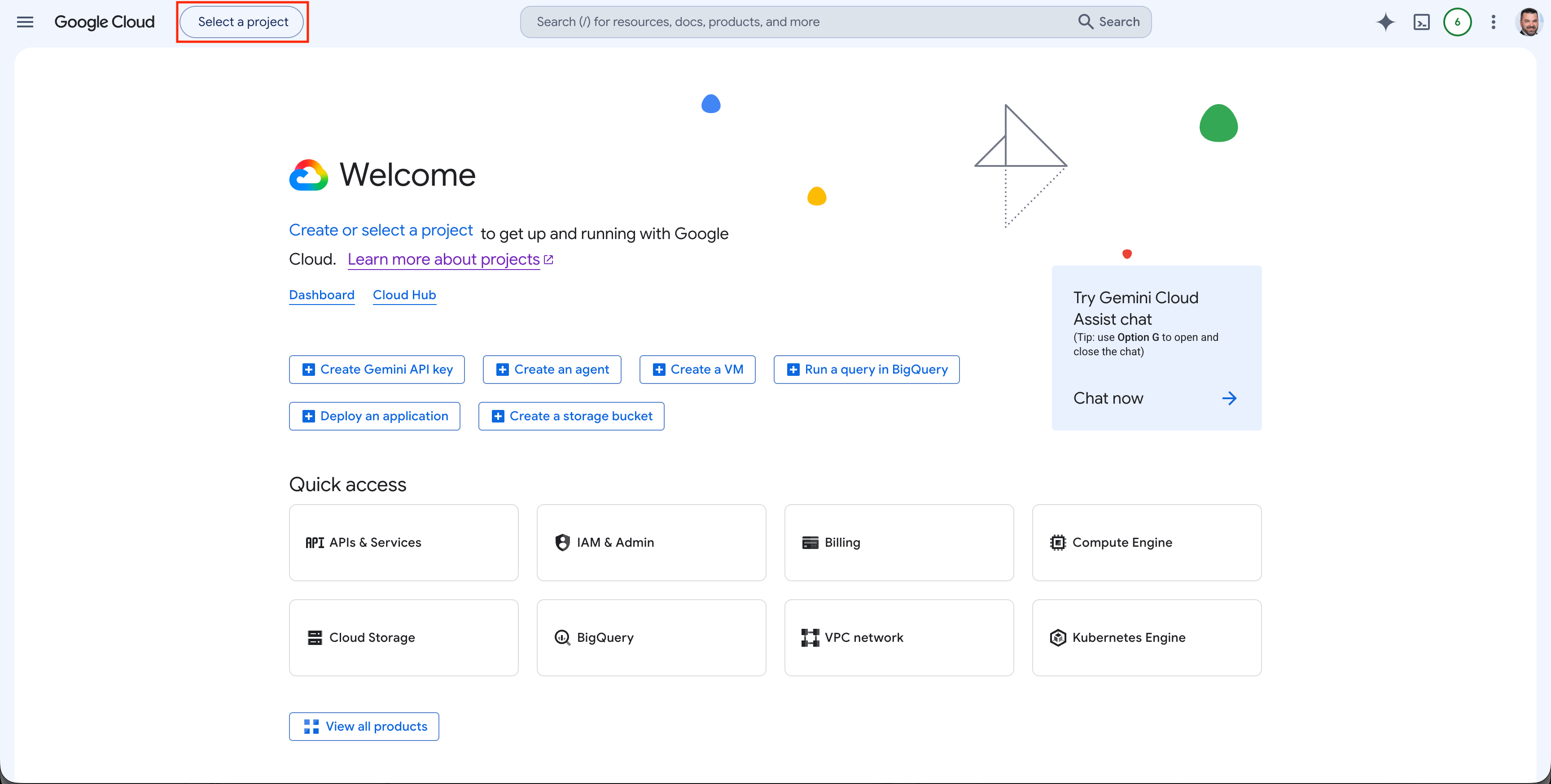
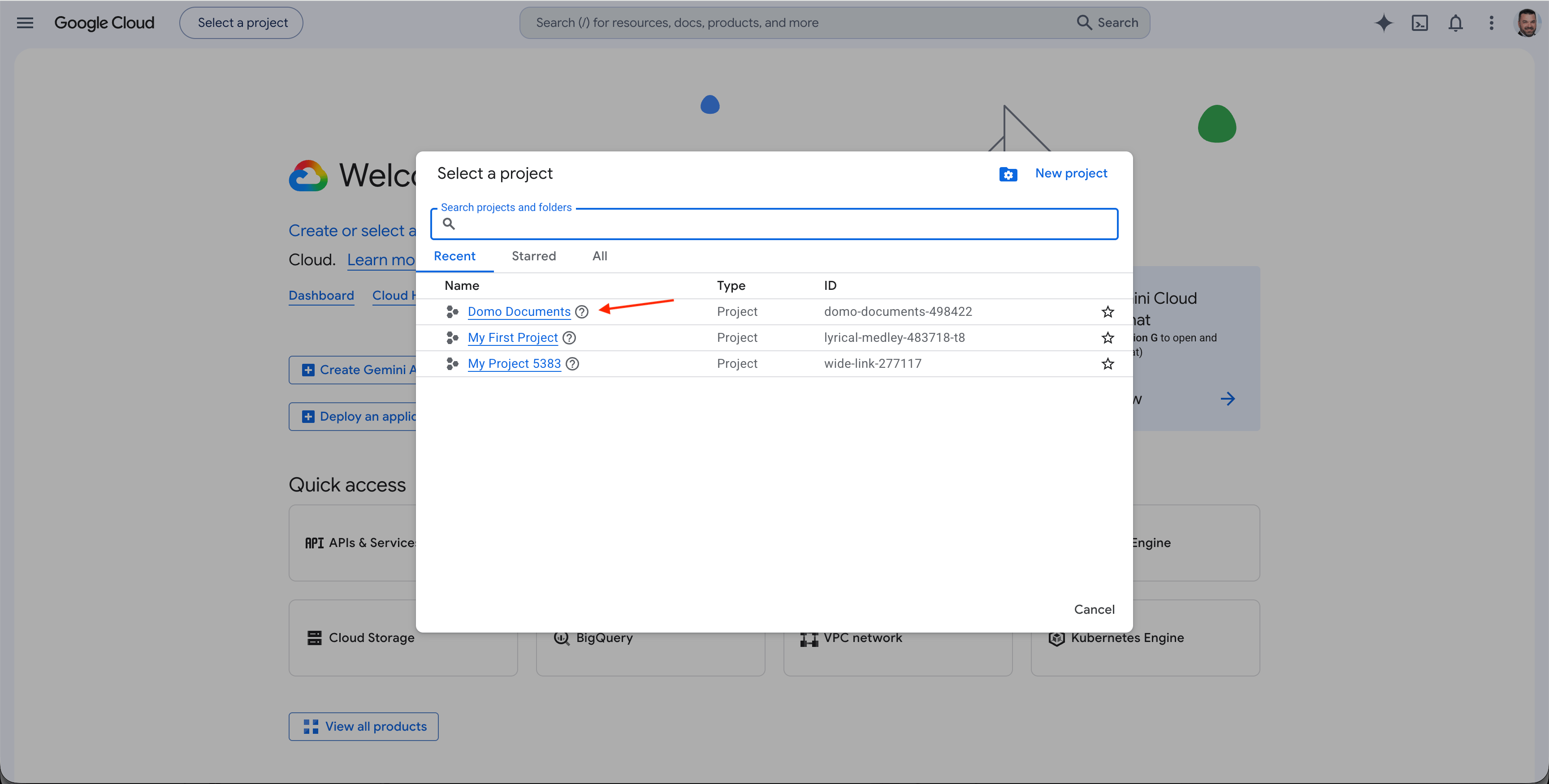
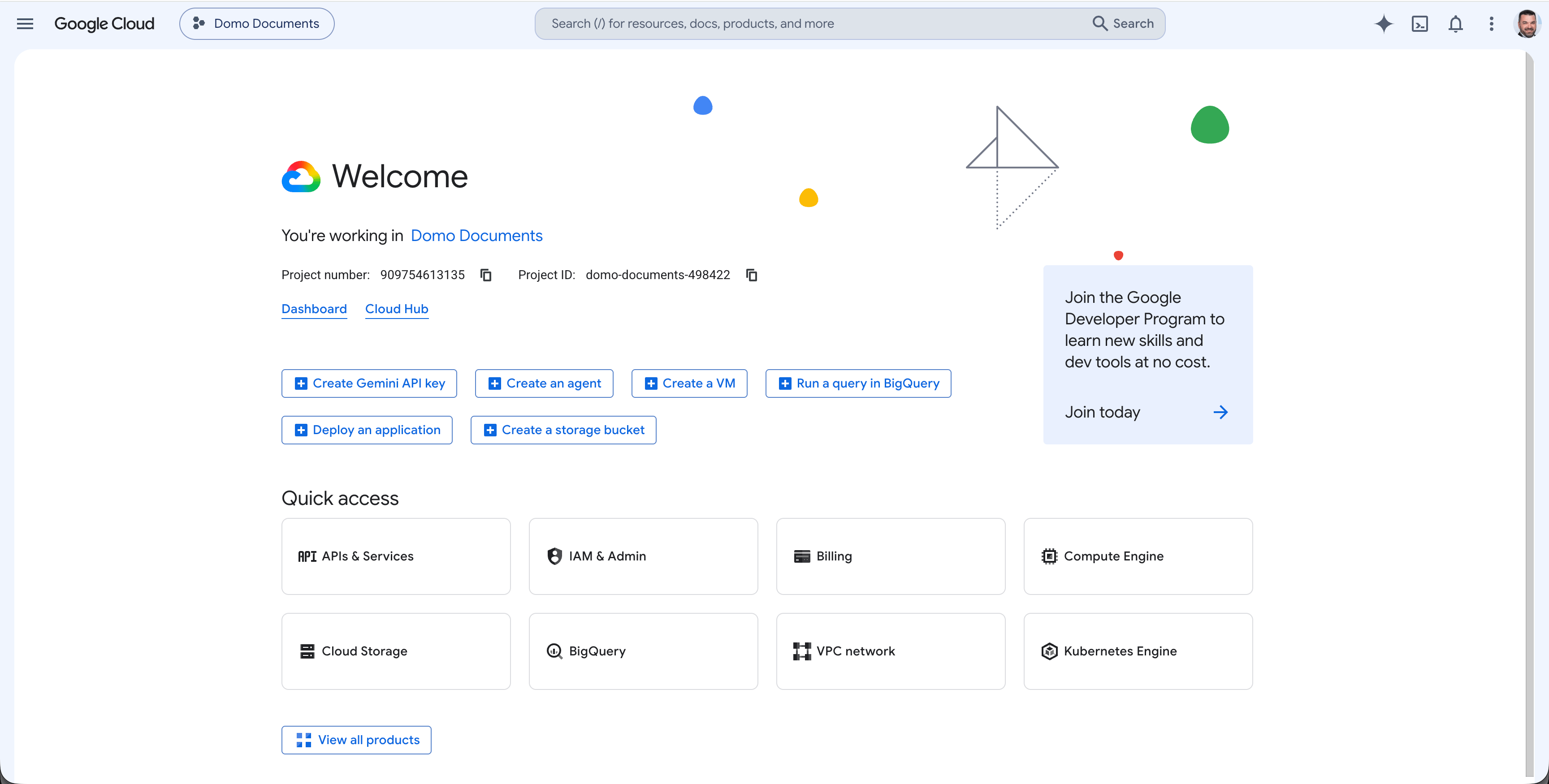
3. Select your new project.

<Frame>
  <img alt="Google Cloud project selector" src="https://mintcdn.com/domoinc-bradley-turek-pfilter-operators-reference/yl0etVGRdJGfZa1W/images/kb/GoogleCloud4.png?fit=max&auto=format&n=yl0etVGRdJGfZa1W&q=85&s=5cc9920838318ec4f684f2a86b1e1e2b" width="3456" height="1748" data-path="images/kb/GoogleCloud4.png" />
</Frame>

<Frame>
  <img alt="Google Cloud project dashboard" src="https://mintcdn.com/domoinc-bradley-turek-pfilter-operators-reference/yl0etVGRdJGfZa1W/images/kb/GoogleCloud5.png?fit=max&auto=format&n=yl0etVGRdJGfZa1W&q=85&s=b91a3e723bc4eead19d2f6289535c528" width="3456" height="1750" data-path="images/kb/GoogleCloud5.png" />
</Frame>

<Frame>
  <img alt="Google Cloud APIs and services" src="https://mintcdn.com/domoinc-bradley-turek-pfilter-operators-reference/yl0etVGRdJGfZa1W/images/kb/GoogleCloud6.png?fit=max&auto=format&n=yl0etVGRdJGfZa1W&q=85&s=3bb86013ab3f1f44604475b5a3b9db46" width="3456" height="1750" data-path="images/kb/GoogleCloud6.png" />
</Frame>

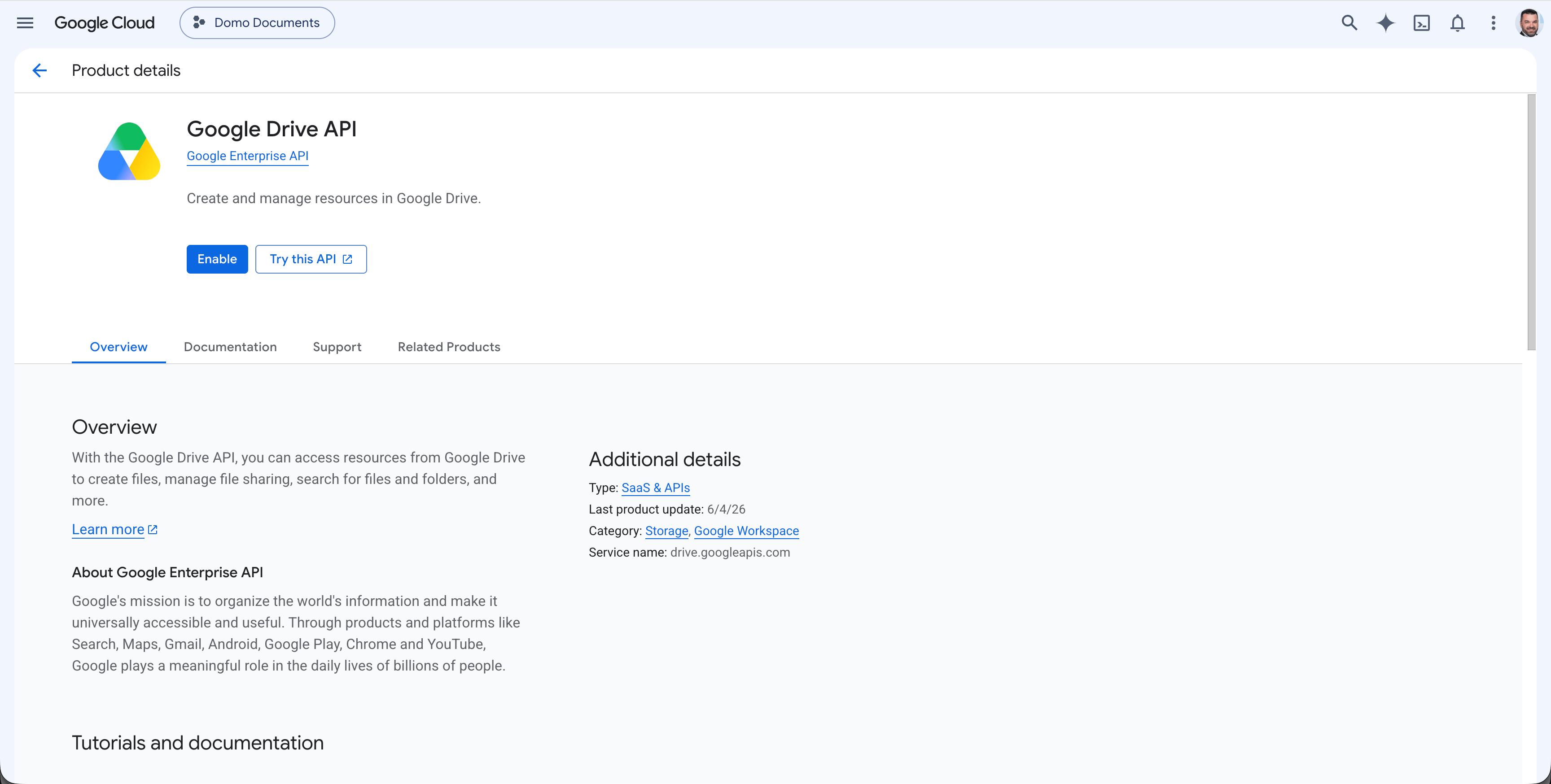
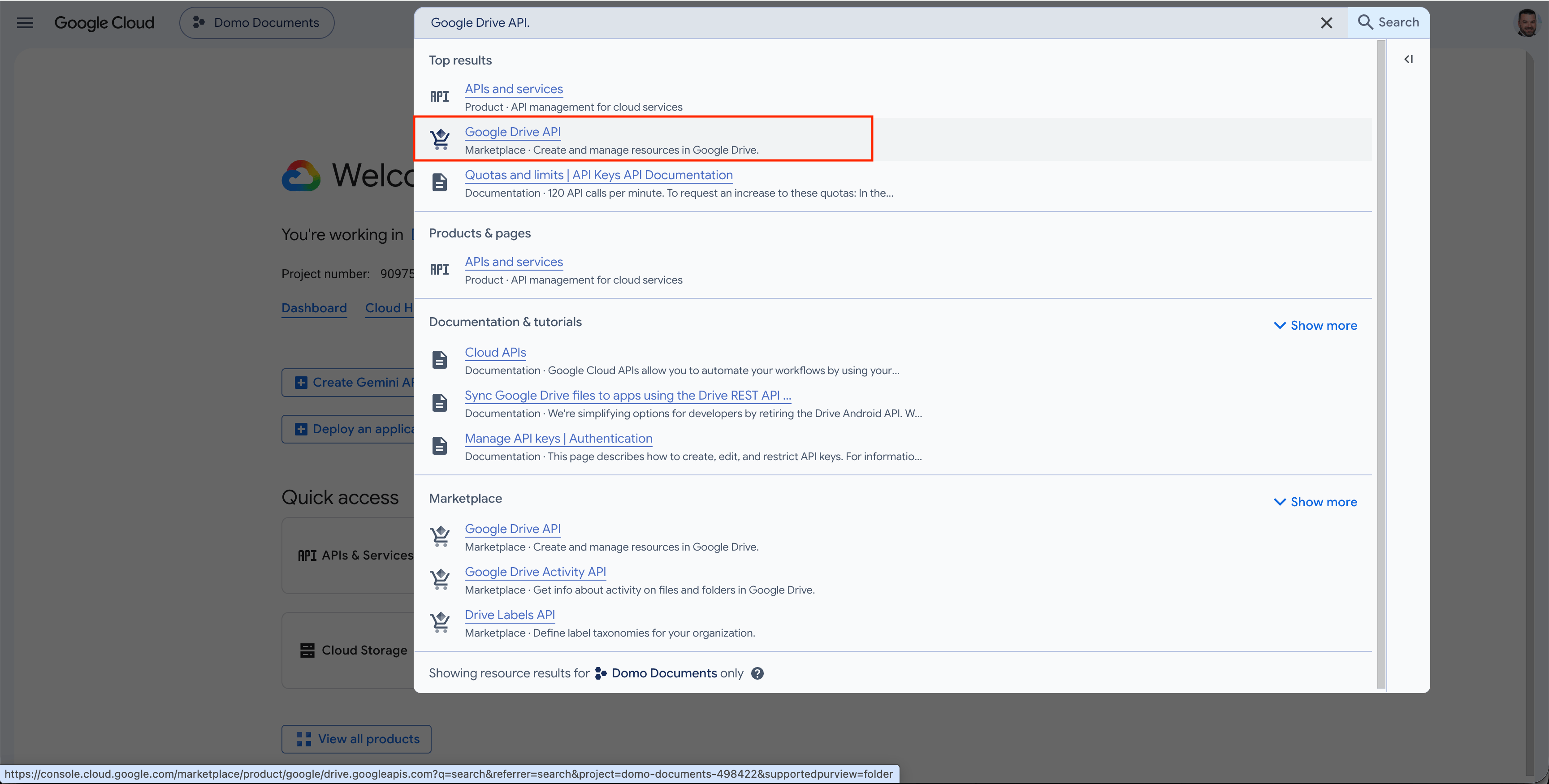
4. In the top search bar, type **Google Drive API** and select it from the list.
<Frame>
  <img alt="Google Cloud search bar with Google Drive API query" src="https://mintcdn.com/domoinc-bradley-turek-pfilter-operators-reference/yl0etVGRdJGfZa1W/images/kb/GoogleCloud7.png?fit=max&auto=format&n=yl0etVGRdJGfZa1W&q=85&s=ef4ff7a2491505ddb24352d003a7cf57" width="3456" height="1750" data-path="images/kb/GoogleCloud7.png" />
</Frame>

<Frame>
  <img alt="Google Drive API search result" src="https://mintcdn.com/domoinc-bradley-turek-pfilter-operators-reference/yl0etVGRdJGfZa1W/images/kb/GoogleCloud8.png?fit=max&auto=format&n=yl0etVGRdJGfZa1W&q=85&s=bca85cb5566a7f92ed3904d83cdb81aa" width="3456" height="1748" data-path="images/kb/GoogleCloud8.png" />
</Frame>

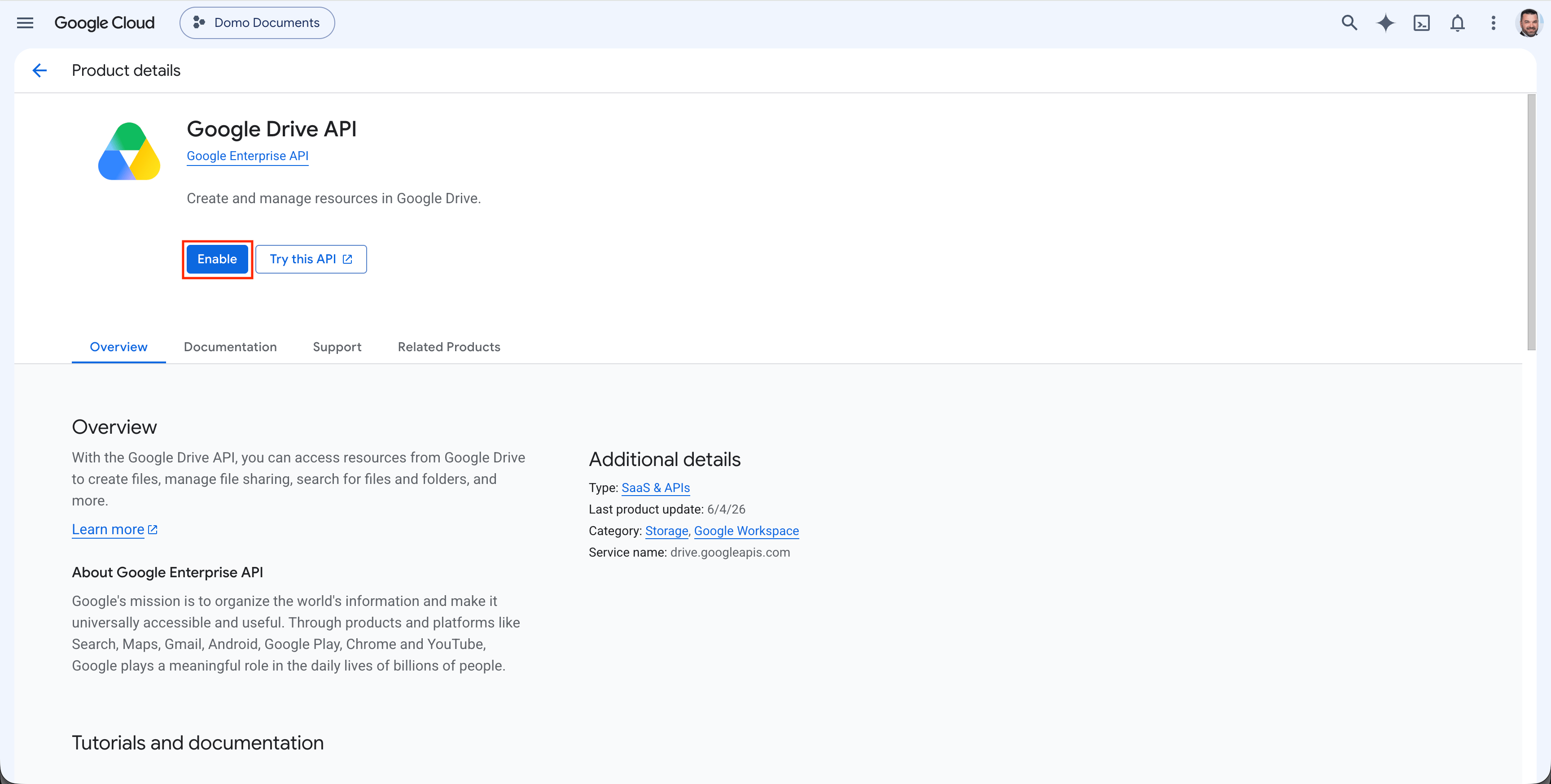
5. Select **Enable** to enable the Google Drive API.
<Frame>
  <img alt="Google Drive API enable button" src="https://mintcdn.com/domoinc-bradley-turek-pfilter-operators-reference/yl0etVGRdJGfZa1W/images/kb/GoogleCloud9.png?fit=max&auto=format&n=yl0etVGRdJGfZa1W&q=85&s=314a54efb9caa0bb239e98178fb818ad" width="3456" height="1748" data-path="images/kb/GoogleCloud9.png" />
</Frame>

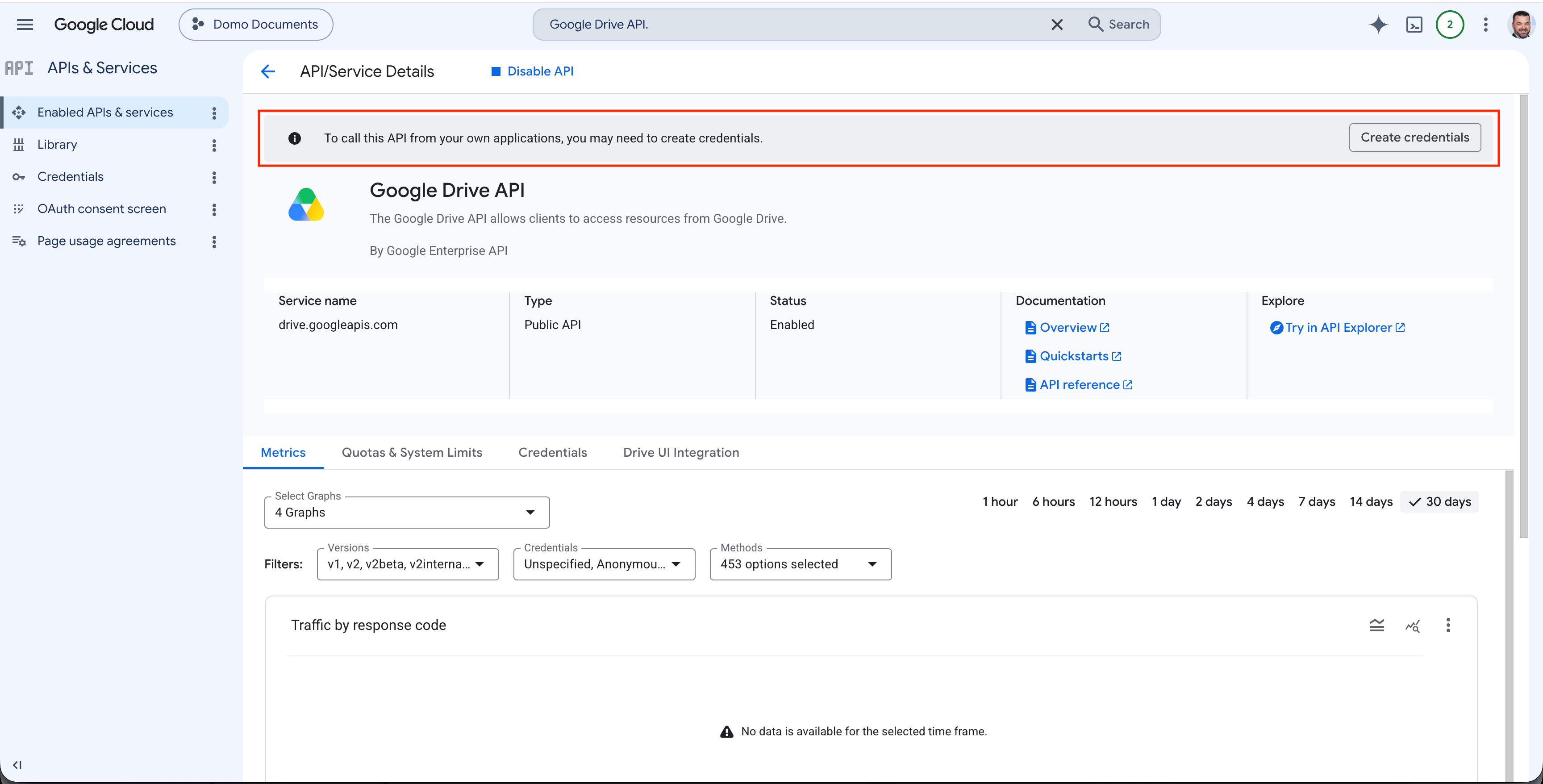
6. After enabling the API, select **Create Credentials**.
<Frame>
  <img alt="Google Drive API credentials prompt" src="https://mintcdn.com/domoinc-bradley-turek-pfilter-operators-reference/yl0etVGRdJGfZa1W/images/kb/GoogleCloud10.png?fit=max&auto=format&n=yl0etVGRdJGfZa1W&q=85&s=a62aa01b128aaf2ec37f1b1bb4e5ad46" width="3456" height="1756" data-path="images/kb/GoogleCloud10.png" />
</Frame>

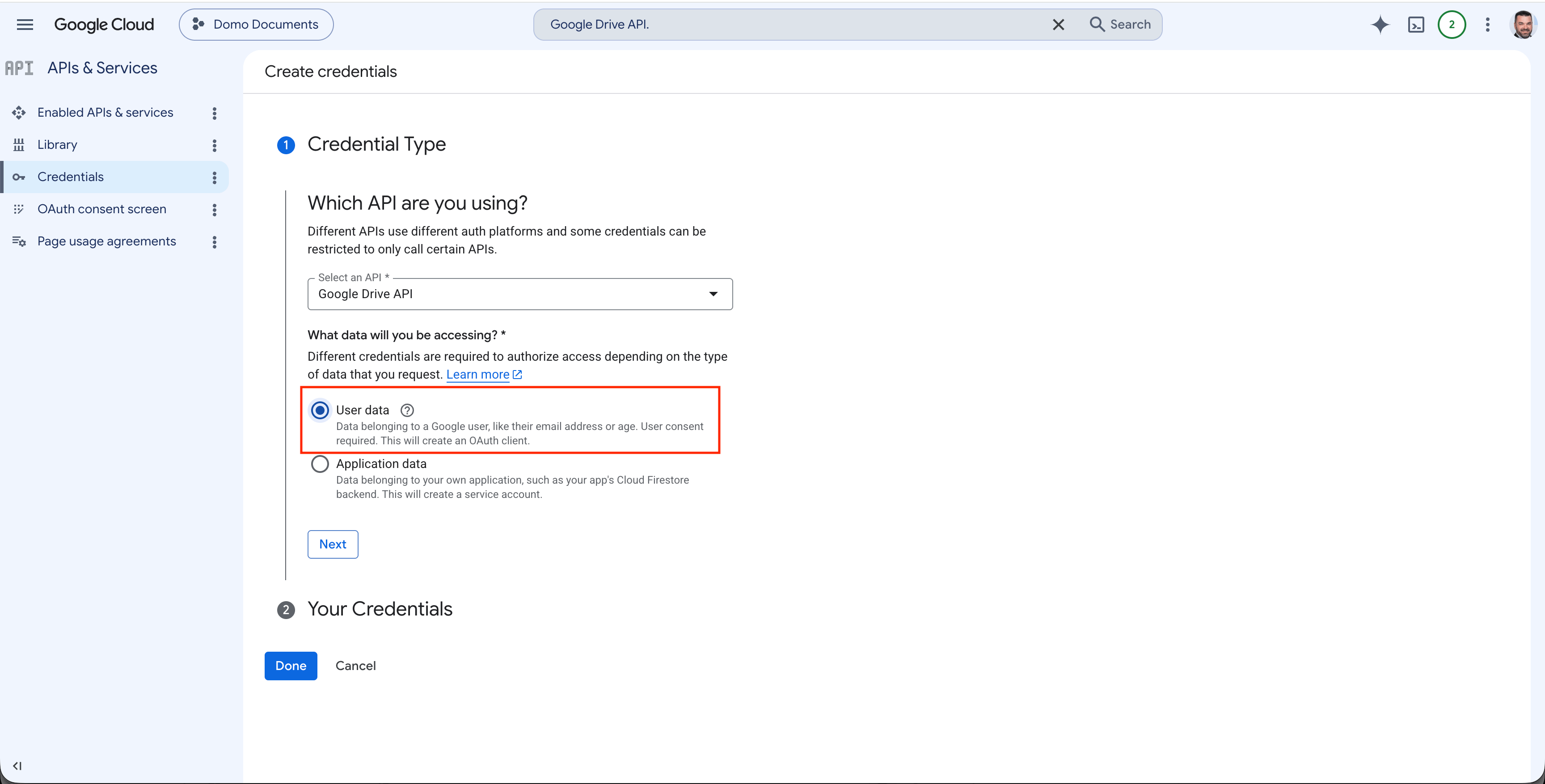
7. Select **User Data** to create an OAuth client.
<Frame>
  <img alt="Google Cloud credentials type selection" src="https://mintcdn.com/domoinc-bradley-turek-pfilter-operators-reference/yl0etVGRdJGfZa1W/images/kb/GoogleCloud11.png?fit=max&auto=format&n=yl0etVGRdJGfZa1W&q=85&s=c53355ceb41369a10a0e93342f100143" width="3456" height="1754" data-path="images/kb/GoogleCloud11.png" />
</Frame>

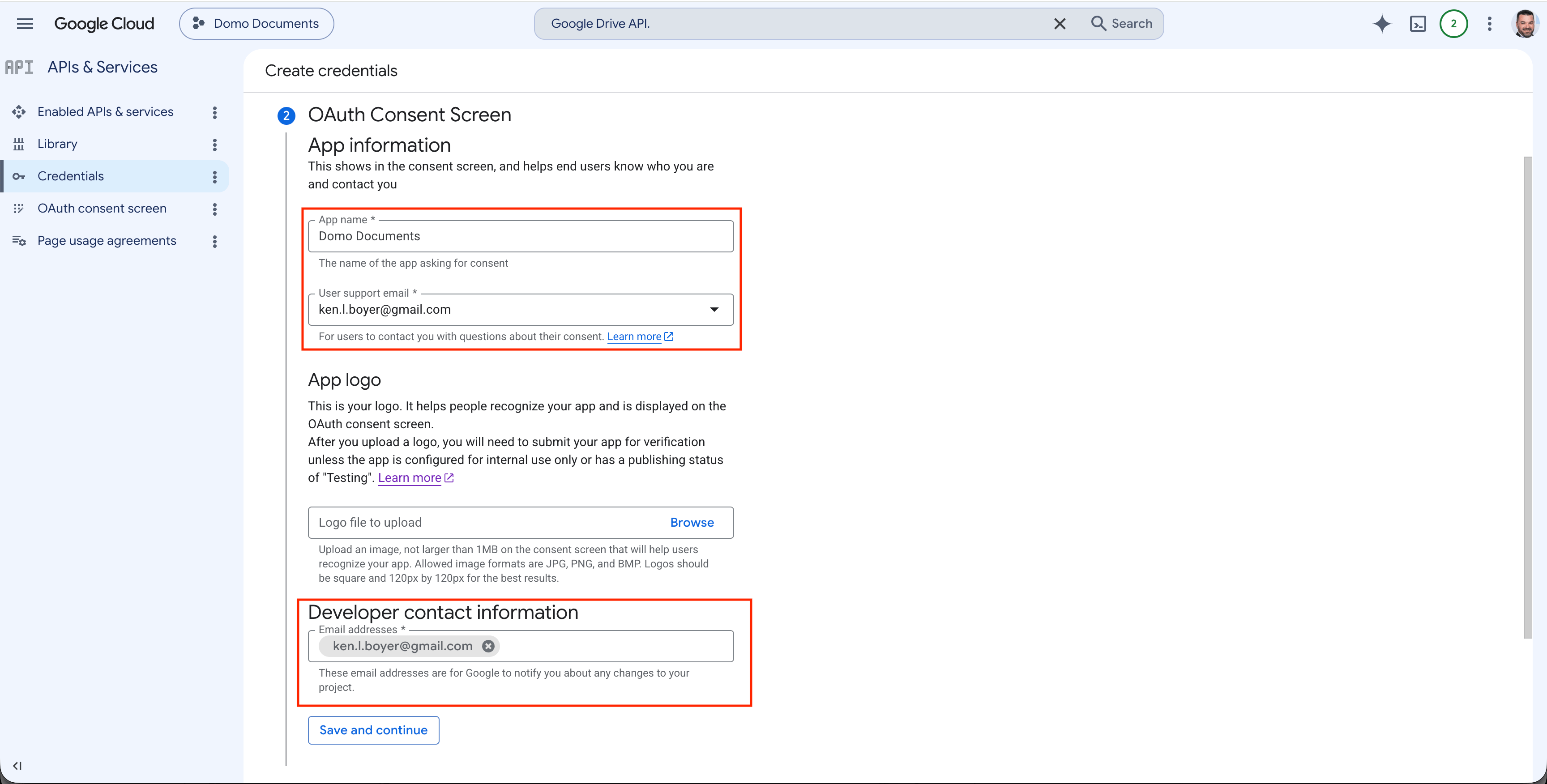
8. Set the OAuth credentials name, support email, and developer contact.
<Frame>
  <img alt="OAuth consent screen app information form" src="https://mintcdn.com/domoinc-bradley-turek-pfilter-operators-reference/yl0etVGRdJGfZa1W/images/kb/GoogleCloud12.png?fit=max&auto=format&n=yl0etVGRdJGfZa1W&q=85&s=4c9e04b9c76864f013a9bcdb6e3974e8" width="3456" height="1752" data-path="images/kb/GoogleCloud12.png" />
</Frame>

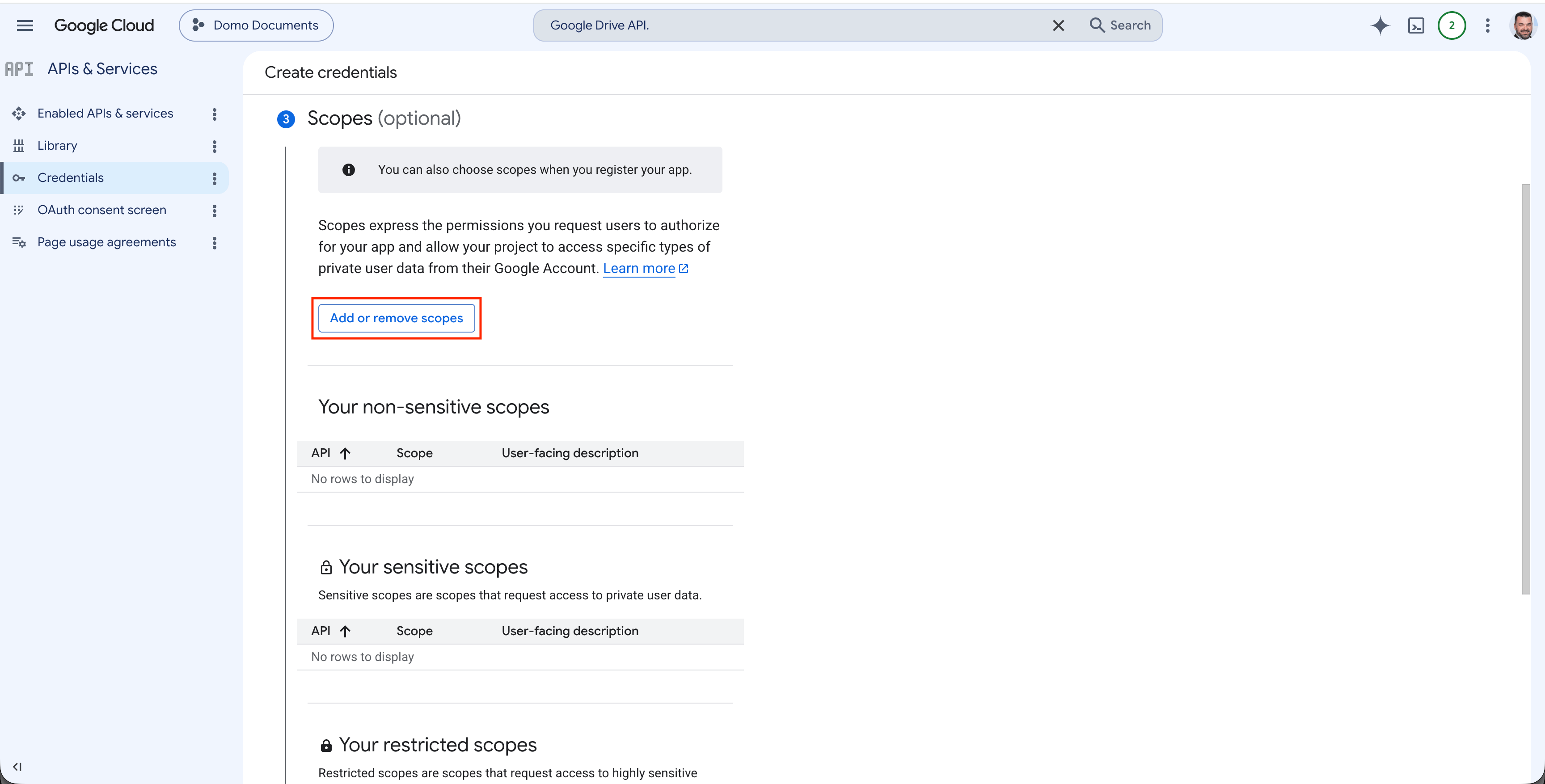
9. Set scopes by selecting **Add or Remove Scopes**.
<Frame>
  <img alt="OAuth scopes configuration screen" src="https://mintcdn.com/domoinc-bradley-turek-pfilter-operators-reference/yl0etVGRdJGfZa1W/images/kb/GoogleCloud13.png?fit=max&auto=format&n=yl0etVGRdJGfZa1W&q=85&s=6a8671226d6ef1fa2a6002a4fde07faa" width="3456" height="1754" data-path="images/kb/GoogleCloud13.png" />
</Frame>

<Note>**Note:** If you add sensitive or restricted scopes, such as scopes that let you access a user's emails or contacts, you must submit your app for verification.</Note>

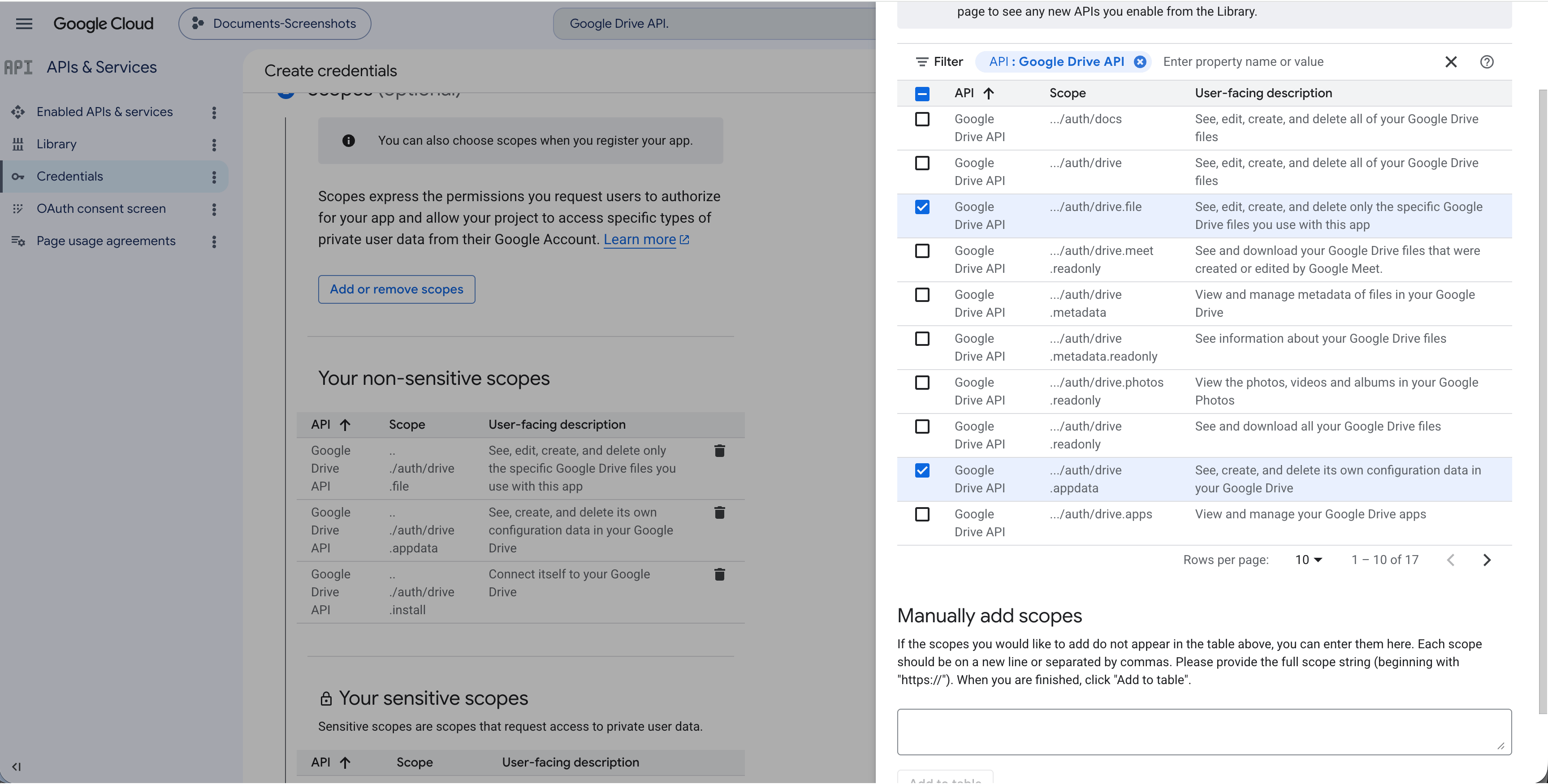
10. Filter by **Google Drive API** and select the three non-restricted scopes, then select **Update**.

| Scope                    | Description                                                                              |
| ------------------------ | ---------------------------------------------------------------------------------------- |
| `.../auth/drive.install` | Connect itself to your Google Drive                                                      |
| `.../auth/drive.file`    | See, edit, create, and delete only the specific Google Drive files you use with this app |
| `.../auth/drive.appdata` | See, create, and delete its own configuration data in your Google Drive                  |

There are two options when adding scopes:

1. Filter to the Google Drive API, add all 17 scopes, then remove the sensitive and restricted scopes in the next step (unless you plan to submit your app for verification).
2. Scan the list of 17 scopes and select the three from the table above.
<Frame>
  <img alt="Google Drive API non-restricted scopes selected" src="https://mintcdn.com/domoinc-bradley-turek-pfilter-operators-reference/yl0etVGRdJGfZa1W/images/kb/GoogleCloud15.png?fit=max&auto=format&n=yl0etVGRdJGfZa1W&q=85&s=f796cf6d46b9483947f7b82e7a30e7ad" width="3454" height="1750" data-path="images/kb/GoogleCloud15.png" />
</Frame>

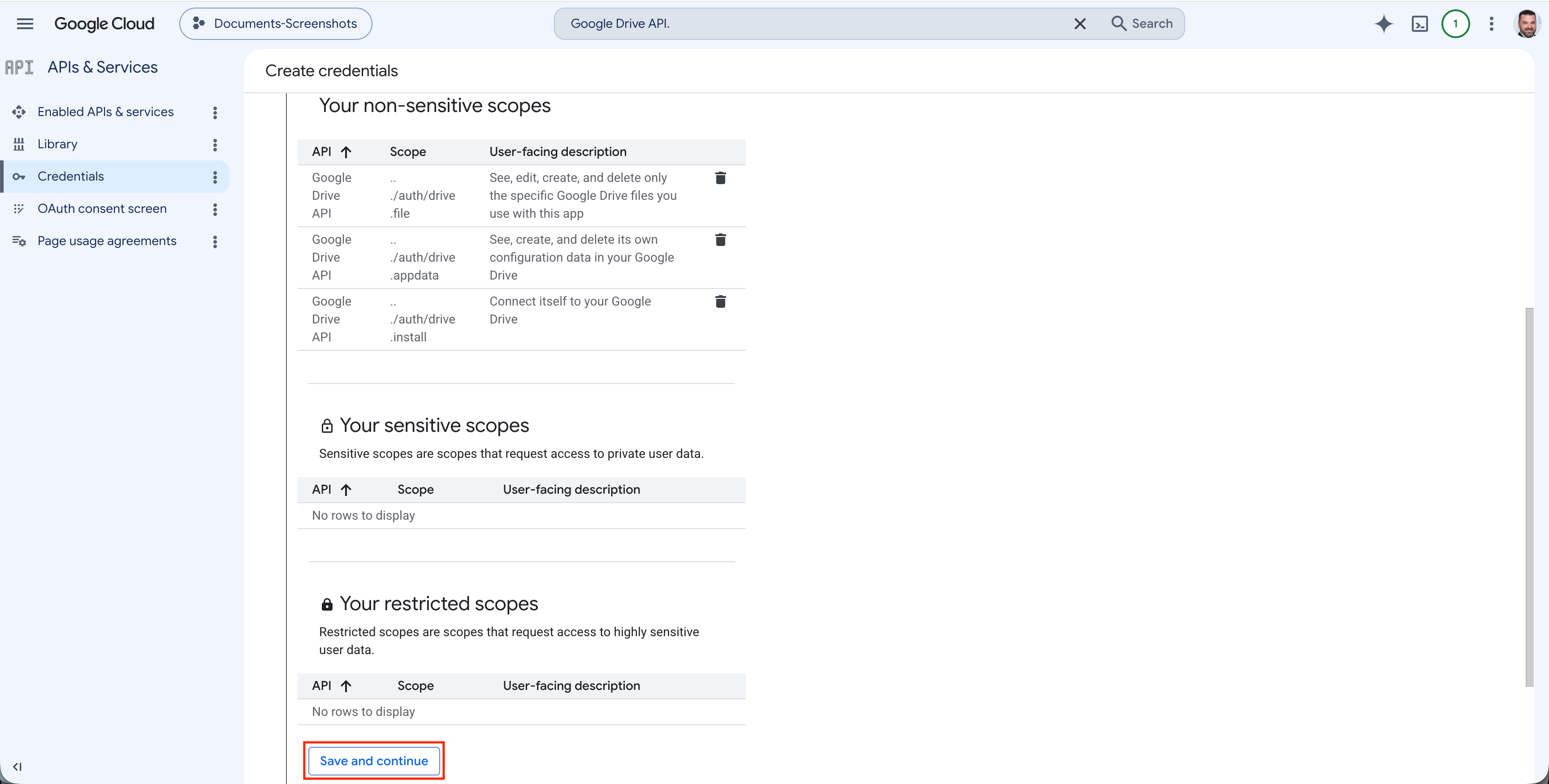
11. Scroll to the bottom of the setup wizard and select **Save and Continue**.
<Frame>
  <img alt="OAuth consent screen save and continue button" src="https://mintcdn.com/domoinc-bradley-turek-pfilter-operators-reference/yl0etVGRdJGfZa1W/images/kb/GoogleCloud16.png?fit=max&auto=format&n=yl0etVGRdJGfZa1W&q=85&s=4e4020df4bda88ed1b1a6a7369d1ca53" width="3456" height="1750" data-path="images/kb/GoogleCloud16.png" />
</Frame>

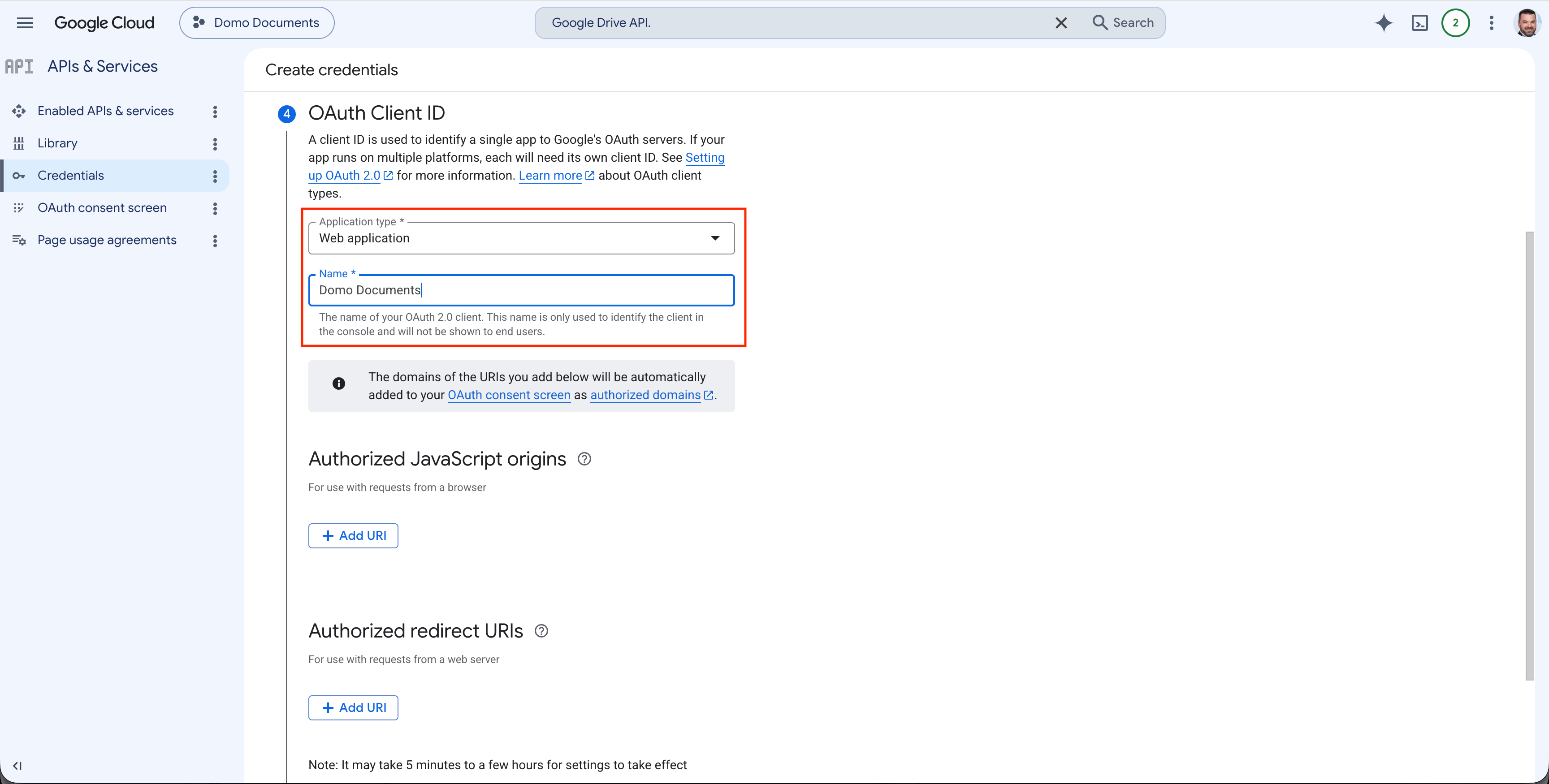
12. Set the name and type of the OAuth client.
<Frame>
  <img alt="OAuth client name and type form" src="https://mintcdn.com/domoinc-bradley-turek-pfilter-operators-reference/yl0etVGRdJGfZa1W/images/kb/GoogleCloud17.png?fit=max&auto=format&n=yl0etVGRdJGfZa1W&q=85&s=114250127866a905189bbe80cc219c42" width="3456" height="1750" data-path="images/kb/GoogleCloud17.png" />
</Frame>

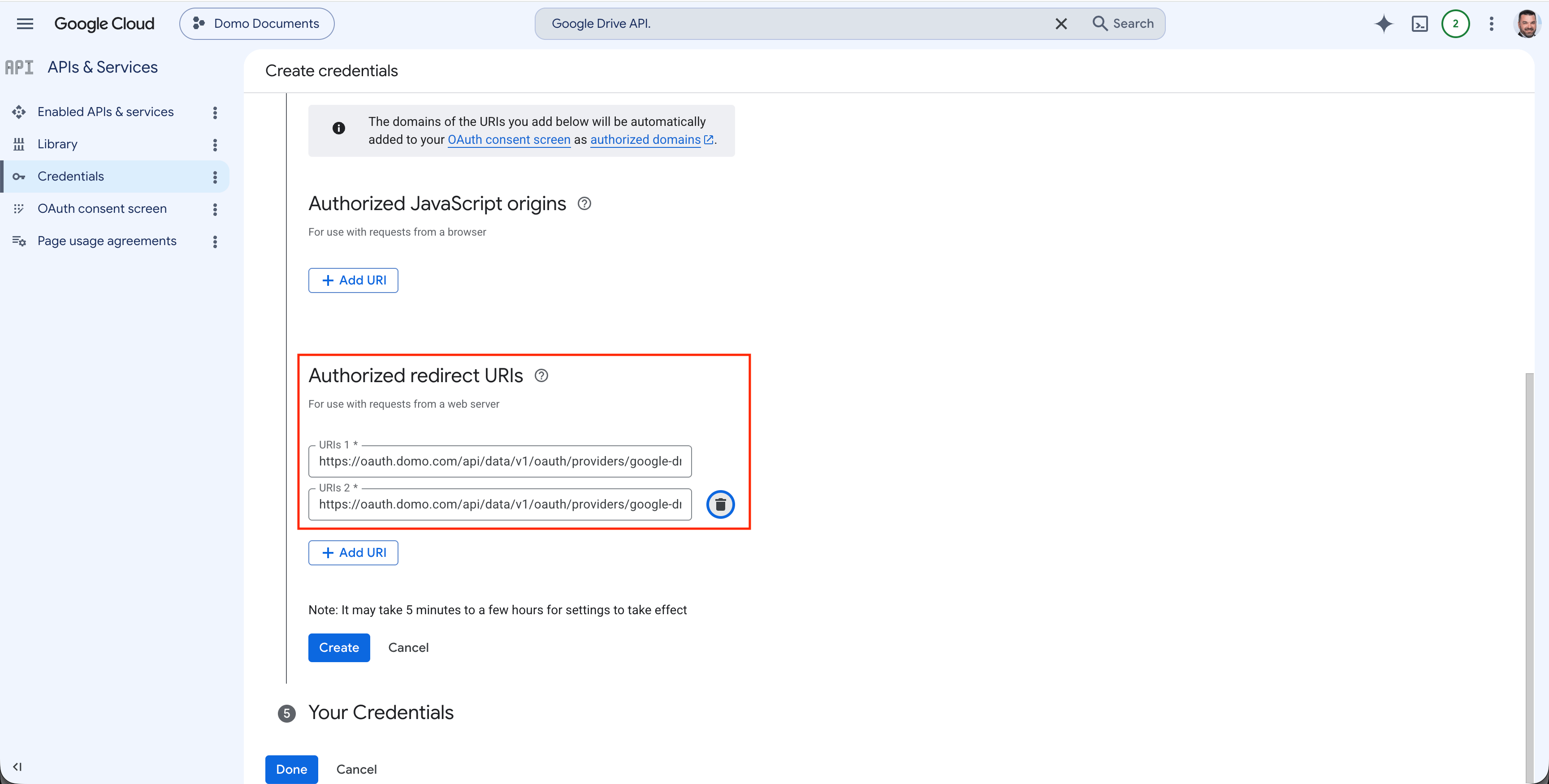
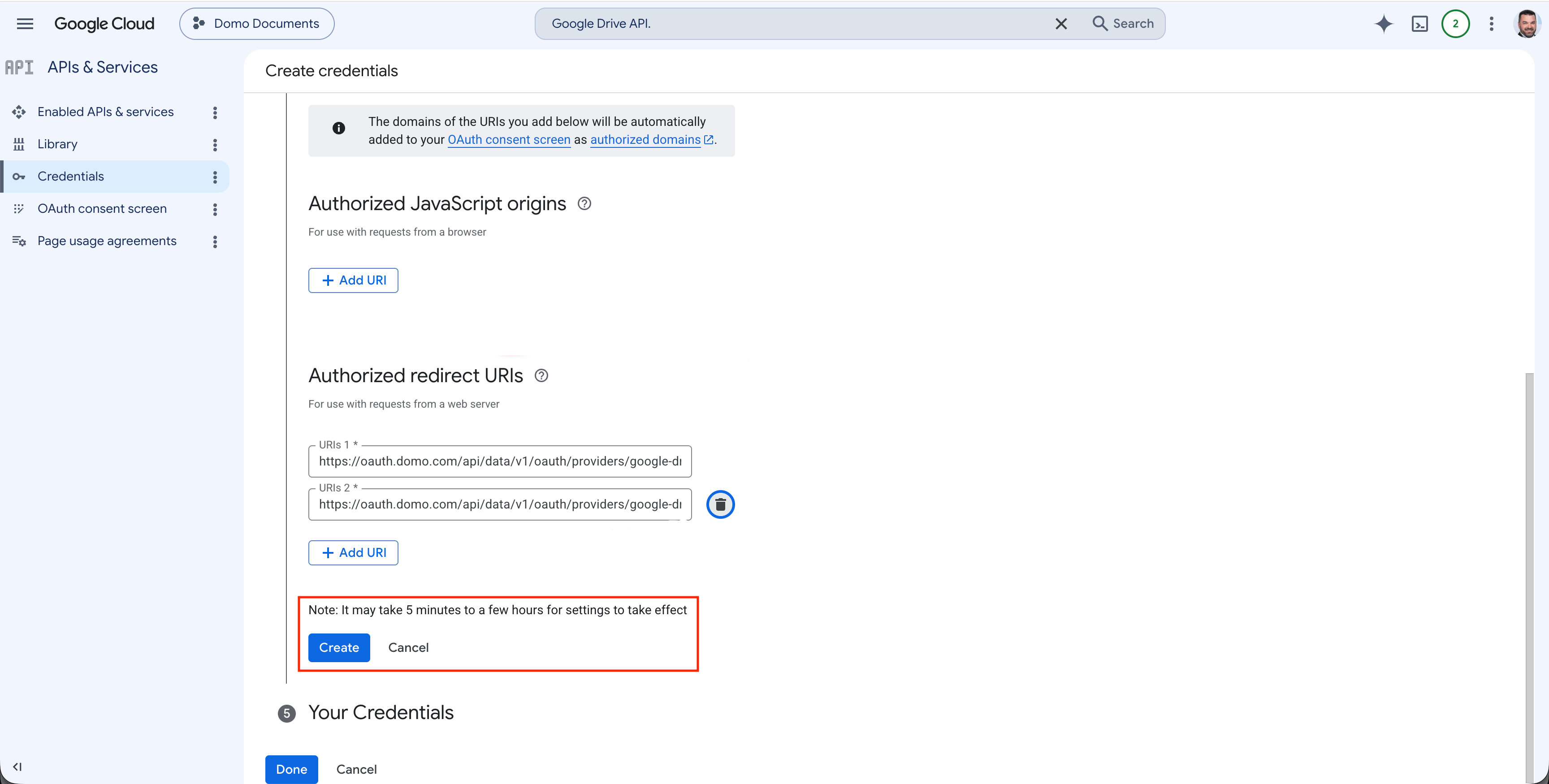
13. Set the authorized redirect URIs:

* `https://oauth.domo.com/api/data/v1/oauth/providers/google-drive-oauth-enterprise/exchange`
* `https://oauth.domo.com/api/data/v1/oauth/providers/google-drive-oauth-enterprise/exchange?flowName=GeneralOAuthFlow`
<Frame>
  <img alt="OAuth client authorized redirect URIs" src="https://mintcdn.com/domoinc-bradley-turek-pfilter-operators-reference/yl0etVGRdJGfZa1W/images/kb/GoogleCloud18.png?fit=max&auto=format&n=yl0etVGRdJGfZa1W&q=85&s=1196c56d86fb0d5981475cef02df97ea" width="3456" height="1750" data-path="images/kb/GoogleCloud18.png" />
</Frame>

14. Select **Create** to finish creating the OAuth client.
<Frame>
  <img alt="OAuth client creation confirmation" src="https://mintcdn.com/domoinc-bradley-turek-pfilter-operators-reference/yl0etVGRdJGfZa1W/images/kb/GoogleCloud19.png?fit=max&auto=format&n=yl0etVGRdJGfZa1W&q=85&s=94b2ed1e7834f37640867616a65c1401" width="3456" height="1750" data-path="images/kb/GoogleCloud19.png" />
</Frame>

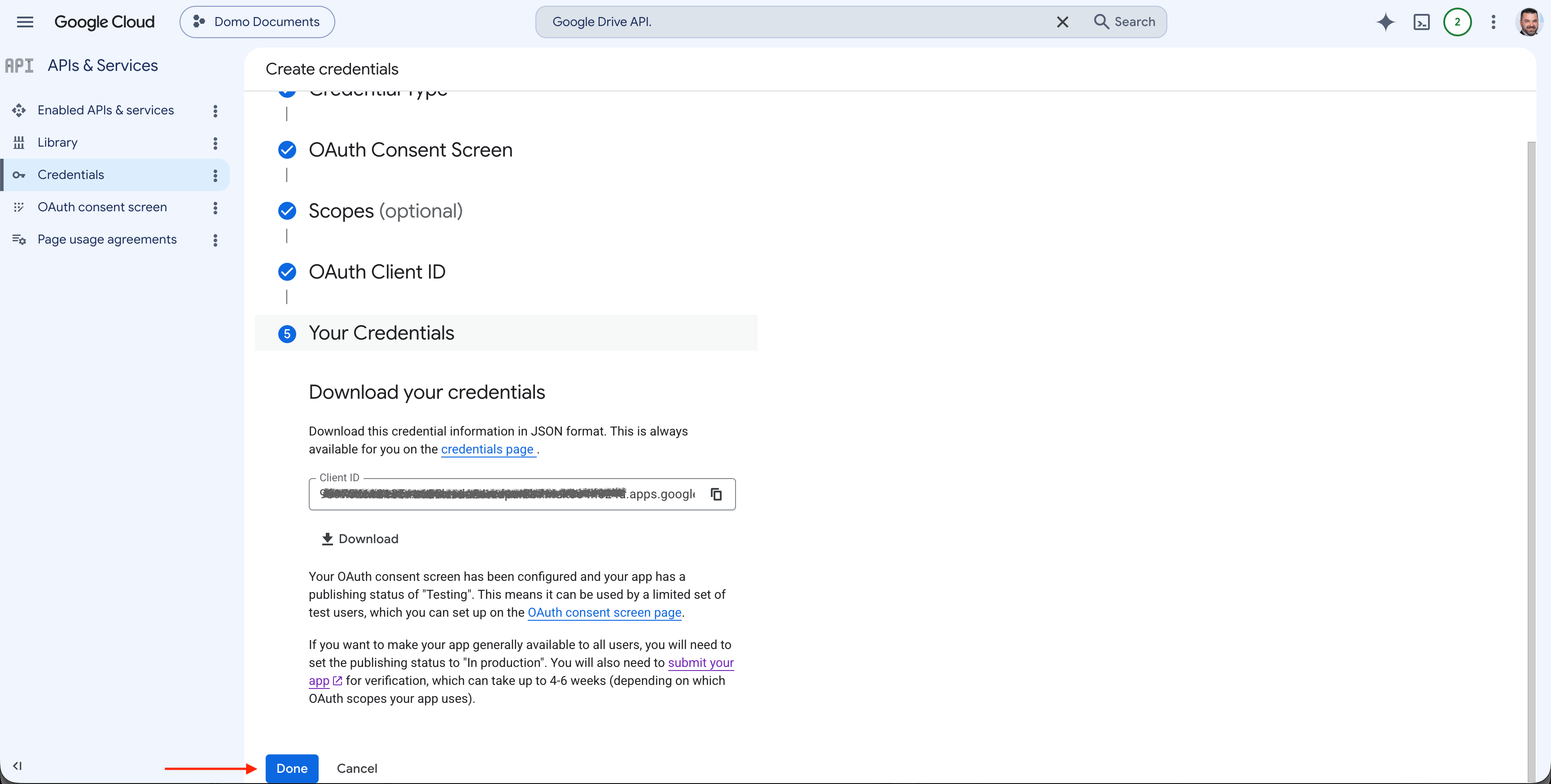
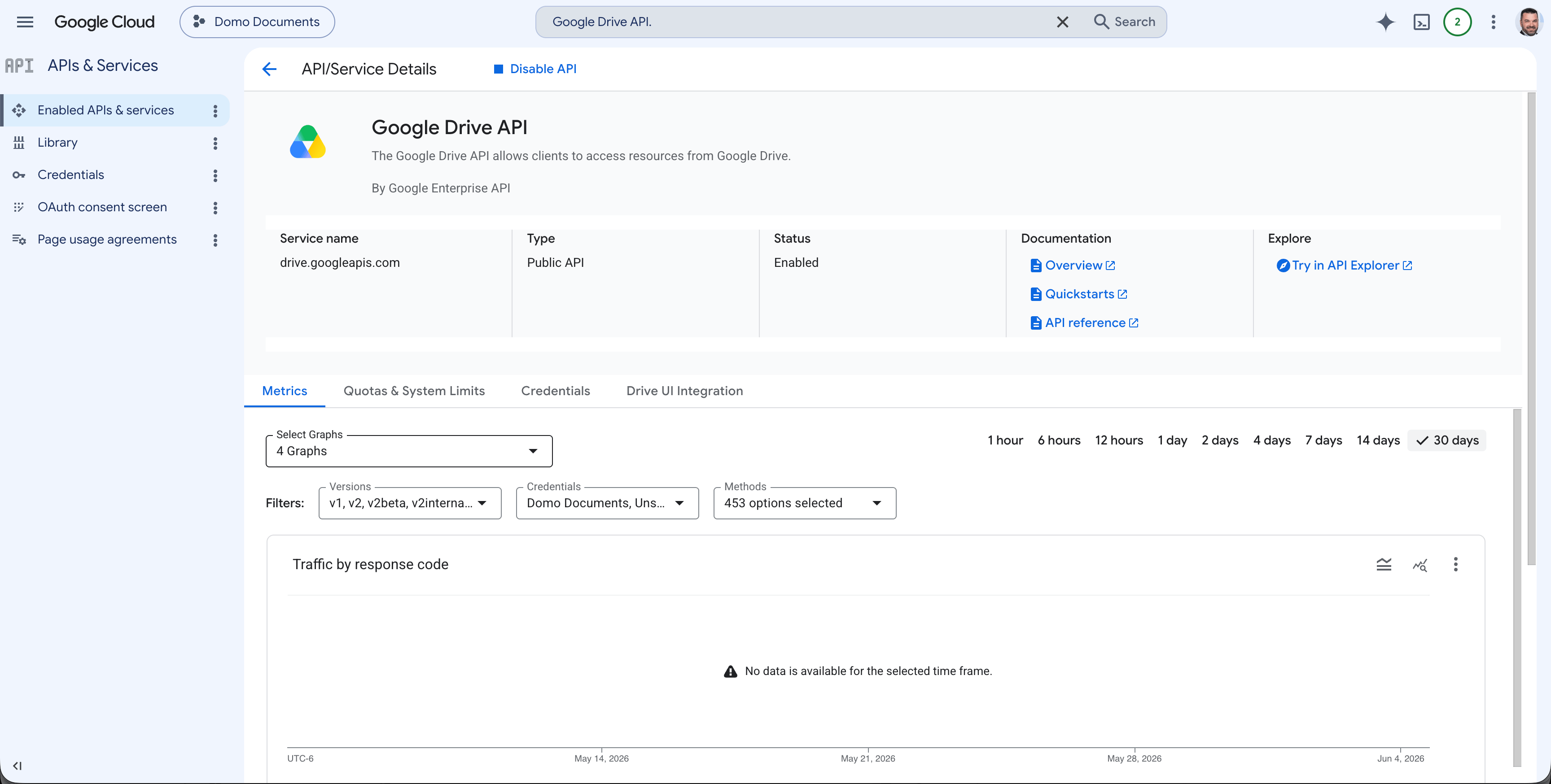
15. A pop-up displays your Client ID and Client Secret. Copy them directly or select **Download JSON** to save them to a file. Download your Client ID and select **Done**.
<Frame>
  <img alt="OAuth client credentials pop-up" src="https://mintcdn.com/domoinc-bradley-turek-pfilter-operators-reference/yl0etVGRdJGfZa1W/images/kb/GoogleCloud19a.png?fit=max&auto=format&n=yl0etVGRdJGfZa1W&q=85&s=ef810fcafadc2e9959484bd13803197f" width="3456" height="1748" data-path="images/kb/GoogleCloud19a.png" />
</Frame>

<Frame>
  <img alt="OAuth client credentials download screen" src="https://mintcdn.com/domoinc-bradley-turek-pfilter-operators-reference/yl0etVGRdJGfZa1W/images/kb/GoogleCloud20.png?fit=max&auto=format&n=yl0etVGRdJGfZa1W&q=85&s=0cf8332de0e2eeaf0cc392329bc2bf95" width="3456" height="1748" data-path="images/kb/GoogleCloud20.png" />
</Frame>

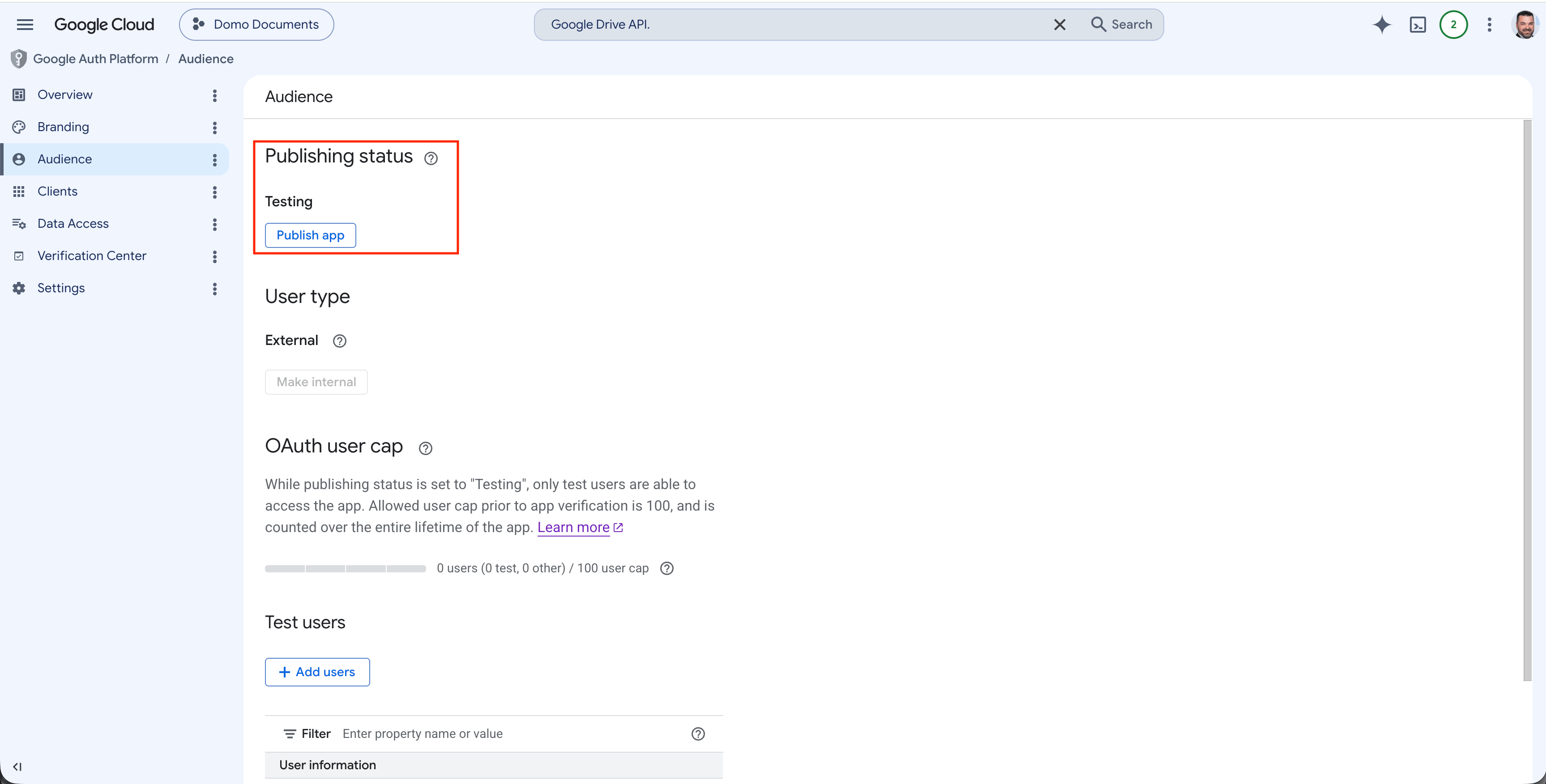
16. Navigate to **Audience**. Under **Publishing Status**, publish your app.
<Frame>
  <img alt="OAuth consent screen audience and publishing status" src="https://mintcdn.com/domoinc-bradley-turek-pfilter-operators-reference/yl0etVGRdJGfZa1W/images/kb/GoogleCloud21.png?fit=max&auto=format&n=yl0etVGRdJGfZa1W&q=85&s=35deca7540c2f5455ebba7ef0011f0b6" width="3454" height="1752" data-path="images/kb/GoogleCloud21.png" />
</Frame>

## Create a Google Drive Connection

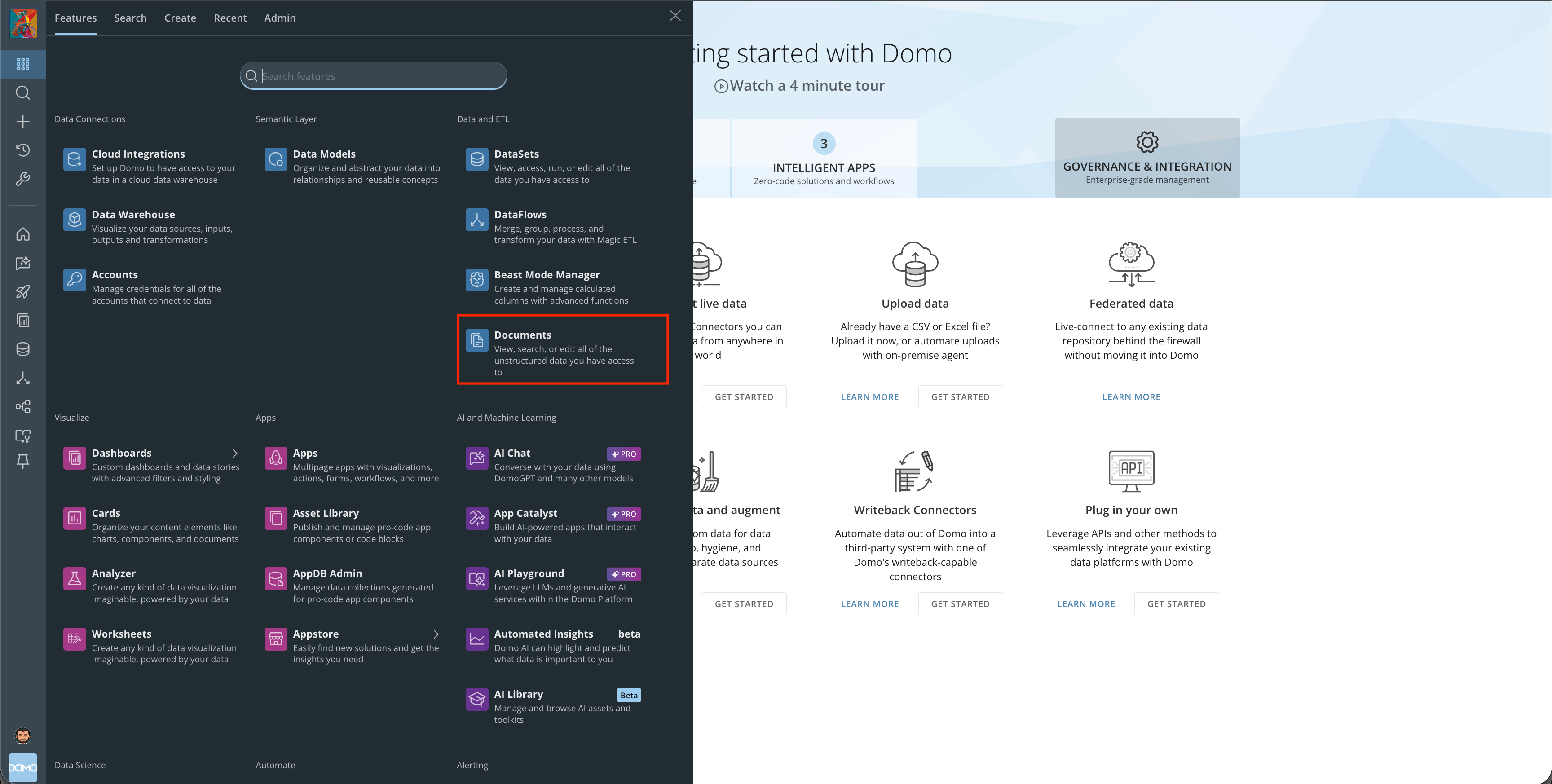
1. Navigate to **Domo Documents**.
<Frame>
  <img alt="Domo Documents navigation" src="https://mintcdn.com/domoinc-bradley-turek-pfilter-operators-reference/yl0etVGRdJGfZa1W/images/kb/GoogleDrive1.png?fit=max&auto=format&n=yl0etVGRdJGfZa1W&q=85&s=4a3394fae94b027e13f1f830ea12ce09" width="3456" height="1746" data-path="images/kb/GoogleDrive1.png" />
</Frame>

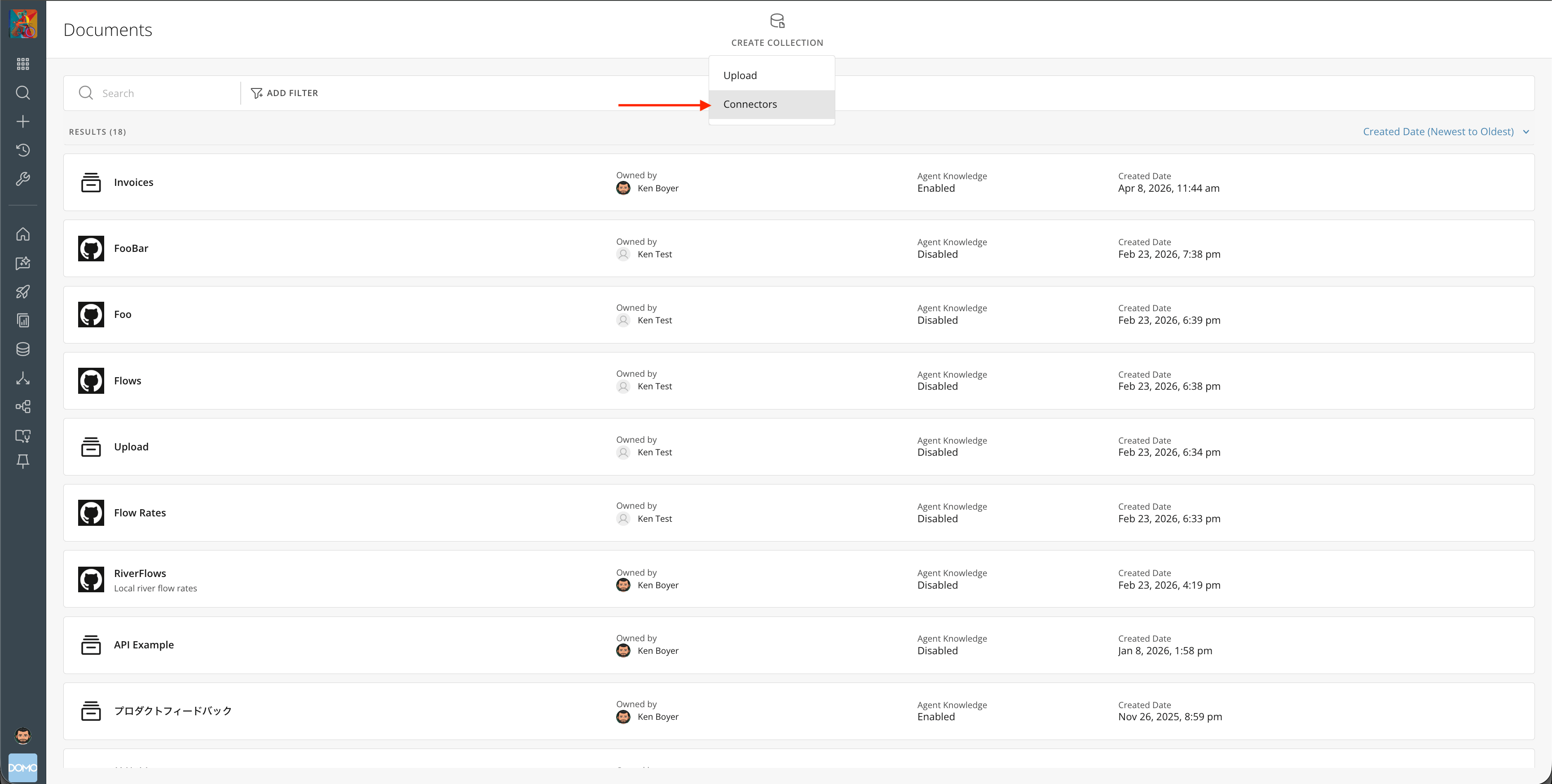
2. Select **Create Collection**, then select **Connectors**.
<Frame>
  <img alt="Create Collection connector option" src="https://mintcdn.com/domoinc-bradley-turek-pfilter-operators-reference/yl0etVGRdJGfZa1W/images/kb/GoogleDrive2.png?fit=max&auto=format&n=yl0etVGRdJGfZa1W&q=85&s=b11105a2411768cfd27a255b14a4cec3" width="3456" height="1746" data-path="images/kb/GoogleDrive2.png" />
</Frame>

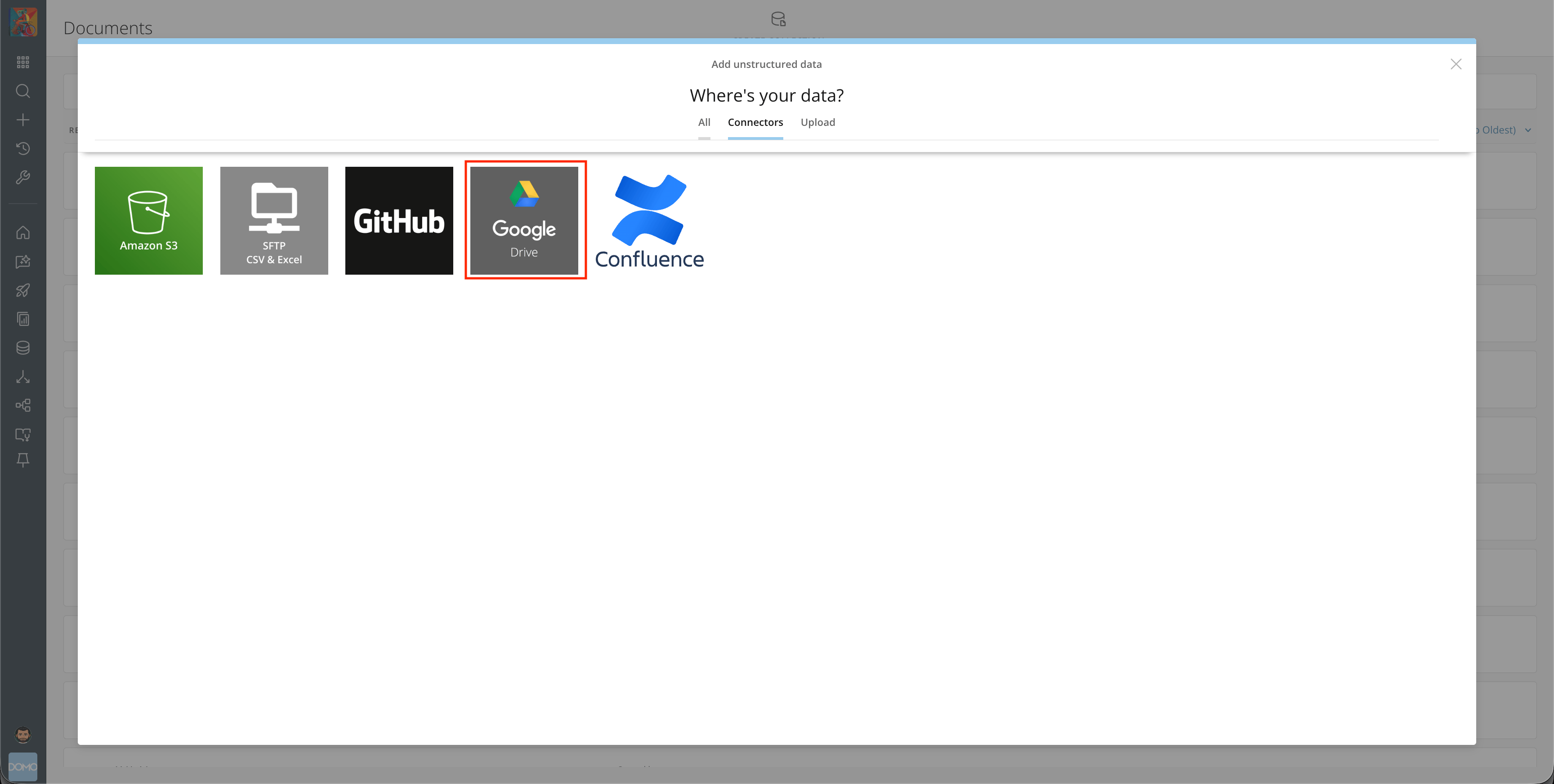
3. Select **Google Drive**.

<Frame>
  <img alt="Google Drive connector selection" src="https://mintcdn.com/domoinc-bradley-turek-pfilter-operators-reference/yl0etVGRdJGfZa1W/images/kb/GoogleDrive3.png?fit=max&auto=format&n=yl0etVGRdJGfZa1W&q=85&s=3a0cebb46c7c0ba006d420bc18d63d39" width="3456" height="1744" data-path="images/kb/GoogleDrive3.png" />
</Frame>

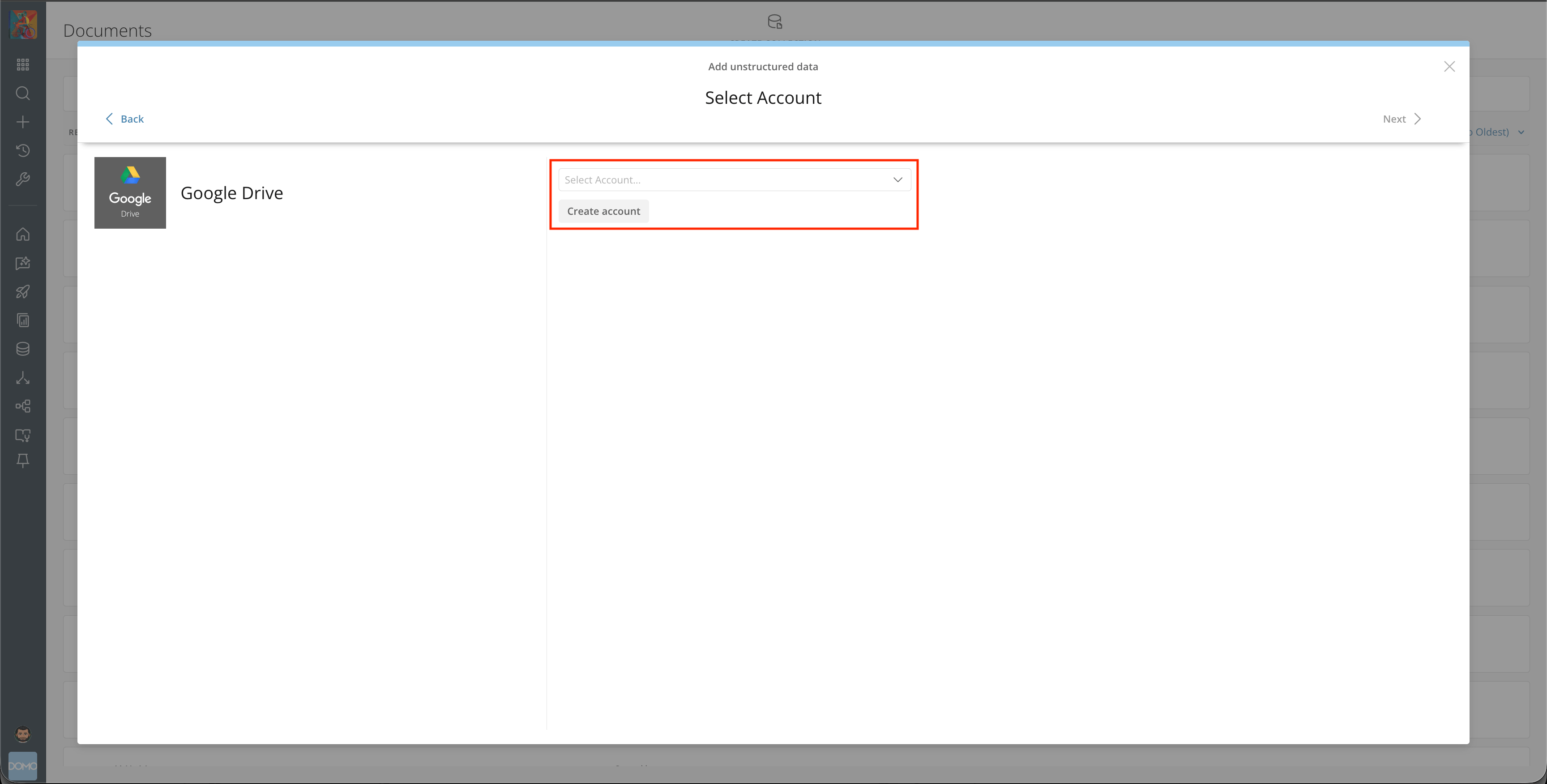
4. Select an existing Google Drive account or create a new one.
<Frame>
  <img alt="Google Drive account selection" src="https://mintcdn.com/domoinc-bradley-turek-pfilter-operators-reference/yl0etVGRdJGfZa1W/images/kb/GoogleDrive4.png?fit=max&auto=format&n=yl0etVGRdJGfZa1W&q=85&s=fcbc14e6667b32f0d68598e2eff12164" width="3456" height="1752" data-path="images/kb/GoogleDrive4.png" />
</Frame>

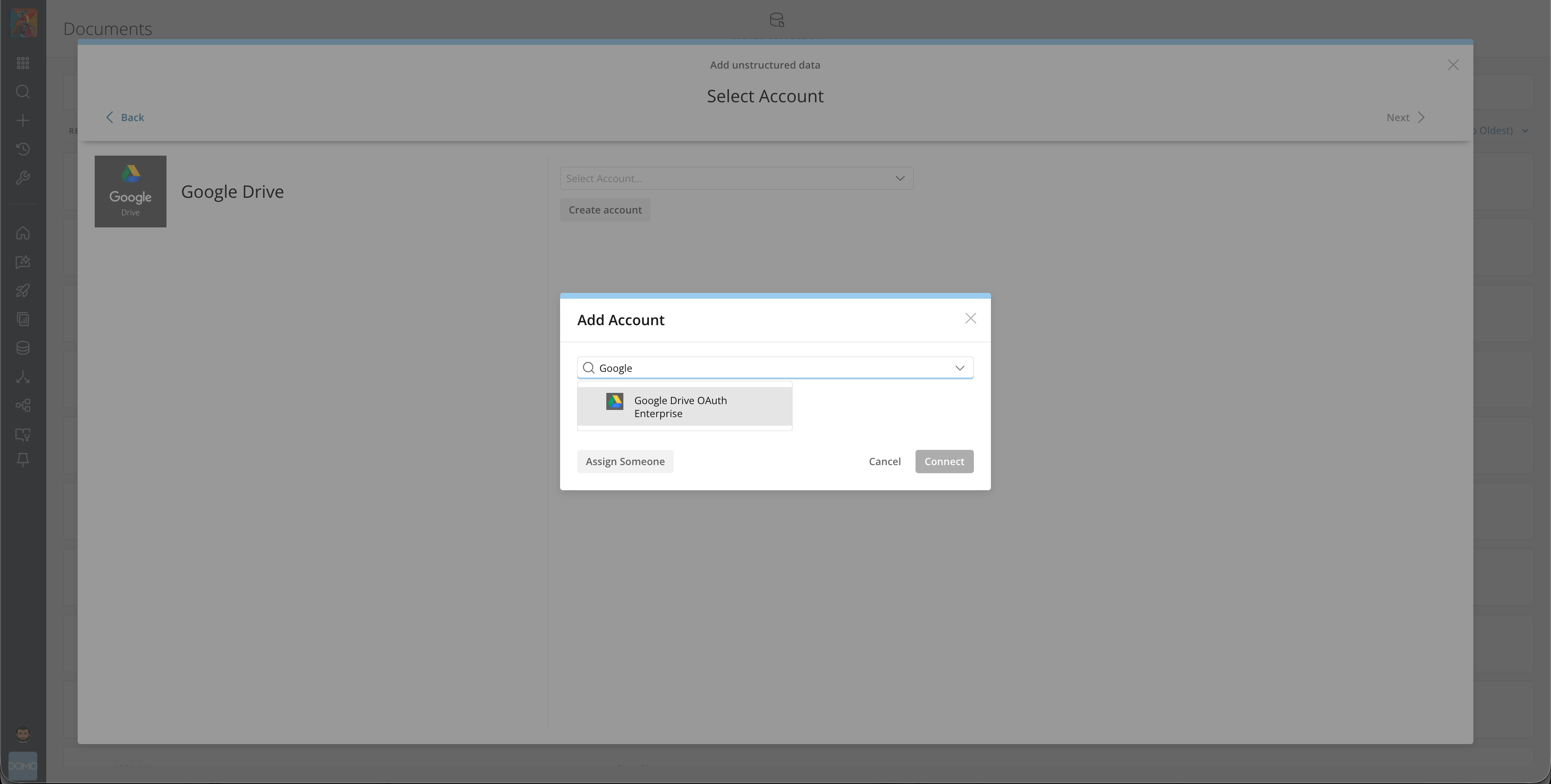
5. Select the **Google Drive OAuth Enterprise** connector.
<Frame>
  <img alt="Google Drive OAuth Enterprise connector option" src="https://mintcdn.com/domoinc-bradley-turek-pfilter-operators-reference/9n8RBrsmI6YtlOAQ/images/kb/GoogleDrive5.png?fit=max&auto=format&n=9n8RBrsmI6YtlOAQ&q=85&s=a92d8f44ae38befad7f212c0e8d015d0" width="3456" height="1748" data-path="images/kb/GoogleDrive5.png" />
</Frame>

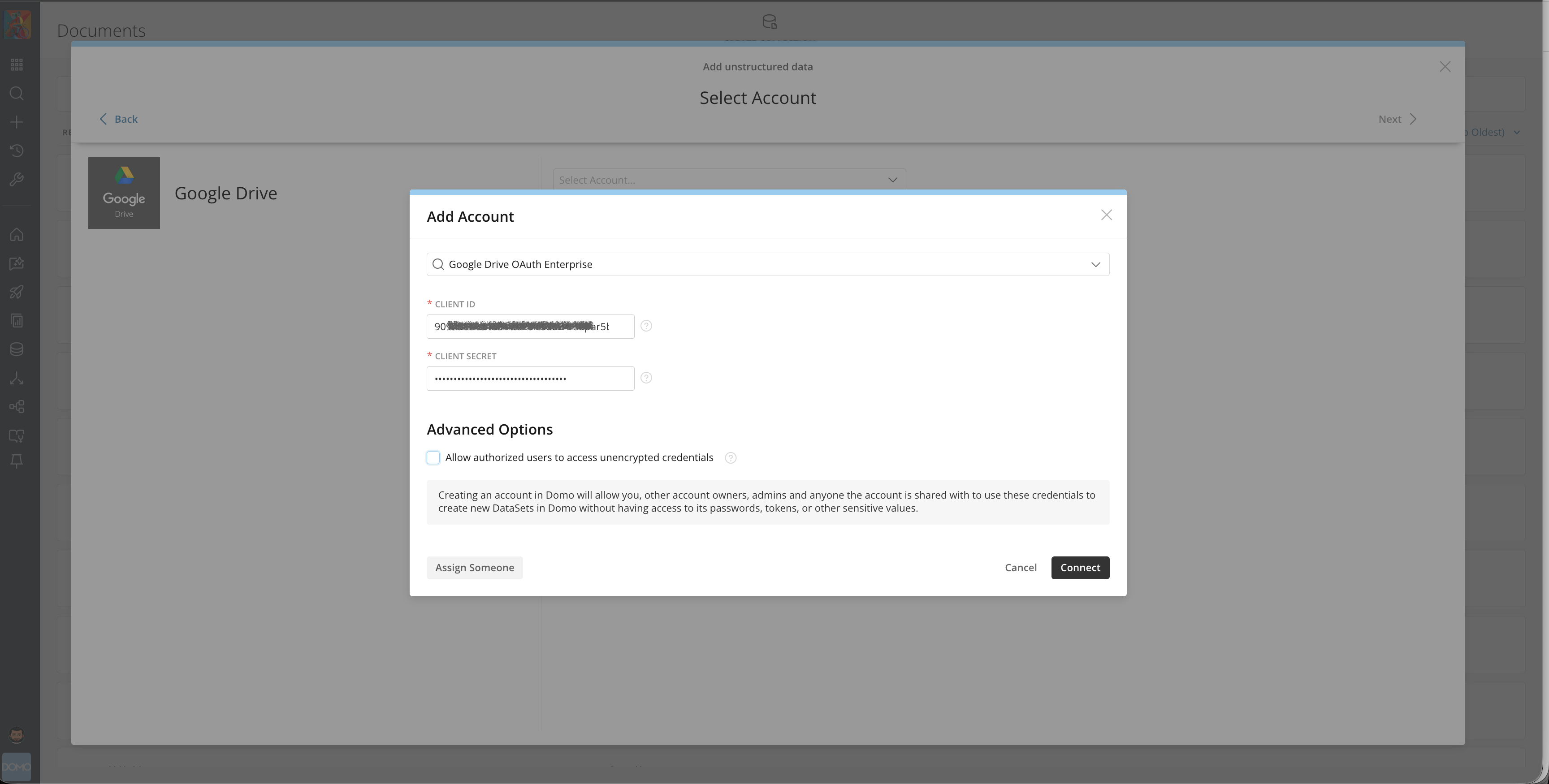
6. Enter your **Client ID** and **Client Secret** from when you created your Google Drive OAuth client.
<Frame>
  <img alt="Google Drive connector Client ID and Client Secret fields" src="https://mintcdn.com/domoinc-bradley-turek-pfilter-operators-reference/9n8RBrsmI6YtlOAQ/images/kb/GoogleDrive6.png?fit=max&auto=format&n=9n8RBrsmI6YtlOAQ&q=85&s=571c7e868f9bab0816fca17c6f28ce68" width="3456" height="1750" data-path="images/kb/GoogleDrive6.png" />
</Frame>

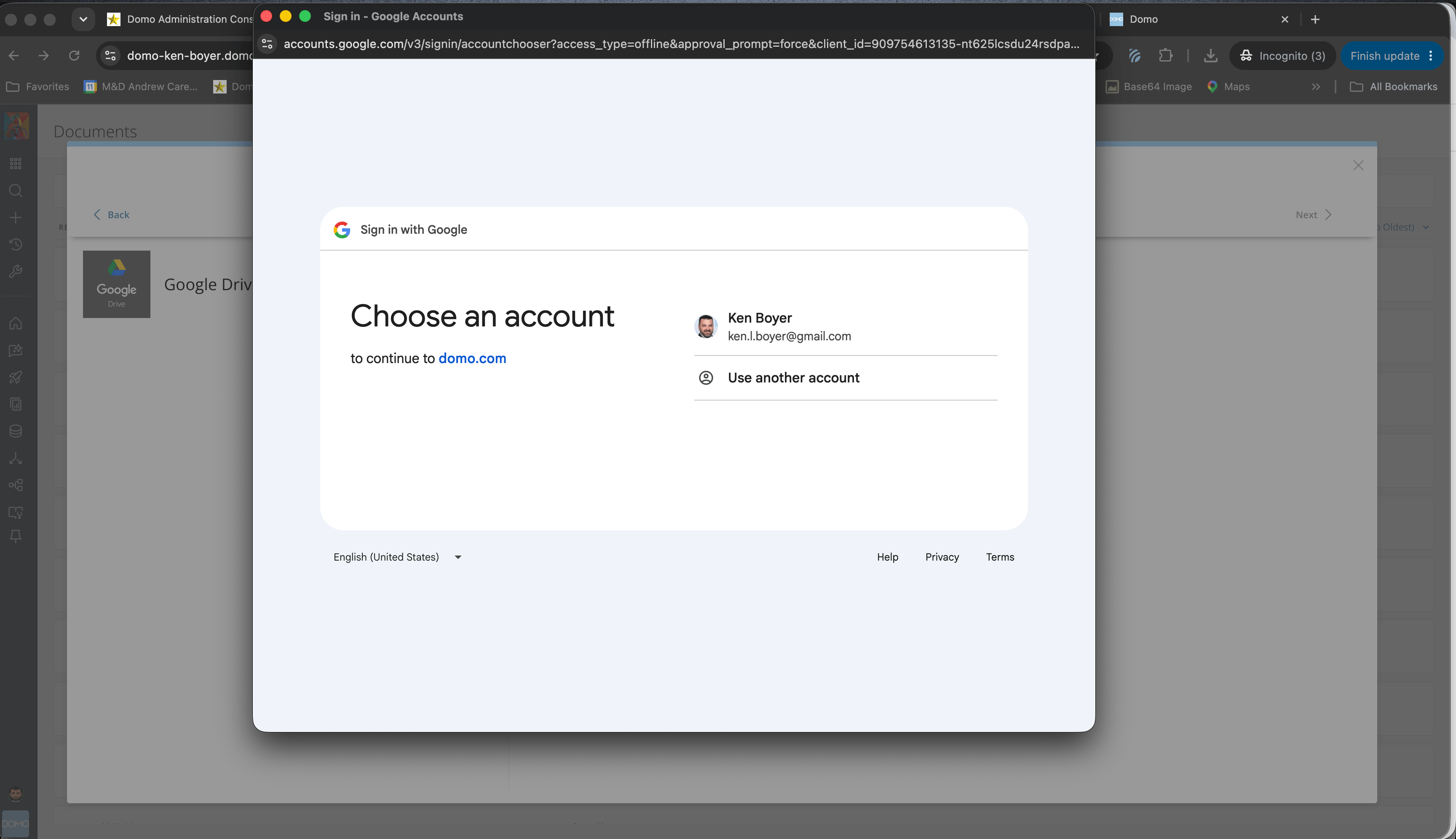
7. Select the appropriate Google account.
<Frame>
  <img alt="Google account selection screen" src="https://mintcdn.com/domoinc-bradley-turek-pfilter-operators-reference/9n8RBrsmI6YtlOAQ/images/kb/GoogleDrive7.png?fit=max&auto=format&n=9n8RBrsmI6YtlOAQ&q=85&s=2b8d81867b14292ce2bcaa534b6e4ae9" width="3456" height="1992" data-path="images/kb/GoogleDrive7.png" />
</Frame>

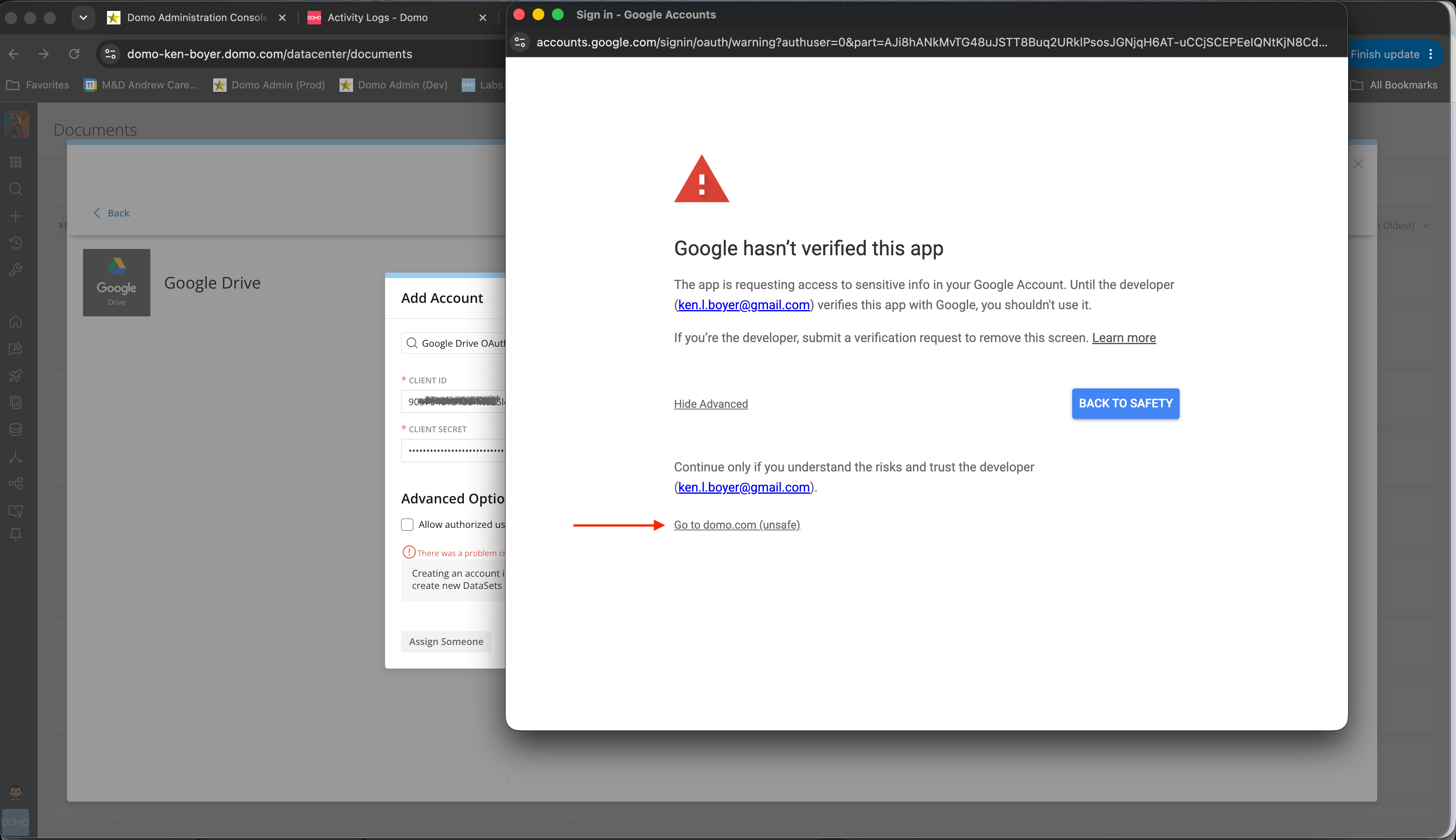
8. If this is your personal Google Drive and your OAuth app is not fully verified (Testing Mode), select **Advanced** and continue to domo.com.
<Frame>
  <img alt="Google OAuth app verification warning" src="https://mintcdn.com/domoinc-bradley-turek-pfilter-operators-reference/9n8RBrsmI6YtlOAQ/images/kb/GoogleDrive8.png?fit=max&auto=format&n=9n8RBrsmI6YtlOAQ&q=85&s=439ed3079924ca7b3d1c55d35d37c33b" width="3456" height="1994" data-path="images/kb/GoogleDrive8.png" />
</Frame>

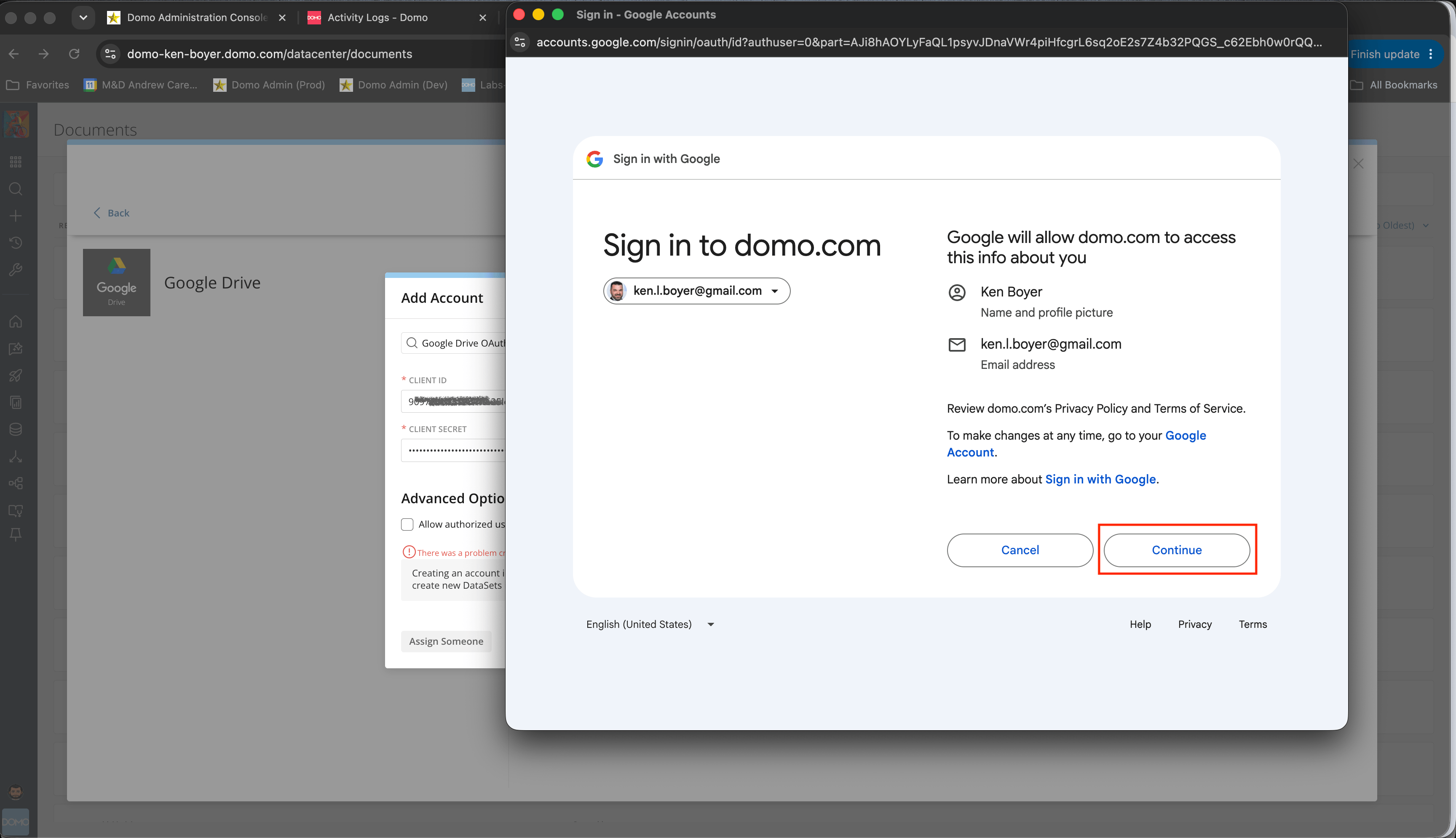
9. Allow Domo to have access to Google.
<Frame>
  <img alt="Google permissions grant screen" src="https://mintcdn.com/domoinc-bradley-turek-pfilter-operators-reference/9n8RBrsmI6YtlOAQ/images/kb/GoogleDrive9.png?fit=max&auto=format&n=9n8RBrsmI6YtlOAQ&q=85&s=d2484464a945f53e5d4fbded297de79f" width="3456" height="1990" data-path="images/kb/GoogleDrive9.png" />
</Frame>

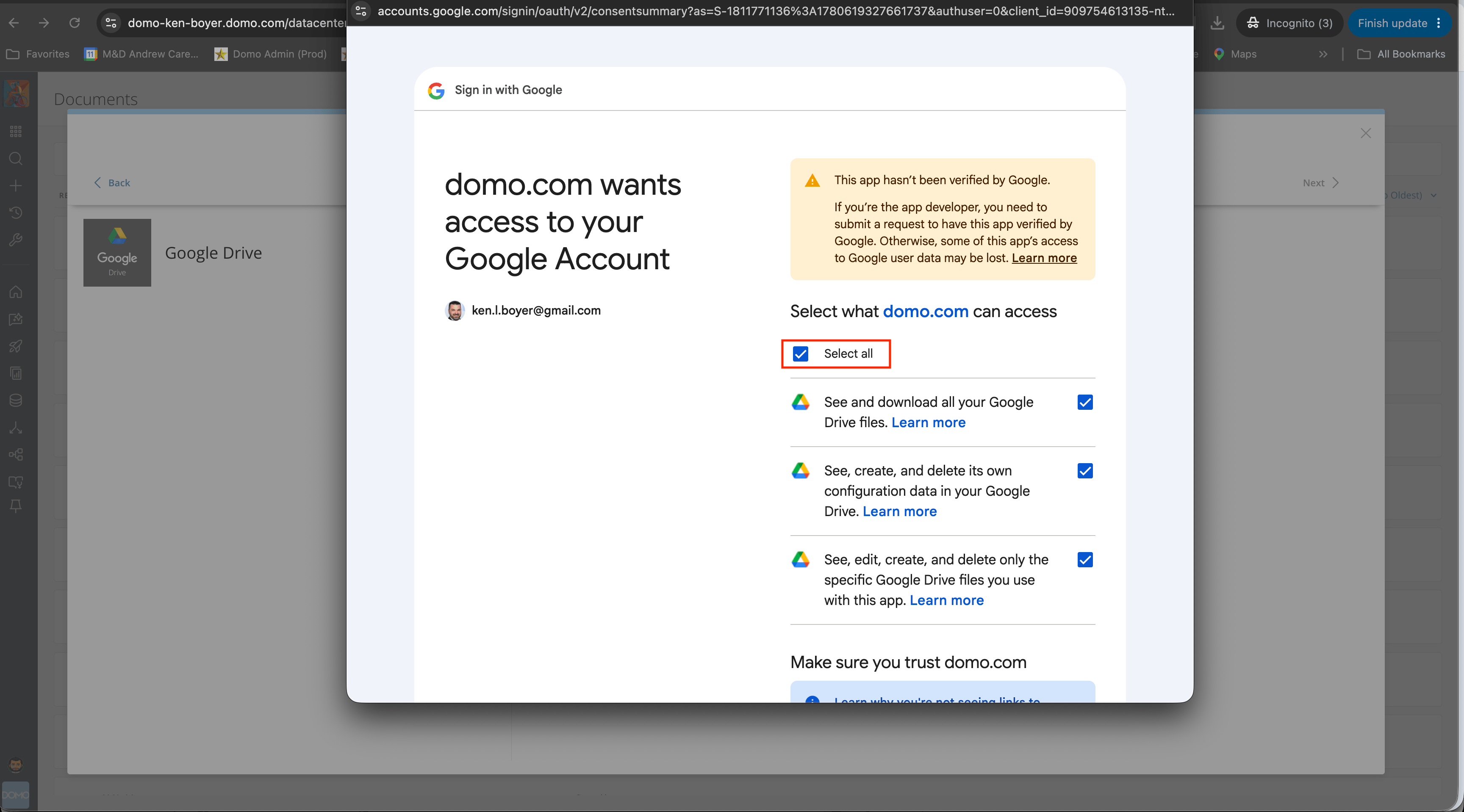
10. Select all access privileges and select **Continue**.
<Frame>
  <img alt="Google Drive access privileges selection" src="https://mintcdn.com/domoinc-bradley-turek-pfilter-operators-reference/yl0etVGRdJGfZa1W/images/kb/GoogleDrive10.png?fit=max&auto=format&n=yl0etVGRdJGfZa1W&q=85&s=c99b34d6d8a5a8aae4c5710629187663" width="3456" height="1918" data-path="images/kb/GoogleDrive10.png" />
</Frame>

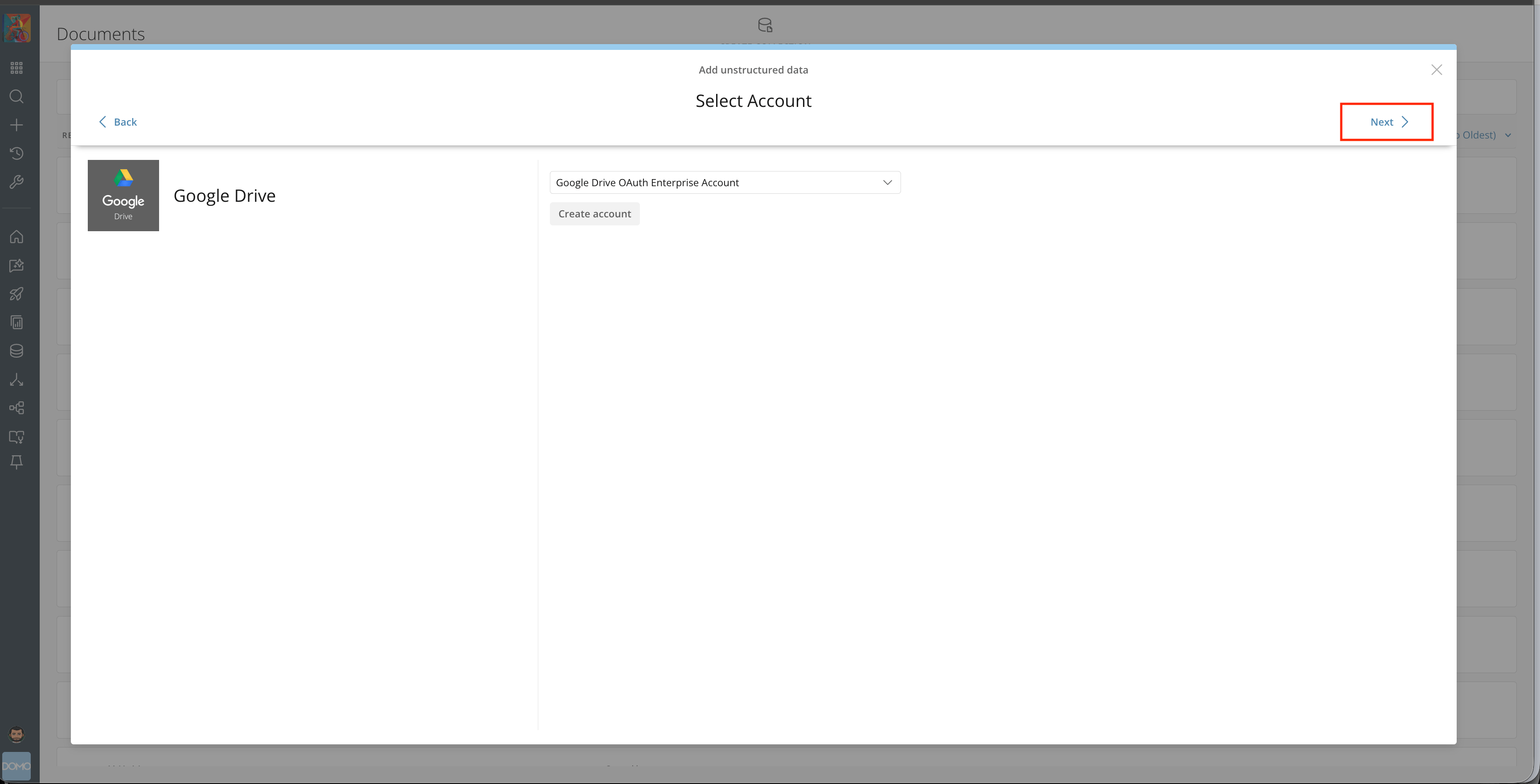
11. Select **Next**, then select the content you want to load from Google Drive.
<Frame>
  <img alt="Google Drive content selection screen" src="https://mintcdn.com/domoinc-bradley-turek-pfilter-operators-reference/yl0etVGRdJGfZa1W/images/kb/GoogleDrive11.png?fit=max&auto=format&n=yl0etVGRdJGfZa1W&q=85&s=32d1d9ee9b56cabdf36c18e8ab50a0c5" width="3456" height="1760" data-path="images/kb/GoogleDrive11.png" />
</Frame>

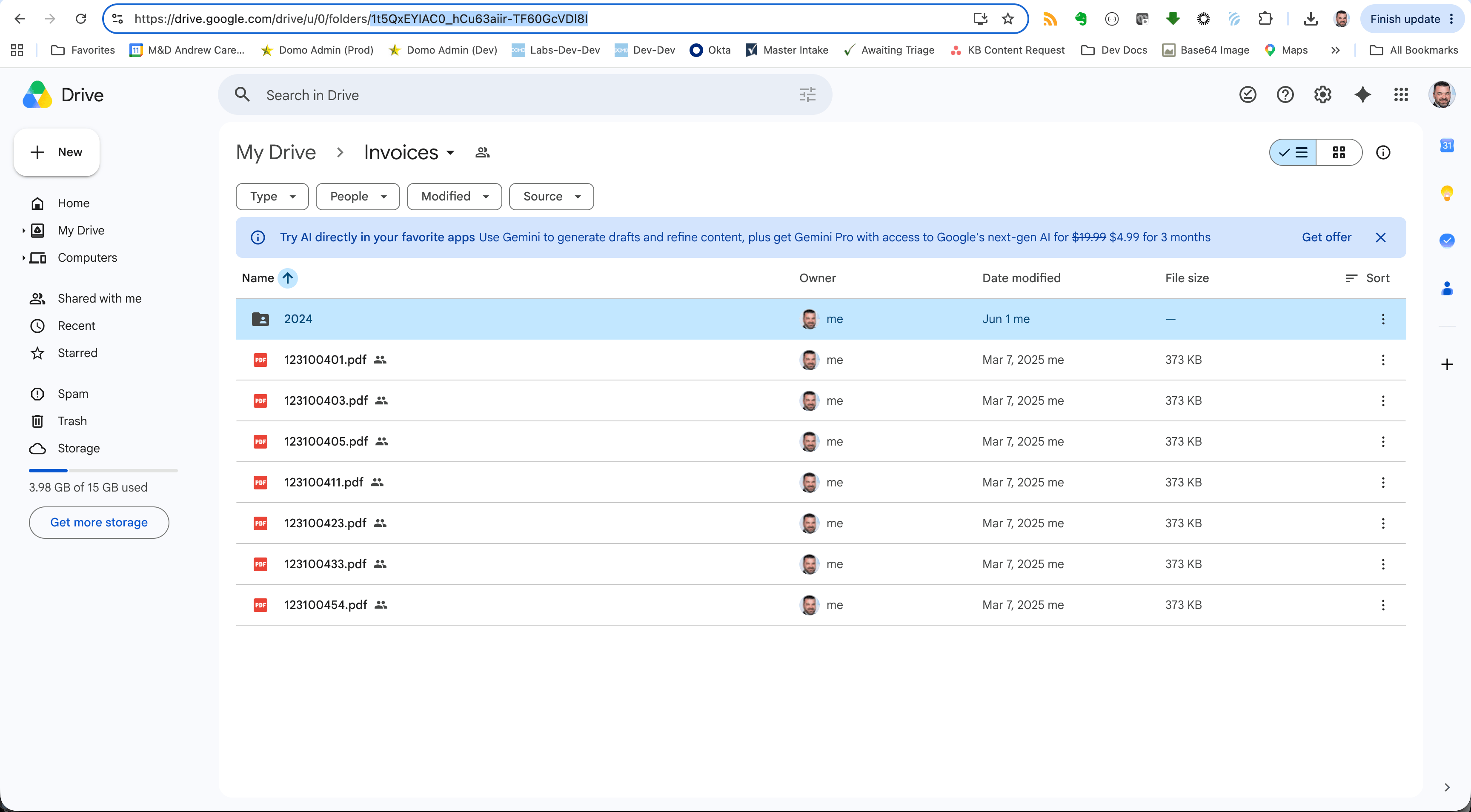
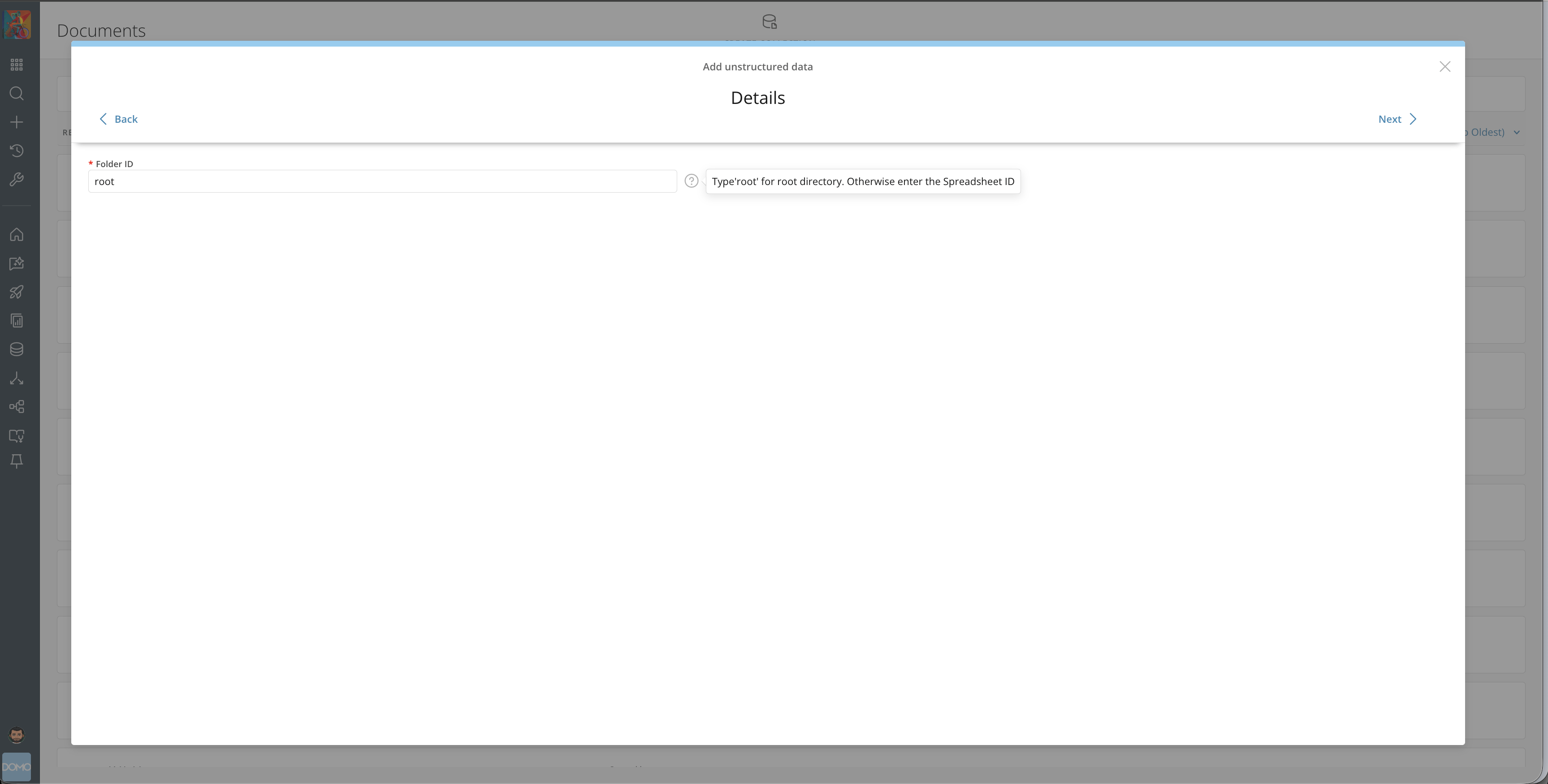
12. Type `root` for root directory, or enter the Drive ID.
<Frame>
  <img alt="Google Drive root directory field" src="https://mintcdn.com/domoinc-bradley-turek-pfilter-operators-reference/yl0etVGRdJGfZa1W/images/kb/GoogleDrive12.png?fit=max&auto=format&n=yl0etVGRdJGfZa1W&q=85&s=6a58db2b6920538539d640da096b8e89" width="3454" height="1750" data-path="images/kb/GoogleDrive12.png" />
</Frame>

<Frame>
  <img alt="Google Drive ID entry field" src="https://mintcdn.com/domoinc-bradley-turek-pfilter-operators-reference/yl0etVGRdJGfZa1W/images/kb/GoogleDrive13.png?fit=max&auto=format&n=yl0etVGRdJGfZa1W&q=85&s=38aeee6a7b972e4092b673625df0f6c2" width="3456" height="1908" data-path="images/kb/GoogleDrive13.png" />
</Frame>

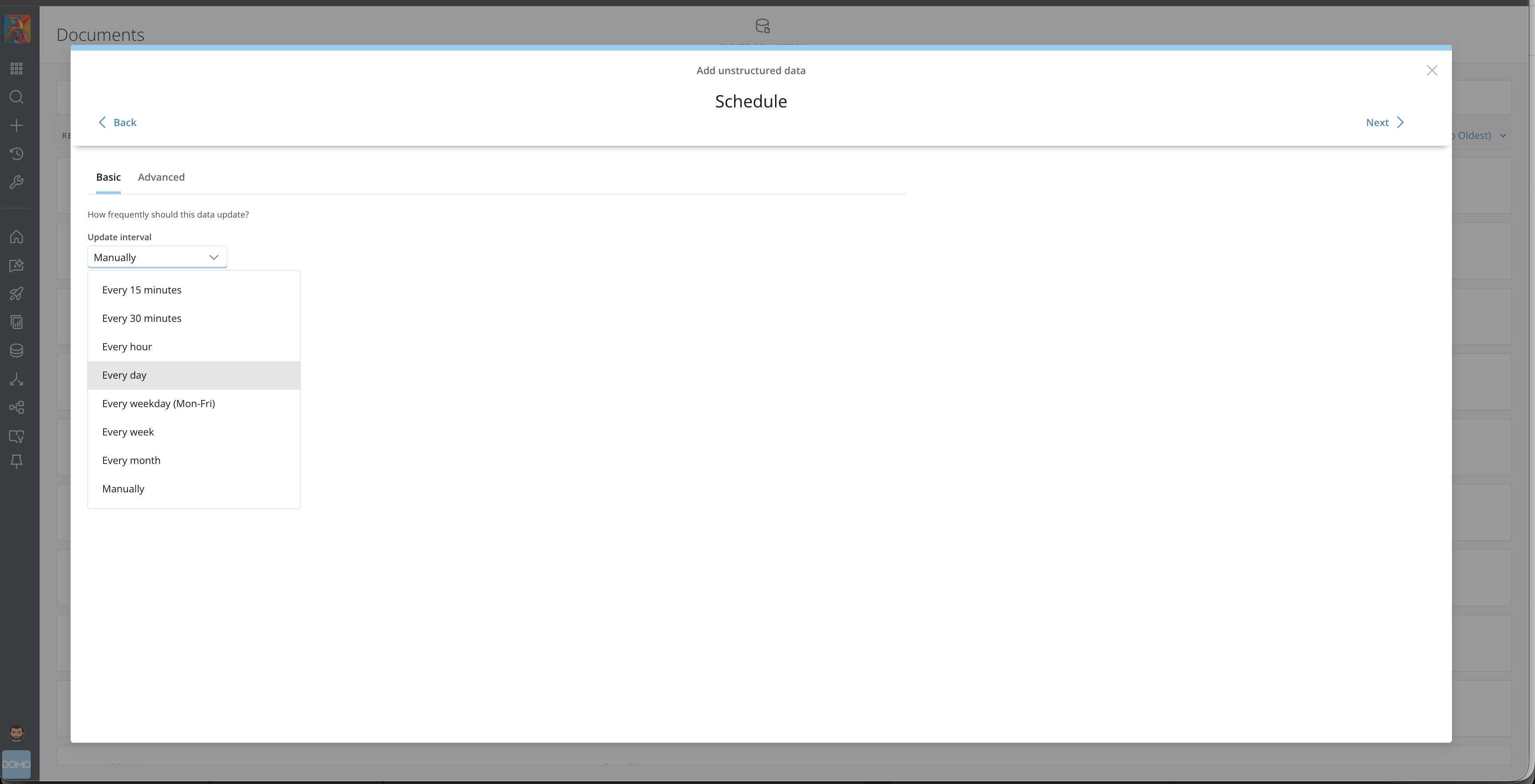
13. Set the update schedule.

<Frame>
  <img alt="Document Collection update schedule settings" src="https://mintcdn.com/domoinc-bradley-turek-pfilter-operators-reference/yl0etVGRdJGfZa1W/images/kb/GoogleDrive14.png?fit=max&auto=format&n=yl0etVGRdJGfZa1W&q=85&s=ec7ae2e48dacb0aedcd5fe6c177a31b2" width="3456" height="1766" data-path="images/kb/GoogleDrive14.png" />
</Frame>

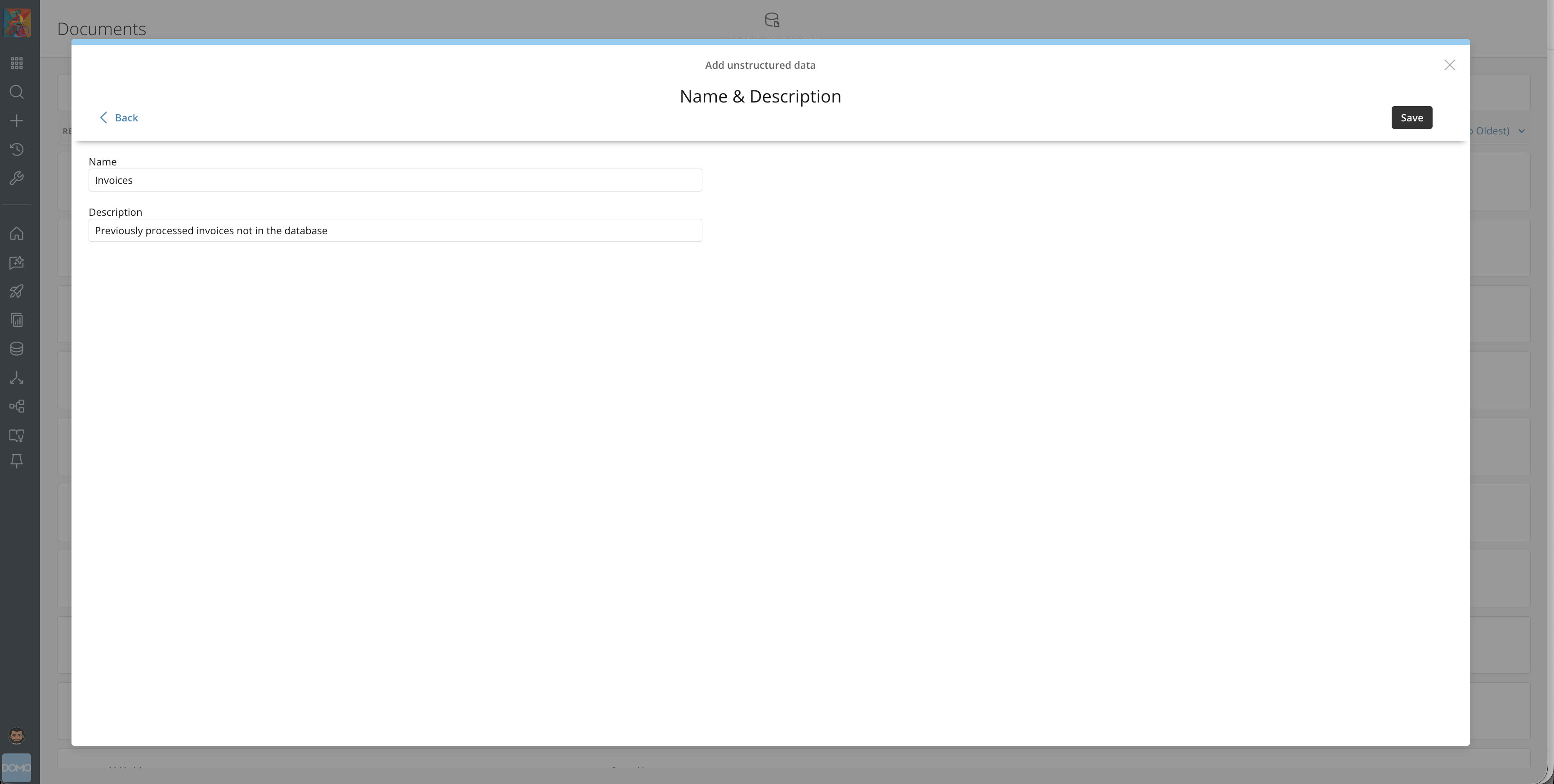
14. Set the name and description of this Document Collection, then select **Save**.
<Frame>
  <img alt="Document Collection name and description fields" src="https://mintcdn.com/domoinc-bradley-turek-pfilter-operators-reference/yl0etVGRdJGfZa1W/images/kb/GoogleDrive15.png?fit=max&auto=format&n=yl0etVGRdJGfZa1W&q=85&s=61b9ad7097ac47163478c2b421d41c80" width="3456" height="1744" data-path="images/kb/GoogleDrive15.png" />
</Frame>

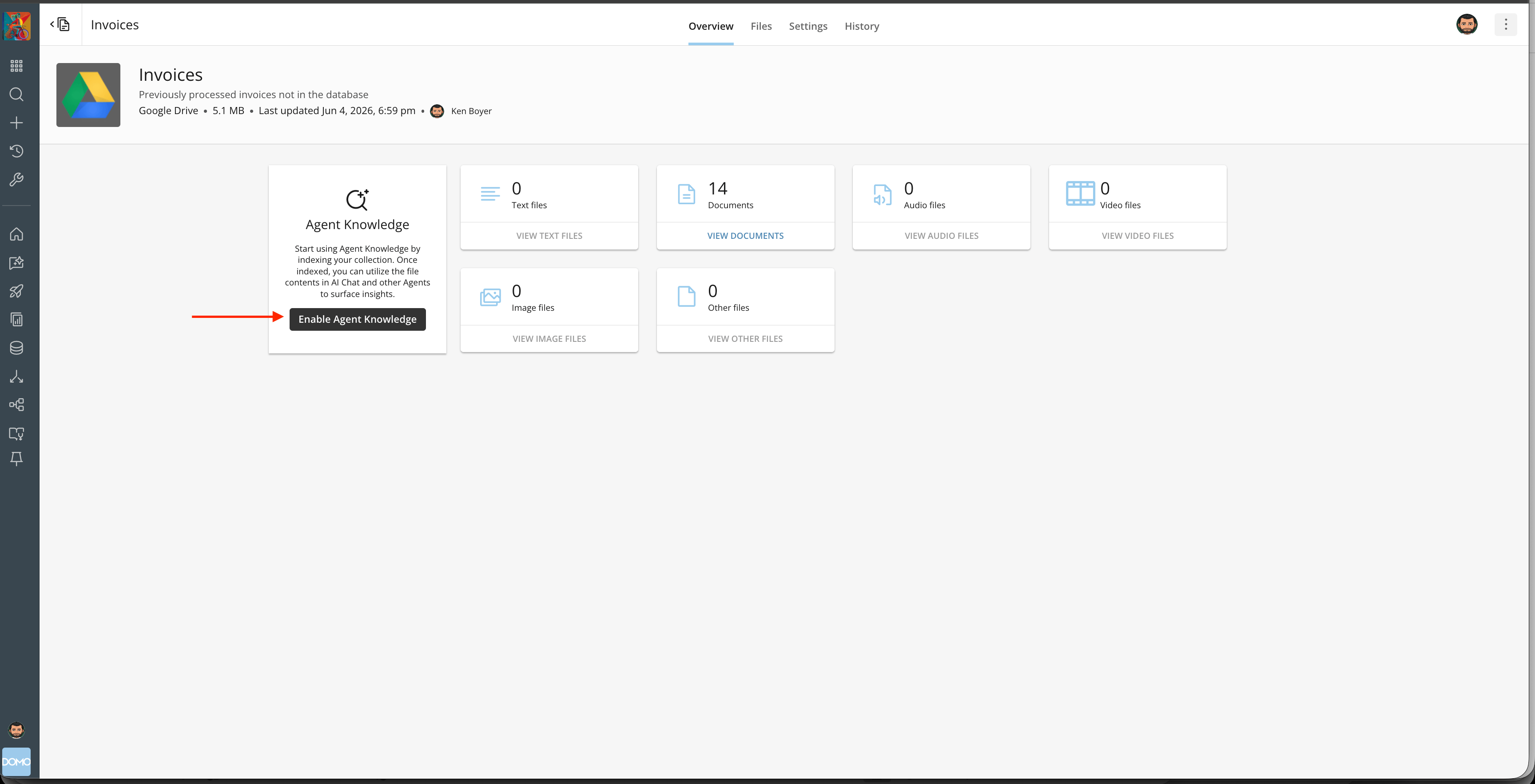
15. Allow time for the Collection to load files. Select the **Files** tab to view a listing of the referenced files, or select the **Overview** tab to enable **Agent Knowledge**.
<Frame>
  <img alt="Document Collection Files and Overview tabs" src="https://mintcdn.com/domoinc-bradley-turek-pfilter-operators-reference/yl0etVGRdJGfZa1W/images/kb/GoogleDrive16.png?fit=max&auto=format&n=yl0etVGRdJGfZa1W&q=85&s=06a03bbe15398a6a83521cae0bd02ba9" width="3456" height="1766" data-path="images/kb/GoogleDrive16.png" />
</Frame>