

Intro
This article covers the fields and menus specific to the Wasabi connector user interface. To add DataSets, set update schedules, and edit DataSet information, see Adding a DataSet Using a Connector.Prerequisites
To connect to your Wasabi account and create a DataSet, you need the following:- Your Access Key
- Your Secret Key
- The name of the Amazon S3 Bucket you want to pull files from
- The Amazon S3 Bucket region
Generate an Access Key and Secret Key
You must create a user with the proper permissions in the IAM Amazon Console before you can connect to S3 data in Domo. To configure your user in the IAM Amazon Console,-
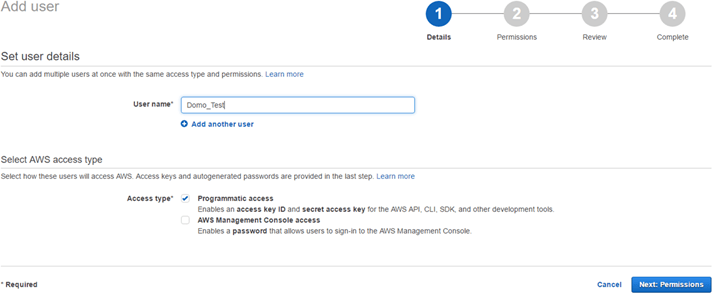
Add a new user.
a. In the Details pane, under Select AWS access type, select Programmatic Access.
b. In the Permissions pane, select Attach existing policies directly, then select one of the following policies:
- AmazonS3FullAccess
- AmazonS3ReadOnlyAccess
Note: Customer-managed policies are not supported.c. In the Review pane, select Create User.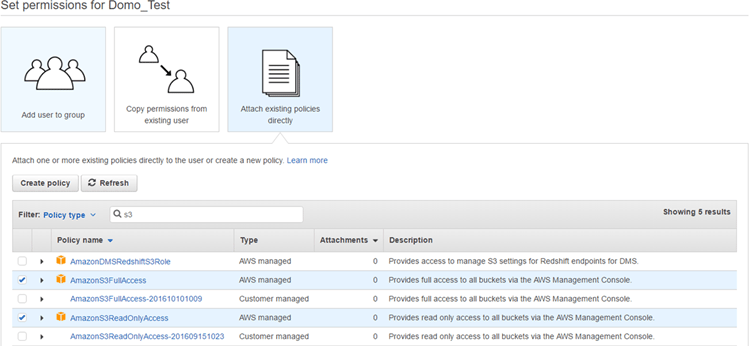
- After the user is created, copy the access key and secret key.
- Enter these keys in the Credentials pane in Domo.
Connect to Your Wasabi Account
This section covers the options in the Credentials and Details panes on the Wasabi connector page. The Scheduling and Name & Describe Your DataSet panes are universal across most connector types and are discussed in Adding a DataSet Using a Connector.Credentials Pane
This pane contains fields for entering credentials to connect to your Wasabi account.
After you have entered valid Wasabi credentials, you can use the same account at any time to create a new Wasabi DataSet. You can manage connector accounts in the Accounts tab in the Data Center. For more information, see Manage Connector Accounts.